Our Community is in read-only mode until April 8th, learn more here. You can still search existing threads or get help via Dropbox Support, the Dropbox Help Center, or Learn.
Forum Discussion

mrmrtno
1 year agoExplorer | Level 3
Unlinked Dropbox folder after restoring mac OS from Time Machine.
Hi there
I've been searching for a while, no solution in sight:
After restoring mac from time machine, most things worked as before, dropbox was re-linked (had to remove mac and link again,...

Megan Dropbox Community Moderator
1 year agoDropbox Community ModeratorHey mrmrtno!
I think the best case scenario here in order to avoid confusion, and make sure that the app is syncing properly would be the following:
Make sure all of your content is available when you visit your account online. Then unlink the device using these steps
-Right-click the Dropbox icon in the menu bar, by the clock.
-Click on your profile picture or initials to the right of the search bar and select 'Preferences' > 'Account.'
-Click the 'Unlink' button, then select 'OK' on Windows or 'Unlink anyway' on Mac.
-Afterwards, Dropbox will prompt you to re-register. Quit!
After this, delete all the existing Dropbox folders, and allow for the files to sync anew. If you have any questions, I'm here!

mrmrtno
1 year agoExplorer | Level 3
Hi Megan
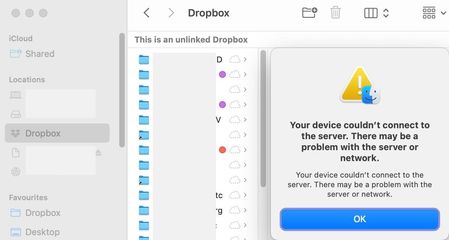
I'm sorry but I tried to follow these steps and again ran into some issues, like this
But more importantly problems with deleting my old, fully offline, but unlinked folder/location – which led me to do more research and I also vaguely remembered that at some point (last year?) there was a change in the dropbox system, no?
The location apparently was a change to ~/library/CloudStorage and that's why it shows up as a "location" in finder and it behaves weirdly. It is not a regular folder, it is some kind of "Cloud Storage", apparently a category of its own, which means I can't copy it and I can't move it to the bin.
I could delete it, but that seems worth a serious warning that I can't undo this and I should copy things I'd like to keep – which I can't unfortunately.
So I'm feeling kind of stuck again.
For a moment I almost thought there might be a way:
– Unlinking/Signing-out as you suggested
– deleting the new "hollow" folder
– re-starting & signing in again
THEN:
– pointing the app in preferences towards that "location" in Cloud Storage, where the old, unlinked, fully offline dropbox is
That seemed to be too good, too easy – and it wasn't. Dropbox said it can't create a new Dropbox folder there, probably because my old one is still there and it can't recognise & relink to that it seems.
BTW
Strangely the right-click-options suddenly came back meanwhile – for the old, unlinked Cloud Storage Dropbox. But none of them worked, all lead to error messages (as it is unlinked it seems).
So I'm still running around in circles and the problem is still not solved I'm afraid.
Next week I'll be travelling for business at a fair which is one of the main uses of my Dropbox to have content avialable on my mobile devices. I would love to have this solved ASAP to prepare for that with my Dropbox up & running again.
Any suggestions?
Thanks
M
- Jay1 year ago
Most likely, the best option would be to unlink the Dropbox desktop application from your Dropbox account by signing out of your account in the desktop app. This would prevent any changes on the machine from affecting your files online.
Afterwards, you can delete any Dropbox folder on your machine that you have mentioned, to avoid any confusion in the app or permission issues.
Finally you can follow the steps in the advanced reinstallation page to reinstall the Dropbox desktop application fully. Depending on if you're in the new File Provider setting or not, your new Dropbox folder could be located in your Users folder, or the CloudStorage folder.
- mrmrtno1 year agoExplorer | Level 3
Hi Jay
thanks.
The reinstallation seems to have worked now (even non-advanced), at least in the sense that the new Dropbox folder (conventional folder in classic user folder location) now syncs properly, all files are fully downloaded. That is one step closer to what I had and need, BUT:
Now there are two full Dropboxes (claiming twice the harddrive space) and apparently the old unlinked one (the weird Cloud Storage thing) is the one that all my linked folders point to and it is strangely the one that offers the DB-finder-options when right-clicking – which are useless of course, because it can't connect:
The new one, which is syncing with online DB does not have any DB-options:
So it still seems like there is sth not really working properly, no?
I'm still reluctant to deleting that unlinked CloudStorage DB, because there are tons of links that would become dead-ends and have to be recreated to the new DB.
Isn't there a way to relink to this (bloody) CloudStorage DB?
Thanks again
- Walter1 year ago
Hey mrmrtno - it seems that the desktop app is still linked to the wrong Dropbox folder somehow.
Could you try the advanced reinstall as Jay suggested and let us know how it goes?
If you end up with two folders again, send us a screenshot of both of them so that we can check the syncing icons in their contents.
- mrmrtno1 year agoExplorer | Level 3
Thanks Walter
the advanced reinstall wouldn't include deleting the old unlinked Cloud Storage folder?
This "File Provider" option does not have to do with anything?
That wouldn't change the DB-location to ~/library/CloudStorage (where that unlinked DB apparently was located before all that annoying screwed up system restore) …?
- Jay1 year ago
If you update to File Provider, this will use the CloudStorage location on your machine, as that's the only place it can be stored for Mac devices.
Since you don't want to lose links already linked to that location, this would be the best option to have the Dropbox folder back there.


About Apps and Installations
Have a question about a Dropbox app or installation? Reach out to the Dropbox Community and get solutions, help, and advice from members.
The Dropbox Community team is active from Monday to Friday. We try to respond to you as soon as we can, usually within 2 hours.
If you need more help you can view your support options (expected response time for an email or ticket is 24 hours), or contact us on X, Facebook or Instagram.
For more info on available support options for your Dropbox plan, see this article.
If you found the answer to your question in this Community thread, please 'like' the post to say thanks and to let us know it was useful!


