Your workflow is unique 👨💻 - tell us how you use Dropbox here.
Forum Discussion

bri_guy
2 years agoHelpful | Level 6
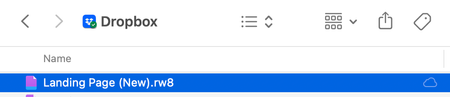
What is this 'cloud only' icon?
I have a file in my Dropbox folder on my Mac that has a "cloud only" icon next to it (see screenshot). What does it mean? It's not one of the icons mentioned at https://help.dropbox.com/sync/macos-sy...

bri_guy
2 years agoHelpful | Level 6
1) The file DOES appear on dropbox.com but is not syncing. Any changes made to the file locally are no longer being synced with the online version.
2) I do have one other file with the same icon/missing context menu. Both files with this issue have the .rw8 extension. These are project files created by RapidWeaver. Note that I have other .rw8 files that are not experiencing this issue.

Megan Dropbox Community Moderator
2 years agoDropbox Community ModeratorHi bri_guy, let's try something else:
Can you please make sure you re-start both the device, and sign out and then back into the app?
Just make sure that the files are closed when you do, and they're not open in any other program too.
- bri_guy2 years agoHelpful | Level 6
Well, after following your suggestions I have a bigger problem and it really looks like the Dropbox app is at fault. Here's what's happened:
After restarting my Mac, I logged out of the Dropbox app. Automatically, a pop-up appeared asking me to sign back in, which I did. For whatever reason, the app created a folder at ~/myusername/Dropbox (this folder is currently syncing). This USED to be the location for Dropbox documents before MacOS forced the move to using ~/username/Library/CloudStorage.
Now, the folder at ~/username/Library/CloudStorage/Dropbox has had today's date appended to its name and Finder says "This is an unlinked Dropbox". How can I fix this mess? Why is the Dropbox app using the OLD location for Dropbox documents?
- Hannah2 years ago
Hey bri_guy, sorry to jump in here.
Logging out of the Dropbox app and then back in, caused the folder path to revert to the old one, but other than that, everything should work as normal.
Did this fix your issue with the missing context menu items?
- bri_guy2 years agoHelpful | Level 6
"Logging out of the Dropbox app and then back in, caused the folder path to revert to the old one"
Yeah, that's exactly what happened - and it shouldn't have. But it gets weirder: a while after posting my last reply, I noticed a little red alert badge on the menu bar icon. It said that I needed to update the app, and that doing so would move all of my files to a new location as per Mac OS requirements.
The thing is, this was already done after the last app update. Why was it asking me to update again? Who knows. But I ran through the update and let Dropbox (once again) move everything to ~/Library/CloudStorage. Everything's working now, so that's good.
The weirdest part? The version number of the app is the same after I was told I needed to update. So I "updated" from version 168.4.4802 to 168.4.4802.
I guess the lesson learned here is DO NOT LOG OUT OF THE APP, because it doesn't work properly when you log back in.
 Eranjes2 years agoHelpful | Level 5
bri_guy , had the exact same problem. Currently no solution for that, only thing the community managers are trying to do is saying "restart computer, restart app, install everything from blank." This will always turn out it the dropbox getting copied as it has a totally mess of a setup process right now. For me also only downloading files working, nothing is uploading.
Hannah , that will not help. What will help is fixing this mess of a software.
I have provided extensive feedback which should help doing this. It is a total nightmare that this takes obviously months to get fixed when I see all the feedback and threads in this regards. Still waiting for response from the advanced team so far.

About Apps and Installations
Have a question about a Dropbox app or installation? Reach out to the Dropbox Community and get solutions, help, and advice from members.
The Dropbox Community team is active from Monday to Friday. We try to respond to you as soon as we can, usually within 2 hours.
If you need more help you can view your support options (expected response time for an email or ticket is 24 hours), or contact us on X, Facebook or Instagram.
For more info on available support options for your Dropbox plan, see this article.
If you found the answer to your question in this Community thread, please 'like' the post to say thanks and to let us know it was useful!


