Our Community is in read-only mode until April 8th, learn more here. You can still search existing threads or get help via Dropbox Support, the Dropbox Help Center, or Learn.
Collaboration
32 TopicsHow we use Dropbox: Sheena
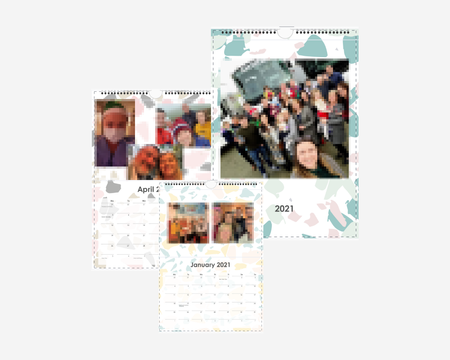
We’re back again with another dive into how we, Dropboxers, use Dropbox. This time we have the ever wonderful, social media master, code queen, Sheena! And we can add family file manager to this ever-growing list! I’m from a large Irish family, which means I have tons of cousins, aunts and uncles, and of course my wonderful grandparents. As the eldest cousin on my mother’s side, it generally falls to me to keep the cousins in line, and to gather the best gossip for my Grandmother! About 6 years ago my Grandmother mentioned that she felt she was missing out, as all of her grandchildren would share their best photos on social media, and she didn’t get to see them. That year I created the first Christmas Family Calendar. It was created using simple calendar creation websites, of which there are tons. I first got the pictures by looking at the family’s Facebook profiles and choosing lovely pics from holidays, parties and events throughout the year that my Grandparents would not have seen. Throughout the years, many of us have stopped updating Facebook as often, and some have stopped using social media altogether, so I needed a new way to gather the photos. This is when Dropbox came in! Three years ago, I created a File Request for the calendar photos, sent the link to the whole family… and that’s it. The photo’s simply rolled in throughout the year. Every so often I would send a reminder to add their best pics using the file request. By the end of the year I had more than enough photos, many that were never seen before as they were just stored in one of our phones until that point. This year, since we hadn’t been able to see each other as much as usual, I created the Christmas Family Calendar for my Grandparents as normal, and then as a special bonus I was able to send the full collection of photos to the whole family as a digital memory book for the year. Family pixelated to protect identities. Group photos taken prior to Covid-19 restrictions. Thanks Sheena! I might have to steal this for myself… How do you use Dropbox to share family memories?11KViews13likes1CommentEmojis in filenames are finally here! 🥳
Hey everyone! We’ve got some exciting news - Dropbox now supports way more characters in filenames and folders! Emojis are now supported across all surfaces, and it’s available to everyone! That means support for emojis like 🚀, 🎵, 🏴☠️, plus rare scripts like 𩸽, اللهِ, and even mathematical symbols like 𝛑 or 𝔸. This long-requested update fixes the issue of files not syncing properly due to unsupported characters, so everything now works just as expected. Whether you’re jazzing up a folder name with a little ✨ flair ✨or using your native language to stay in flow, we hope this update brings a little extra delight to your day and the way you work. Give it a go and let us know what you think! And of course, thank you to Link1328 for the idea and everyone who contributed to the thread! Let us know what you think, share your feedback or any other requests for characters to support below 👇 Happy organizing!1.8KViews10likes15Comments
Publish to social media from Dropbox!
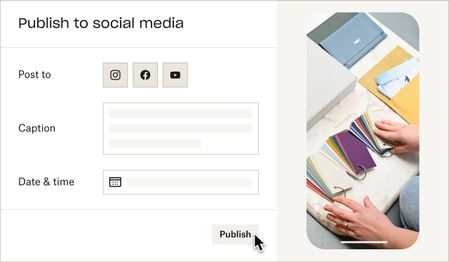
Hello! My name is Amanda. My team is building a feature to help users publish videos to their final destination — whether that’s social media, YouTube, your website, or elsewhere. We hear this task is repetitive and tiresome, and you shouldn’t have to waste time downloading and uploading videos to multiple places. Starting today, you can publish videos and photos directly from Dropbox to Instagram and Facebook**. Simply open a video or photo on www.dropbox.com, and click "Publish". Soon, we’ll let you schedule posts in advance, and post to YouTube. Note: This feature isn’t widely available to all users yet — if you don’t see the Publish button, reply to this thread with “opt-in” and we'll give your account access. 😉 If you’d like to collaborate and help shape the future of this feature, reply with “I’m ok for Dropbox to contact me by email” and we will reach out. **You must have an Instagram Business account and a Facebook Page to publish from Dropbox. See this article for support. ***Update - this feature has been temporarily postponed and there is no longer an "opt-in" option for it. Thank you for your continued patience.***Solved26KViews8likes32CommentsHow to get started with Selective Sync
Welcome to the Dropbox Community forum! We're thrilled to have you on board, and we want to make sure you get the most out of your Dropbox experience right from the start. Today, we're going to talk about Selective Sync. What is Selective Sync? Well, selective sync is a feature in the Dropbox desktop app that allows you to remove specific Dropbox folders from your hard drive so you can save space on your computer. You can remove the Dropbox folders from your computer without deleting files; the folders you remove from your hard drive remain stored in your account on dropbox.com How to use selective sync Note: To use selective sync, you’ll need to have the Dropbox desktop app installed on your device. To choose which Dropbox folders to store on or remove from your computer’s hard drive: Open your Dropbox desktop app preferences. Click the Dropbox icon in your taskbar. Click your avatar (profile picture or initials) in the top-right corner. Click Preferences. Click the Sync tab. Under Selective Sync (Windows), click Modify or Select folders to sync to this Mac (Mac), click Modify. Check the folders you’d like saved on your hard drive. Uncheck the folders you’d like removed. Click Update. What is the difference between selective sync and online-only? Making your files and folders online-only also helps save hard drive space. These files and folders will still be visible from your computer, but are stored in your Dropbox account online. Based on how you use certain files and folders, they can automatically be set to online-only. That's it! Now you can save valuable space for things that matter most to you, and learn how other Dropbox features can improve your day too! So, what do you want to see from us? Let us know!10KViews7likes18Comments
Updates Coming to the Folder Link Sharing Experience
Dropbox is moving to an updated shared link architecture where links are based on the content being shared rather than on the user doing the sharing. This new content-based link architecture is already in place for edit access links to folders and newly created links to files, and can be identified by the presence of an ‘rlkey’ parameter in the URL. Over the next few months, we’ll round out the shared link portfolio by bringing this new architecture to newly created view-only access folder links, or view folder links for short. With this transition we’re maintaining all the core functionality our users love about sharing with links, while making it even easier for content owners, collaborators, and team admins to manage their shared content easily and with confidence. Updates to Link Sharing Only Two Centralized Links per Item Securing your content and managing your shared links is now easier and simpler than ever. Basing links on the content being shared means there will never be more than one single edit and one single view link for each file or folder. Changing the settings on these links will universally apply to everyone with link access to that content. Because all collaborators on a piece of content share the same link, a change is that only content members with edit access are able to modify shared link settings or delete a shared link. URL Format Change Part of the new link architecture is the addition of an rlkey parameter. Query parameters are anything following “?” in a URL. It is this rlkey parameter which grants access to the content, and removing it will require visitors to sign in and request access. Visit this forum to read more about the new format, or this Help Center Article for details on forced downloads. Third Party Application Dependencies Due to the change in URL format you may notice some third party applications, websites, and custom programs that rely on pasting in a Dropbox link no longer function as expected. We have limited insight or influence on these third party use cases, but if you do experience issues, please contact Dropbox support or visit this community forum thread on this subject. Enhancing the Link Sharing Experience Quick, simple, stress-free file sharing is core to the Dropbox experience. Content-based links makes it even easier to share files securely and effortlessly in real-time, and we are excited to bring these benefits to all users across our full portfolio of shared links. If you have more questions, or find yourself needing support during this transition, please visit our Community Forums, reference our Help Center, or contact Dropbox Support.8.5KViews7likes8CommentsExciting news — we’ve launched the new Sync & Storage Dashboard in the Dropbox desktop app!
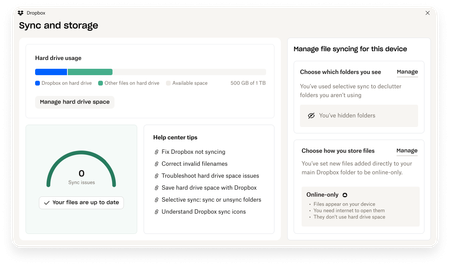
This dashboard makes it easier than ever to keep your files organized and your computer running smoothly. With just a click, you can: Get a real-time view of your sync status Quickly spot and resolve any syncing issues Monitor and manage how much disk space your Dropbox files are using Adjust your selective sync and storage preferences To open the dashboard, click the Dropbox icon in your taskbar (Windows) or menu bar (Mac), then select your avatar and choose Sync & storage. We’re excited for you to try it out! Please let us know your thoughts and how we can make it even better!9KViews6likes14CommentsHow To Check If Your Space Is Being Used By A Shared Folder and How To Leave A Shared Folder
Shared folders are one of the easiest ways to collaborate with others while using Dropbox. Having a shared space makes everything simpler when you’re working on a project, sharing family photos or keeping your teams files all organised. But you might be wondering: Does this shared folder take up space in my Dropbox account? And what if I no longer need access - how do I leave it? Does a Shared Dropbox Folder Count Toward My Storage? It depends on how the folder was share with you and what level of access you have. Here’s how to check: Sign in to dropbox.com and click All files. Look for folders with a two-person icon 👥 - these are shared folders. Hover over the folder name and click the “…” (More) menu. Choose Share → then Settings. You’ll see one of these options: Can edit → the folders contents do take up space in your Dropbox account Can view → the folders contents don’t count toward your space Tip: You can also check shared folders directly from the Dropbox desktop app - the 2 person icon works the same way there too. How to Leave a Shared Dropbox Folder I No Longer Need If you see “Can edit” and you no longer need access, it’s really easy to remove yourself from the folder. Here’s how: Go to dropbox.com and sign in. Click Shared in the left sidebar. Find the folder you want to leave. Click the “…” (More) button next to it. Select Leave folder → and confirm. Once you leave: The shared folder and its files are removed from your Dropbox. They’ll no longer count toward your storage. Other members will still have access as usual. If you originally created the shared folder, you’ll need to transfer ownership before leaving. To do that: Open the folder’s Share settings. Click the dropdown beside another member’s name. Select Make owner → then leave the folder. That way, everyone who needs it still has access and the ownership transfers smoothly. And that’s it! Keeping your Dropbox account organised is a simple way to make more room for what matters most - your ideas, projects and memories. If you ever change your mind and want back into a folder in the future, just ask the owner to share it with you again. Got questions about shared folders? Drop them in the comments below or visit our shared folders FAQs. How do you organise and manage your shared folders? Join the conversation and let us know!1.4KViews5likes0CommentsCommunity Member of the Month - April 2025
April has come and gone, and as we ease into the longer, brighter days of summer ☀️, it's of course that time to shine a light on our Community Member of the Month for April. Just like springtime, our Community has been blooming 🌼 with support and good vibes ✨. This month was so brilliant, we've decided to celebrate not one, but two Community Members of the Month 🎉. Please join us in congratulating itahoki and mcmeloni 🙌 These two have gone above and beyond, showing what true Community spirit looks like 💙. Their kindness, insight, and eagerness to help others haven’t gone unnoticed 👏. itahoki shared thoughtful advice and steady encouragement throughout April. Always positive and engaged, their contributions have made a real difference. Just have a look at this helpful post from the 4th of April: mcmeloni jumped into a conversation and shared their experiences and how they fixed an issue. This interaction was also top-tier Community spirit and vibes: We’ve got a special surprise for the both of you! 🎁 Simply reply to this message and we’ll make sure your token of appreciation is on its way to you ASAP 🚀. Think someone else deserves to be next month’s Community Member of the Month? 🌟 Let us know in the comments below ⬇️. And if you want to snag the spotlight yourself, jump into the fun, share your knowledge, start conversations, and spread the love by liking and commenting 💙.100Views5likes0Comments🌟🤝Community Spirit Badge 🤝🌟
Hey everyone! 🌟 It’s Theresa here. You’ve probably seen me hanging out in the Community, jumping into conversations and joining discussions (if you haven’t seen me before, well, hello 👋). And while doing that, I’ve noticed something pretty great (well, we all have here on the Dropbox Community Team) – so many of you are out here making this Community an amazing place. Whether you're helping others, sharing useful tips, or just bringing good vibes ✨, your contributions really stand out. To recognise and celebrate this, we’ve created a brand-new badge… This badge is all about celebrating the people who make this space feel like home. It’s for those who do more than just answer questions – the ones who offer a helping hand 🤝, share great tips 💡, and keep the good vibes flowing. Whether you're solving tricky problems 🧩, sharing useful resources 📚, or just making the Community a fun place to hang out 😃, we see you and we appreciate you. The Community Spirit Badge is a one-time award 🏆, so if you earn it, you know you're doing something special. It's a little extra recognition for those who truly bring the Community to life. We’re so excited 🎊 to launch this new badge and can’t wait to start recognizing the amazing individuals who truly bring the spirit of this Community to life. And if you spot someone who you think deserves the Community Spirit Badge, don’t hesitate to tag me Theresa within the thread. T 💙 (Dropbox Community Manager)857Views5likes0CommentsDropbox Basic: Let's Maximize Space
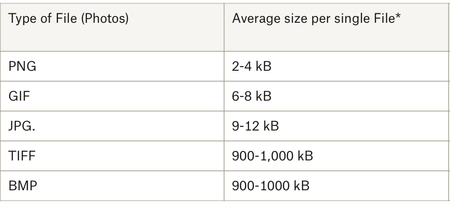
Try to think of your Dropbox cloud storage as a well organized bedroom. In order to maximize space, you want to be thoughtful about how you use each closet and section of the room. With your Dropbox Basic account you have 2 GB of storage. With this amount of storage its imperative that you are thoughtful about the files you save to your Dropbox account. If you know more about files sizes, you can make more informed decisions about which files you upload. In this article you will get a better understanding of how to maximize space with your Basic Dropbox account. What are the average file sizes of media we use daily? Images Many of use Dropbox to upload images, which come in several formats and sizes. These formats affect the amount of space the image may take up. Photos from our computers are usually in formats such as JPEG and PNG. This is great because these images often don’t take up as much space as larger format files. Image formatting (as in the space it takes up, not the dimensions of the photo itself) is based on resolution and quality of the pictures. I know this because I uploaded each type of image to my Dropbox Account and saw that the quality and difference in resolution affected the overall size. Larger pictures, such as raw camera footage (TIFF and BMP), should be converted to JPEG before uploading to your dropbox account. The rationale here is so that you save about 1000kB of space. Documents Documents overall take up the least amount of space. With your Basic account, you can save about 25,000 pages of word documents, depending on file size. If you use documents for planning and collaboration, I suggest you try using Dropbox Paper. Paper documents take up very little space on Dropbox. I would suggest placing homework assignments and projects that you may always need access to on your Dropbox account. I am currently working on creating my dissertation and have it saved on Dropbox - this document is super important to me and I need to ensure that I can access it from all of my devices. Media Files Video is the largest file format but that doesn’t mean you can’t store video files in your Dropbox Basic account. To make the video more compact you can use an online compressor, or, like I’ve done in the past, edit the videos to make them shorter. I have also experimented with changing the format of the video to reduce file size. Remember to treat your Dropbox like your well organized bedroom. You want to shrink larger items if you can and want to organize items that you know do not take up much space. I use my Dropbox account to hold my important documents, vacation photos and files from Dropbox Paper. Now that I know how much space each file takes up, I do my best to maximize my space. Let’s maximize our space by using the tips and tricks above - and if you have any other space saving tips, share them in the comments below!5.8KViews5likes0Comments