Our Community is in read-only mode until April 8th, learn more here. You can still search existing threads or get help via Dropbox Support, the Dropbox Help Center, or Learn.
Collaboration
32 TopicsWhat’s included in my Dropbox plan? Plus edition
If you use Dropbox there are a ton of amazing features available to you, but different plans have different features so we want to make sure you know exactly what you have access to! This time, we’re going to focus on Dropbox Plus accounts - so listen up if you’re a Plus user. Here is a list of the features available to Plus users, that I’m sure most people are already aware of, or using regularly already, but it never hurts to be reminded! 2 TB (2,000 GB) of storage space. Shared folders and links - learn the ins and outs of links here. Dropbox Paper - this is a big one, so here’s a refresher on that. Anywhere access Integrated desktop experience Best-in-class sync technology Mobile offline folders Camera upload Send up to 2 GB per Transfer File requests Web previews and comments Viewer info Remote device wipe File recovery and version history - 30-day history Dropbox Rewind - 30-day history Full text search Plus button Web previews and comments Integrated cloud content 256-bit AES and SSL/TLS encryption So those are the ones you likely already know, but there are some new and exciting features for Dropbox Plus users this year as well, and now’s your chance to learn all about them. Dropbox Family The Dropbox Family plan has 2 TB of storage space that can be shared by up to 6 members, even grandparents or kids away at college. With Dropbox Family, you and your family can securely organize and share content, like photos, videos, and important documents. Dropbox Passwords: Dropbox Passwords lets you seamlessly sign in to websites and apps by storing your passwords. The Passwords app remembers your usernames and passwords on all your devices—so you don’t have to. Dropbox Vault: Dropbox Vault helps you secure and organize your most sensitive information in the cloud. Vault is a PIN-protected folder in your Dropbox account that you can access any time and on any device. There’s even more new features, including Computer Backup, Hellosign and the App Centre so you can get more details here. Support: If you need help with your Plus account, you have access to priority email support, the Help Centre, and of course the Dropbox Community is always here to help.38KViews3likes2Comments
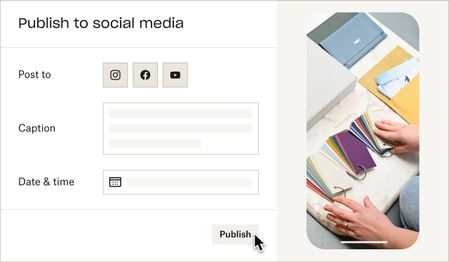
Publish to social media from Dropbox!
Hello! My name is Amanda. My team is building a feature to help users publish videos to their final destination — whether that’s social media, YouTube, your website, or elsewhere. We hear this task is repetitive and tiresome, and you shouldn’t have to waste time downloading and uploading videos to multiple places. Starting today, you can publish videos and photos directly from Dropbox to Instagram and Facebook**. Simply open a video or photo on www.dropbox.com, and click "Publish". Soon, we’ll let you schedule posts in advance, and post to YouTube. Note: This feature isn’t widely available to all users yet — if you don’t see the Publish button, reply to this thread with “opt-in” and we'll give your account access. 😉 If you’d like to collaborate and help shape the future of this feature, reply with “I’m ok for Dropbox to contact me by email” and we will reach out. **You must have an Instagram Business account and a Facebook Page to publish from Dropbox. See this article for support. ***Update - this feature has been temporarily postponed and there is no longer an "opt-in" option for it. Thank you for your continued patience.***Solved26KViews8likes32CommentsHow we use Dropbox: Sheena
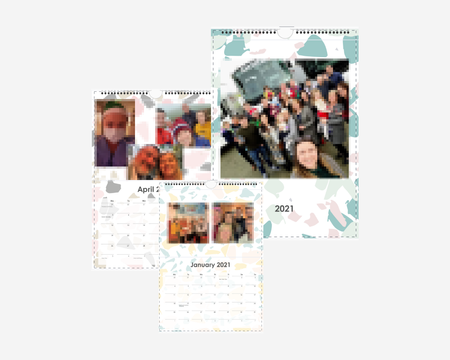
We’re back again with another dive into how we, Dropboxers, use Dropbox. This time we have the ever wonderful, social media master, code queen, Sheena! And we can add family file manager to this ever-growing list! I’m from a large Irish family, which means I have tons of cousins, aunts and uncles, and of course my wonderful grandparents. As the eldest cousin on my mother’s side, it generally falls to me to keep the cousins in line, and to gather the best gossip for my Grandmother! About 6 years ago my Grandmother mentioned that she felt she was missing out, as all of her grandchildren would share their best photos on social media, and she didn’t get to see them. That year I created the first Christmas Family Calendar. It was created using simple calendar creation websites, of which there are tons. I first got the pictures by looking at the family’s Facebook profiles and choosing lovely pics from holidays, parties and events throughout the year that my Grandparents would not have seen. Throughout the years, many of us have stopped updating Facebook as often, and some have stopped using social media altogether, so I needed a new way to gather the photos. This is when Dropbox came in! Three years ago, I created a File Request for the calendar photos, sent the link to the whole family… and that’s it. The photo’s simply rolled in throughout the year. Every so often I would send a reminder to add their best pics using the file request. By the end of the year I had more than enough photos, many that were never seen before as they were just stored in one of our phones until that point. This year, since we hadn’t been able to see each other as much as usual, I created the Christmas Family Calendar for my Grandparents as normal, and then as a special bonus I was able to send the full collection of photos to the whole family as a digital memory book for the year. Family pixelated to protect identities. Group photos taken prior to Covid-19 restrictions. Thanks Sheena! I might have to steal this for myself… How do you use Dropbox to share family memories?11KViews13likes1CommentHow to get started with Selective Sync
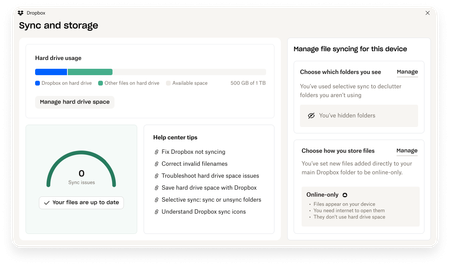
Welcome to the Dropbox Community forum! We're thrilled to have you on board, and we want to make sure you get the most out of your Dropbox experience right from the start. Today, we're going to talk about Selective Sync. What is Selective Sync? Well, selective sync is a feature in the Dropbox desktop app that allows you to remove specific Dropbox folders from your hard drive so you can save space on your computer. You can remove the Dropbox folders from your computer without deleting files; the folders you remove from your hard drive remain stored in your account on dropbox.com How to use selective sync Note: To use selective sync, you’ll need to have the Dropbox desktop app installed on your device. To choose which Dropbox folders to store on or remove from your computer’s hard drive: Open your Dropbox desktop app preferences. Click the Dropbox icon in your taskbar. Click your avatar (profile picture or initials) in the top-right corner. Click Preferences. Click the Sync tab. Under Selective Sync (Windows), click Modify or Select folders to sync to this Mac (Mac), click Modify. Check the folders you’d like saved on your hard drive. Uncheck the folders you’d like removed. Click Update. What is the difference between selective sync and online-only? Making your files and folders online-only also helps save hard drive space. These files and folders will still be visible from your computer, but are stored in your Dropbox account online. Based on how you use certain files and folders, they can automatically be set to online-only. That's it! Now you can save valuable space for things that matter most to you, and learn how other Dropbox features can improve your day too! So, what do you want to see from us? Let us know!10KViews7likes18CommentsExciting news — we’ve launched the new Sync & Storage Dashboard in the Dropbox desktop app!
This dashboard makes it easier than ever to keep your files organized and your computer running smoothly. With just a click, you can: Get a real-time view of your sync status Quickly spot and resolve any syncing issues Monitor and manage how much disk space your Dropbox files are using Adjust your selective sync and storage preferences To open the dashboard, click the Dropbox icon in your taskbar (Windows) or menu bar (Mac), then select your avatar and choose Sync & storage. We’re excited for you to try it out! Please let us know your thoughts and how we can make it even better!9KViews6likes14Comments
Updates Coming to the Folder Link Sharing Experience
Dropbox is moving to an updated shared link architecture where links are based on the content being shared rather than on the user doing the sharing. This new content-based link architecture is already in place for edit access links to folders and newly created links to files, and can be identified by the presence of an ‘rlkey’ parameter in the URL. Over the next few months, we’ll round out the shared link portfolio by bringing this new architecture to newly created view-only access folder links, or view folder links for short. With this transition we’re maintaining all the core functionality our users love about sharing with links, while making it even easier for content owners, collaborators, and team admins to manage their shared content easily and with confidence. Updates to Link Sharing Only Two Centralized Links per Item Securing your content and managing your shared links is now easier and simpler than ever. Basing links on the content being shared means there will never be more than one single edit and one single view link for each file or folder. Changing the settings on these links will universally apply to everyone with link access to that content. Because all collaborators on a piece of content share the same link, a change is that only content members with edit access are able to modify shared link settings or delete a shared link. URL Format Change Part of the new link architecture is the addition of an rlkey parameter. Query parameters are anything following “?” in a URL. It is this rlkey parameter which grants access to the content, and removing it will require visitors to sign in and request access. Visit this forum to read more about the new format, or this Help Center Article for details on forced downloads. Third Party Application Dependencies Due to the change in URL format you may notice some third party applications, websites, and custom programs that rely on pasting in a Dropbox link no longer function as expected. We have limited insight or influence on these third party use cases, but if you do experience issues, please contact Dropbox support or visit this community forum thread on this subject. Enhancing the Link Sharing Experience Quick, simple, stress-free file sharing is core to the Dropbox experience. Content-based links makes it even easier to share files securely and effortlessly in real-time, and we are excited to bring these benefits to all users across our full portfolio of shared links. If you have more questions, or find yourself needing support during this transition, please visit our Community Forums, reference our Help Center, or contact Dropbox Support.8.5KViews7likes8CommentsDropbox Basic: Let's Maximize Space
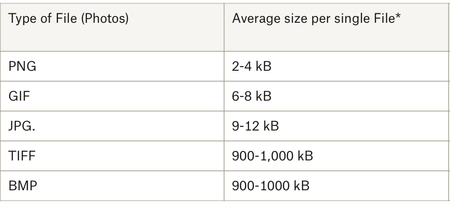
Try to think of your Dropbox cloud storage as a well organized bedroom. In order to maximize space, you want to be thoughtful about how you use each closet and section of the room. With your Dropbox Basic account you have 2 GB of storage. With this amount of storage its imperative that you are thoughtful about the files you save to your Dropbox account. If you know more about files sizes, you can make more informed decisions about which files you upload. In this article you will get a better understanding of how to maximize space with your Basic Dropbox account. What are the average file sizes of media we use daily? Images Many of use Dropbox to upload images, which come in several formats and sizes. These formats affect the amount of space the image may take up. Photos from our computers are usually in formats such as JPEG and PNG. This is great because these images often don’t take up as much space as larger format files. Image formatting (as in the space it takes up, not the dimensions of the photo itself) is based on resolution and quality of the pictures. I know this because I uploaded each type of image to my Dropbox Account and saw that the quality and difference in resolution affected the overall size. Larger pictures, such as raw camera footage (TIFF and BMP), should be converted to JPEG before uploading to your dropbox account. The rationale here is so that you save about 1000kB of space. Documents Documents overall take up the least amount of space. With your Basic account, you can save about 25,000 pages of word documents, depending on file size. If you use documents for planning and collaboration, I suggest you try using Dropbox Paper. Paper documents take up very little space on Dropbox. I would suggest placing homework assignments and projects that you may always need access to on your Dropbox account. I am currently working on creating my dissertation and have it saved on Dropbox - this document is super important to me and I need to ensure that I can access it from all of my devices. Media Files Video is the largest file format but that doesn’t mean you can’t store video files in your Dropbox Basic account. To make the video more compact you can use an online compressor, or, like I’ve done in the past, edit the videos to make them shorter. I have also experimented with changing the format of the video to reduce file size. Remember to treat your Dropbox like your well organized bedroom. You want to shrink larger items if you can and want to organize items that you know do not take up much space. I use my Dropbox account to hold my important documents, vacation photos and files from Dropbox Paper. Now that I know how much space each file takes up, I do my best to maximize my space. Let’s maximize our space by using the tips and tricks above - and if you have any other space saving tips, share them in the comments below!5.8KViews5likes0CommentsIt’s time for real time editing, with Dropbox Paper
If you are collaborating with someone, whether it’s for work, school or a home project, teamwork is essential! Part of great teamwork is working efficiently and real time editing is key. Keep reading to learn how to make the most of real time editing! What is real time editing? The name is pretty self explanatory, but real time editing means that multiple team members can work on a single file simultaneously, and that any changes to that file update for every user, almost instantaneously. To make sure you and your team are on the same page, real time collaboration only works with online, cloud-based applications that allow any number of users to access and edit files synchronously from computers, tablets, or mobile devices. Our favorite has to be Dropbox Paper, so keep reading to learn how to edit in real time. Using Dropbox Paper for real time editing Not to repeat myself but I love Dropbox Paper. No, really, I LOVE Dropbox Paper, I have written about using Paper for personal uses and keeping yourself on track, but now we are looking at using Paper with other folks to make the most of your collaboration. First off, you can edit the text within your Paper doc at the same time as others, so if you’re working in a project for school or work, or just planning something together, you can work together in real time. That means you can ‘chat’ in the document without having to hop on a call. Or, you can work separately, at a time that suits you without having to email an updated version back and forth. Beyond simple text, you of course have the check lists and to-do lists that make Paper so useful! When working with others, it always helps to be clear on who’s in charge of what, and a check box and tagging feature makes that easy. As well as text and to-do lists, you can add so many different types of content to a document, so you can have all of your project materials in one place. Text files, to links, to checklists, even SoundCloud clips and YouTube videos. That means that you can see an entire project from start to finish in one place. Using real time editing with Dropbox Paper at a meeting When you do meet up in person, real time editing can be used to really make the most of your time together. Dropbox Paper has customizable agenda and meeting minutes templates. So, everyone starts on the same page and everyone can take notes in real time in the same place. No one gets stuck as the note taker - which means you can all pay attention and join in. You can also use Dropbox Paper to share the output of your meeting with a wider team - just share the doc with them, or tag then in it and they can join in. Real time editing with Microsoft Office and Google Docs files in Dropbox It’s not just Paper files that you can edit in real time with Dropbox. When you integrate your Dropbox account with Microsoft Office, you’ll also be able to edit Word, Excel, and PowerPoint files online, collaboratively. You can also collaborate on Google Docs, Sheets, and Slides directly from Dropbox.com. So, even if you’re not as hardcore a Paper fan as me, (or you are but your team works on something else), you can make the most of real time edits too. Do you use collaborative documents? Share your favorite ways of working below, and we can share any extra tips we might have up our sleeves too!4.2KViews1like0CommentsTell Us How You Use Dropbox
No two people use Dropbox in exactly the same way. Some of you rely on it every day for work, others for school, creative projects, or keeping life organized - and we love that. We’d love to hear how you’re using Dropbox today - is it something you use once in a while, is it part of your day to day, are there any features you can’t live without? What workflows have you built that save time or reduce friction? And where do you see opportunities for us to do better? Your tips, ideas, and honest feedback really help us to make sure we can share useful tips, and they help other community members discover new ways to get more out of Dropbox too. Share your experience, favorite features, or suggestions in the comments below. Your voice truly helps shape the future of the Dropbox community 😁 The Dropbox Community Team3.9KViews4likes14CommentsDropbox Basic: quick solutions to common issues
Your Dropbox Basic account allows you to organize your files and folders, you might have heard us mention it once or twice. Check out this post, where I discuss how to best utilize your Dropbox Basic account. Dropbox has become one of my favorite tools to keep me organized and maintain my virtual workspace. Since it’s so important to me, I try to stay on top of my account by avoiding issues such as forgetting my password, getting locked out my account or not being able to sync my files. As part of my Dropbox journey, I have used several solutions to help me alleviate problems that I come across. Even people that work inside Dropbox can stumble or come up against an issue, but don’t worry, we can get you back up and running in no time. Here's some of the inside scoop on a few quick solutions. I forgot my Dropbox password If you forget your password, do not panic. I have so many passwords that I occasionally forget my Dropbox password. Here are 5 quick steps of how to change your password. Go to dropbox.com. Click Sign in. Click Forgot your password? under the Sign in button. Enter the email address you used to create the account. Dropbox will send a password reset link to that address. Click the link in the email to create a new password. Once you are back into your Dropbox account you can use Dropbox Passwords and never lose access to your accounts again. Dropbox Passwords is a mobile and desktop app that syncs your passwords across devices and lets you seamlessly sign in to websites and apps. Read more about how to troubleshoot password challenges. My files won't sync Have you ever began working on a project and your document is not syncing to your Dropbox account? This problem is often an external issue, meaning your internet connection may not be strong or you may have to restart your computer. Here are a few tips and tricks on how to solve the problem of files that won't sync. Internet connection: Your Dropbox account on the desktop will only sync files when your computer is connected to the internet. Check the connection and reconnect if necessary. Once connected, your files should sync. Restart: If the internet connection is good to go, but you still do not have access to your Dropbox account, it will be helpful to restart Dropbox and restart your computer. Space: You may have used too much space and the new file you are working to upload cannot fit into your Dropbox account. Check that you have not used all your space if this new file is not syncing. Connected accounts: Remember, you can connect 3 different devices with your Dropbox Basic account. If you are logged into your Dropbox account on 4 or more devices, chances are your information may not sync. Double check that you are only logged on to 3 devices and sign out of your 4th device if necessary. I received an error message An error message popped up on your screen when you tried to share one of your files. This likely happened because the file you tried to share isn’t in your Dropbox account anymore. This can occur if the file was deleted or removed from Dropbox, by you or another member of the folder. To restore deleted files or folders: Sign in to dropbox.com. Click Deleted files in the left sidebar. Click on the name of the deleted file or folder you want to recover. You can select multiple files or folders at once by clicking the checkbox icon Click Restore. Restorations can take time if you’re restoring a large number of files. I can’t find my files Have you ever gone into your Dropbox account and thought you had a case of the missing files? Believe me your files are not missing, so you don’t need to start calling the Files and Folders police. Dropbox always logs the move of a file as both a deletion and an addition. If you moved or renamed files, you will receive a deleted files message. Here’s 2 methods that has worked for me to retrieve my files. Use the Search Bar Sign in to your Dropbox account on the website Locate the search bar at the top of the page Type in some keywords related to the missing files. Locate the log entry for the deletion of your files or folder Next click the three dots beside your missing files > Then click the Restore button. Use the Events Page Sign into your Dropbox account on the website and Navigate to dropbox.com/events. Scanning the page and looking for the deletions that relate to the missing file or folder. Click the Restore button to get them back. If you are reading this, chances are you have a Dropbox Basic account. You have learned how to use differentapplications, tips and tricks through engaging in the Dropbox Basic series. Remember the Dropbox Community is yours and a very relatable and resourceful place to collaborate and connect with other Dropbox users. Visit the Dropbox Community to guide you through any other issues or questions you may have about your Dropbox Basic Account. If you have a question about your Dropbox Basic account, reply to this post.3.3KViews1like0Comments