Our Community is in read-only mode until April 8th, learn more here. You can still search existing threads or get help via Dropbox Support, the Dropbox Help Center, or Learn.
Dropbox Plus
297 Topics
Dropbox Not working after restart: Reconnecting to the internet. This may take a moment.
I have been experiencing a very frustrating issue with Dropbox the past few days. Issue: After restarting my Mac Studio (MacOS 13.6.5), Dropbox always gets stuck with the message: Reconnecting to the internet. This may take a moment. No VPN No Firewall Home Network Fully updated Dropbox The thing that is baffling is that : If you Quit and restart Dropbox it works immediately but if you restart the computer the issue appears again If you wait for a long time Dropbox eventually connects and syncs. But it takes a long time On the same computer, about a week ago, Dropbox was syncing instantly after reboot. I have tried already reinstalling and deleting the cache folder. Is this a known issue that's going on at the moment> Many thanksSolved31KViews13likes120Comments
Is there a cheaper plan than the Plus plan, that offers more space?
my question is: Is there any plan that is even cheaper than the normal basic plan of 2000 tb? It happens that I want to have more storage space, but the cheapest plan is still quite expensive. Is there an alternative storage plan, which is cheaper?Solved31KViews12likes171Comments
Did you know... you can search for images using just text?
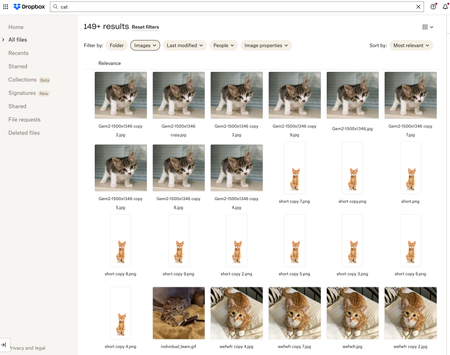
Hello Dropbox Community! My name is Lainie and I'm a Product Manager at Dropbox. Every now and again, I am going to post a "Did you know..." to 1) keep you informed of all of the cool technology that exists at Dropbox and 2) gather your feedback on how the features are performing. In today's, "Did you know..." I'll be talking about Image Search! Image search is allows you to use the Search Bar to search for the contents of the image using words to describe the image. For example, if you search for "cat" your search results will show files that 1) contain the word "cat" in the file name or body, AND 2) files that contain images of cat. No mention of the word "cat" is necessary! Pretty cool! If you haven't yet, I recommend that you check it out. Please respond to this thread and let me know... A) Did you know this feature existed? Do you use it? B) How can we make this even more useful for you? Have a great day! Lainie For more information, check out our Help Center Article on Image Search!9.5KViews9likes3CommentsWeb Videos now supports auto-generated Video Transcriptions + Closed Captioning
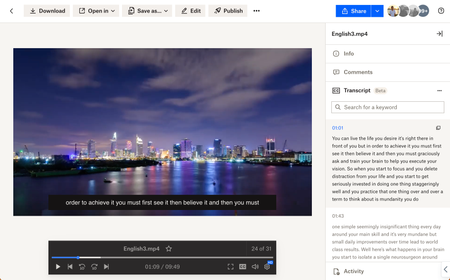
Hey folks! My name is Derrick and I work on a team that improves the file preview and viewing experience at Dropbox. We are excited to announce two features on Dropbox.com to enhance your video viewing experience: video transcriptions and closed captioning. Here’s how to use: Simply upload your video to Dropbox and voila! Your videos will have auto-generated transcripts and closed captioning at your disposal with a click of a button. Even more so - watch videos shared from your colleagues - and copy transcribed segments to instantly quote them in a presentation. Tell me about your experience with our new features! We are all ears. Help Center Article URL: https://help.dropbox.com/view-edit/transcript-closed-captions12KViews9likes9Comments
Tell us what you think of the mobile search improvements
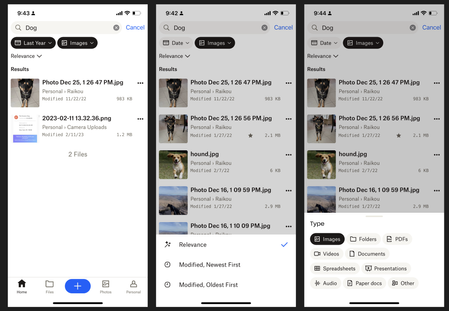
Hello! My name is Luke and I work on the Mobile app team at Dropbox. We're excited to share some updates that we've made to the Search experience on the Android and iOS apps. Here's what's new: Larger Result Thumbnails Modified Dates in search results File Sizes in search results Snippets for keyword matches within files Sorting results by newest or oldest Filtering results by File Type or 'Modified Date' We hope that these changes will help you retrieve your files more quickly and easily! We'd love to hear what you think -any feedback is welcome.4.5KViews7likes3CommentsDropbox update has caused Windows File Explorer to slow so badly I cannot work
Ever since this update was forced upon us, my File Explorer no longer works properly. It takes forever to load with a green bar at the top and white icons. When it does finally load, if I click on a file to either open it or copy it or whatever, I get the blue donut and nothing happens for ages. I have to go away and do something else for 5 or 10 minutes before it will finally allow me to right-click or open it. I am beyond frustrated now. It took me over an hour to complete a simple copy and paste task this morning that would normally take less than 5 minutes. I simply cannot run my business this way. I've tried various things such as the obvious rebooting etc. I also tried to rename the Shell Icon Overlays as there is apparently a limit in Windows and Dropbox was apparently causing an overlay limit conflict. I also cleared my thumbnail/icon cache. Nothing I do is working. It's awful and I hate the change. I just want it to work. File Explorer isn't great at the best of times as it's so unreliable and I've always had to restart it 2 or 3 times a day. But now it's not working for me at all. Please can someone help? I am incredibly busy at work and have now wasted a good 4 hours on this. I really desperately need to get on with my work. I'm using Windows 10 Pro and it's up to date.1.2KViews5likes12Comments🌟🤝Community Spirit Badge 🤝🌟
Hey everyone! 🌟 It’s Theresa here. You’ve probably seen me hanging out in the Community, jumping into conversations and joining discussions (if you haven’t seen me before, well, hello 👋). And while doing that, I’ve noticed something pretty great (well, we all have here on the Dropbox Community Team) – so many of you are out here making this Community an amazing place. Whether you're helping others, sharing useful tips, or just bringing good vibes ✨, your contributions really stand out. To recognise and celebrate this, we’ve created a brand-new badge… This badge is all about celebrating the people who make this space feel like home. It’s for those who do more than just answer questions – the ones who offer a helping hand 🤝, share great tips 💡, and keep the good vibes flowing. Whether you're solving tricky problems 🧩, sharing useful resources 📚, or just making the Community a fun place to hang out 😃, we see you and we appreciate you. The Community Spirit Badge is a one-time award 🏆, so if you earn it, you know you're doing something special. It's a little extra recognition for those who truly bring the Community to life. We’re so excited 🎊 to launch this new badge and can’t wait to start recognizing the amazing individuals who truly bring the spirit of this Community to life. And if you spot someone who you think deserves the Community Spirit Badge, don’t hesitate to tag me Theresa within the thread. T 💙 (Dropbox Community Manager)857Views5likes0CommentsTell Us How You Use Dropbox
No two people use Dropbox in exactly the same way. Some of you rely on it every day for work, others for school, creative projects, or keeping life organized - and we love that. We’d love to hear how you’re using Dropbox today - is it something you use once in a while, is it part of your day to day, are there any features you can’t live without? What workflows have you built that save time or reduce friction? And where do you see opportunities for us to do better? Your tips, ideas, and honest feedback really help us to make sure we can share useful tips, and they help other community members discover new ways to get more out of Dropbox too. Share your experience, favorite features, or suggestions in the comments below. Your voice truly helps shape the future of the Dropbox community 😁 The Dropbox Community Team3.9KViews4likes14CommentsMacOS Sonoma 14.1 constant high CPU by process DropboxFileProvider
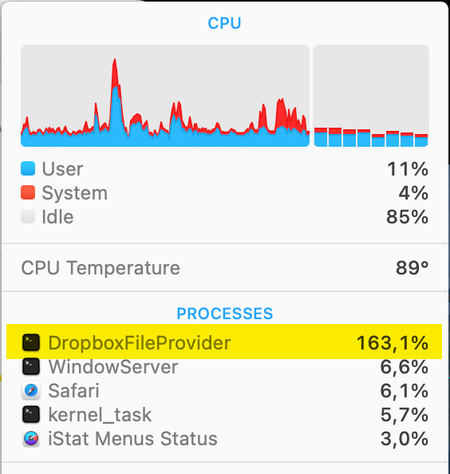
I'm using the latest version of Dropbox (v186.4.2607) on my MacBook Pro (2,4 GHz 8-Core Intel Core i9) that is running macOS Sonoma 14.1. Lately I've noticed that Dropbox is having a high cpu (150 - 200%) almost all of the time. Dropbox is always syncing although nothing is synced because all is already synced. The menubar icon always shows the sync icon and never the ready icon anymore. This is very unpleasant and the MacBook Pro is now always very warm/hot with temperatures from 85 to 100 ºC and that is not how it should be. Is there a solution for this issue?14KViews4likes27Comments
Something went wrong message when trying to pay for upgrade
I have been directed to seek your help paying for an upgrade on my account. I get the same error no matter what computer, or browser (even incognito). It allows me to enter all my payment info, but the black box is spinning and the submit button is grey and there is a pop-up that says 'Something went wrong. Please refresh.' I was direct here when the support request by email only allowed for cancellations or refunds, which seemed to mystify the person advising me via chat.15KViews4likes121Comments