Your workflow is unique 👨💻 - tell us how you use Dropbox here.
Dropbox Plus
10 TopicsTell Us How You Use Dropbox
No two people use Dropbox in exactly the same way. Some of you rely on it every day for work, others for school, creative projects, or keeping life organized - and we love that. We’d love to hear how you’re using Dropbox today - is it something you use once in a while, is it part of your day to day, are there any features you can’t live without? What workflows have you built that save time or reduce friction? And where do you see opportunities for us to do better? Your tips, ideas, and honest feedback really help us to make sure we can share useful tips, and they help other community members discover new ways to get more out of Dropbox too. Share your experience, favorite features, or suggestions in the comments below. Your voice truly helps shape the future of the Dropbox community 😁 The Dropbox Community Team2.3KViews3likes11CommentsManaging your Dropbox subscription
The time may come when you want to change your Dropbox subscription and whether you need more or less from Dropbox, we want to make sure that you have all the information you need to do just that. Need more space? Why not move to a plan with more storage? If you’re changing plans because you need more space, you can check out the plan types here, but to give you a quick summary of space: Basic plan: 2 GB of space Plus plan: 2 TB of space Family plan: Shared 2 TB of space (up to 6 users) Professional plan: 3 TB of space If you’re maxing out the space in your account, you could try some space saving tips here, or it could be time to upgrade your dropbox account. Learn more about the plan that suits you best and make your choice. What happens when I cancel my Dropbox subscription or trial? So, you’ve decided to leave… we’ll try not to take it personally 😢 All joking aside, here are some of know when you decide to cancel your Dropbox subscription. Well, the first thing is that this doesn’t actually have to be goodbye, your account will downgrade to a Dropbox Basic account at the end of your billing cycle or trial. So that means; You’ll still have access to all of your files and folders Dropbox keeps deleted versions of your files for 30 days, in case you change your mind If you’re over your downgraded storage quota, Dropbox will stop syncing your files Changing your Dropbox plan to Basic is not the same as deleting your Dropbox account. Canceling or downgrading a Dropbox subscription Depending on how you subscribed to Dropbox, there are different ways to change or cancel your subscription. If you subscribed on mobile - you will need to unsubscribe on mobile too, through iTunes or Google Play, depending on your device type. Learn how to cancel a Dropbox subscription purchased on your computer. How to cancel a Dropbox subscription or trial on an iPhone or iPad On your iPhone or iPad, tap Settings and then your name. Tap Subscriptions (about midway through the screen) and find Dropbox in the list. Tap Cancel Subscription or Cancel Trial and confirm. Your account will downgrade to Dropbox Basic (free) at the end of your billing cycle. How to cancel a Dropbox subscription or trial on Android If you purchased Dropbox from an Android device, you can cancel a Dropbox subscription or free trial by following these steps: Open the Dropbox mobile app and head to the Account tab in the bottom right corner. Tap Manage your subscription and then How to cancel. Tap Cancel plan at the bottom of the screen. This will take you to your subscription in Google Play. Tap Cancel subscription. You’ll receive an email to your Google account to confirm your cancellation, and your account will downgrade to Dropbox Basic (free) at the end of your billing cycle. Cancel an individual Dropbox plan on desktop If you manage your Dropbox plan on desktop then here are some easy steps to follow to cancel your subscription on desktop. Follow the steps below, and you can update your plan to match your needs. Sign in to dropbox.com. Click your avatar (profile picture or initials) in the top-right corner. Click Settings. Click Plan. Click Cancel plan at the bottom of the page. Note: If you don’t see Cancel plan, you may have purchased Dropbox on your mobile device. If so, you’ll need to cancel your plan from the app store on your device. Select a reason for canceling. Click Continue canceling. You’ll receive an email confirmation that your subscription has been canceled. So, there you have it. Whether you want to change the features you have access to, or the amount of space you need, you can manage your Dropbox account to fit your needs. If you have any questions about managing your plan, drop them in the comments below and we can get you answers!13KViews1like2Comments
Did you know... you can search for images using just text?
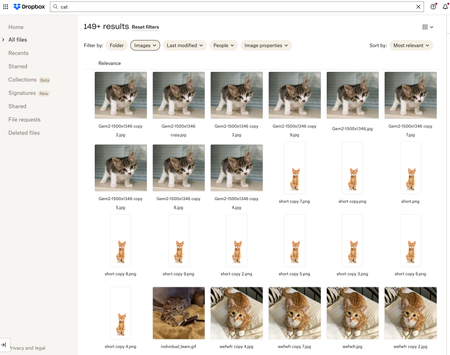
Hello Dropbox Community! My name is Lainie and I'm a Product Manager at Dropbox. Every now and again, I am going to post a "Did you know..." to 1) keep you informed of all of the cool technology that exists at Dropbox and 2) gather your feedback on how the features are performing. In today's, "Did you know..." I'll be talking about Image Search! Image search is allows you to use the Search Bar to search for the contents of the image using words to describe the image. For example, if you search for "cat" your search results will show files that 1) contain the word "cat" in the file name or body, AND 2) files that contain images of cat. No mention of the word "cat" is necessary! Pretty cool! If you haven't yet, I recommend that you check it out. Please respond to this thread and let me know... A) Did you know this feature existed? Do you use it? B) How can we make this even more useful for you? Have a great day! Lainie For more information, check out our Help Center Article on Image Search!9.5KViews9likes3Comments
Tell us what you think of the mobile search improvements
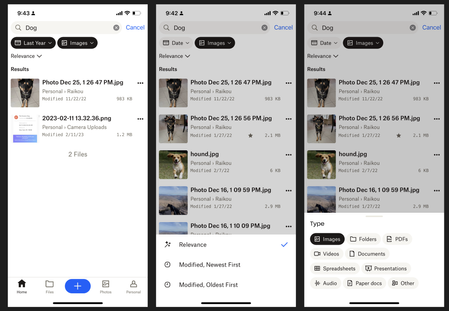
Hello! My name is Luke and I work on the Mobile app team at Dropbox. We're excited to share some updates that we've made to the Search experience on the Android and iOS apps. Here's what's new: Larger Result Thumbnails Modified Dates in search results File Sizes in search results Snippets for keyword matches within files Sorting results by newest or oldest Filtering results by File Type or 'Modified Date' We hope that these changes will help you retrieve your files more quickly and easily! We'd love to hear what you think -any feedback is welcome.4.5KViews7likes3Comments🌟🤝Community Spirit Badge 🤝🌟
Hey everyone! 🌟 It’s Theresa here. You’ve probably seen me hanging out in the Community, jumping into conversations and joining discussions (if you haven’t seen me before, well, hello 👋). And while doing that, I’ve noticed something pretty great (well, we all have here on the Dropbox Community Team) – so many of you are out here making this Community an amazing place. Whether you're helping others, sharing useful tips, or just bringing good vibes ✨, your contributions really stand out. To recognise and celebrate this, we’ve created a brand-new badge… This badge is all about celebrating the people who make this space feel like home. It’s for those who do more than just answer questions – the ones who offer a helping hand 🤝, share great tips 💡, and keep the good vibes flowing. Whether you're solving tricky problems 🧩, sharing useful resources 📚, or just making the Community a fun place to hang out 😃, we see you and we appreciate you. The Community Spirit Badge is a one-time award 🏆, so if you earn it, you know you're doing something special. It's a little extra recognition for those who truly bring the Community to life. We’re so excited 🎊 to launch this new badge and can’t wait to start recognizing the amazing individuals who truly bring the spirit of this Community to life. And if you spot someone who you think deserves the Community Spirit Badge, don’t hesitate to tag me Theresa within the thread. T 💙 (Dropbox Community Manager)843Views5likes0Comments
Remove "available offline" in finder under folders and files
Hello, Does anyone know a way to remove the “available offline” phrase in Finder under files and folders? First of all, the phrase seems completely useless considering it can be there along with the cloud icon that indicates that a file/folder is not actually offline but needs to be downloaded to be opened. Second, this useless phrase takes away the ability to show item info in Finder. I used to be able to see the number of files in a folder, the resolution of a photo, or the file size (if it’s an archive), but for some reason, Dropbox thinks that “available offline” is more useful than that. I am surprised I could not find anything on this. It seems like I am the only one concerned with this issue. Maybe there is a simple toggle somewhere in the settings that I am missing. Unfortunately, today I found out that your files can be marked “available offline” but still be in the cloud, and that is a deal-breaker for me. However, my annual subscription just renewed, so I’d like to find out how to remove this annoying “available offline” phrase and see my file/folder info until I find a replacement.662Views0likes2CommentsWeb Videos now supports auto-generated Video Transcriptions + Closed Captioning
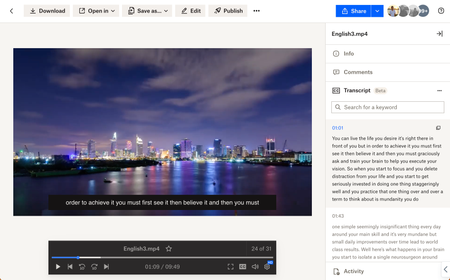
Hey folks! My name is Derrick and I work on a team that improves the file preview and viewing experience at Dropbox. We are excited to announce two features on Dropbox.com to enhance your video viewing experience: video transcriptions and closed captioning. Here’s how to use: Simply upload your video to Dropbox and voila! Your videos will have auto-generated transcripts and closed captioning at your disposal with a click of a button. Even more so - watch videos shared from your colleagues - and copy transcribed segments to instantly quote them in a presentation. Tell me about your experience with our new features! We are all ears. Help Center Article URL: https://help.dropbox.com/view-edit/transcript-closed-captions12KViews9likes9CommentsWhy Dropbox?
Hi Convince me why I should continue to use Dropbox instead of Google Drive, since I get much more on Google Drive for the same money. I´m using Dropbox pro where I keep everything important in my life and have the app on my computer using "local" and "only online" Michael2.8KViews0likes1Comment