Your workflow is unique 👨💻 - tell us how you use Dropbox here.
Setting up the apps
12 Topics
Android 14: Camera Uploads needs access to storage
Those of you who have this error: 1. In Android Settings, go to Apps. Select Dropbox. 2. Click "Force Stop". 3. Click "Permissions". 4. Click on "Photos and Videos". 5. Select "Don't Allow". 6. Restart Dropbox. Open Dropbox Settings. 7. Click on Camera Uploads. 8. Dropbox will ask you for permission again. Select "Allow All". 9. Done. It's fixed.Solved12KViews22likes16CommentsExciting news — we’ve launched the new Sync & Storage Dashboard in the Dropbox desktop app!
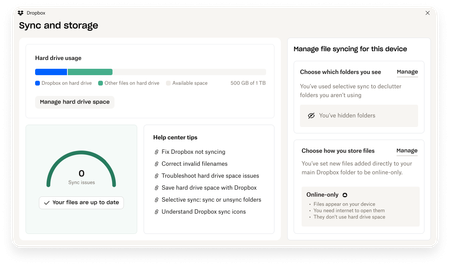
This dashboard makes it easier than ever to keep your files organized and your computer running smoothly. With just a click, you can: Get a real-time view of your sync status Quickly spot and resolve any syncing issues Monitor and manage how much disk space your Dropbox files are using Adjust your selective sync and storage preferences To open the dashboard, click the Dropbox icon in your taskbar (Windows) or menu bar (Mac), then select your avatar and choose Sync & storage. We’re excited for you to try it out! Please let us know your thoughts and how we can make it even better!7.8KViews6likes14CommentsTell Us How You Use Dropbox
No two people use Dropbox in exactly the same way. Some of you rely on it every day for work, others for school, creative projects, or keeping life organized - and we love that. We’d love to hear how you’re using Dropbox today - is it something you use once in a while, is it part of your day to day, are there any features you can’t live without? What workflows have you built that save time or reduce friction? And where do you see opportunities for us to do better? Your tips, ideas, and honest feedback really help us to make sure we can share useful tips, and they help other community members discover new ways to get more out of Dropbox too. Share your experience, favorite features, or suggestions in the comments below. Your voice truly helps shape the future of the Dropbox community 😁 The Dropbox Community Team2.3KViews3likes11CommentsGet the best out of your Dropbox account at work as a Team Member or Admin. 👩💻
If you use Dropbox for business we want to make sure you get the most out of your plan. Whether you’re a team member or a team admin, knowing what your role lets you do (and what doesn’t) can save you a ton of time and headaches. First things first, are you a Team Member or an Admin? If you’re not sure whether you’re a team member or an admin, here is how to find out: Sign in at dropbox.com using your work email. Click your avatar (Profile pic or initials) in the top-right hand corner. Select Admin Console from the dropdown Note: If you see the Admin Console option, you have admin access; if you don’t, you are a team member. If you are an admin, you may have specific admin rights (like managing users, security or billing). To check this: In the admin console go to members Find your name and check the admin role column To understand what each role includes check it out here As a Team Member: What You Can and Can’t Do Depending on your team set-up, you might see or be able to do slightly more or less than what is listed here. Don’t worry, it’s not personal, it just means the admin sorted things to keep everything running as smooth as possible. If in doubt give your admin or team lead a nudge. What you can do: Access your Dropbox from anywhere - web, desktop app, or mobile app. Upload, rename, and organise files and folders. Share files or folders with others, set view/edit permissions. Use team folders if you’ve been granted access. Comment on files an keep track of any updates. Scan and upload documents using the mobile app. Enable camera uploads on mobile for automatic photo backup. What you can’t do: Add or remove users from the team. Change admin settings or view activity reports. Restructure team folders unless given explicit permissions. More guidance is available here in the Dropbox Team Member Learning Guide. As an Admin: What You Can and Can’t Do Just a heads-up – not all admins have the same powers! What you can do will depend on the specific admin role you've been given. What you can do (depending on your admin role): Invite or remove team members. Assign admin roles to other users. Create and manage team folders, control folder-level permissions. Set security policies – such as two-factor authentication device approvals. Monitor team activity through logs and reports. Manage billing and subscription details (if you're the Billing Admin). What you can’t do: View every file by default – Admins don’t have automatic access to user content unless it’s shared with them or in shared/team folders. Act outside your assigned role – For example, a Reporting Admin can’t manage billing or user permissions unless given that access. Need Admin Access? If you believe you should have admin permissions (e.g. to manage users, oversee content, or configure settings), you’ll need to speak to an existing admin on your team. To find out who the admins are: Go to to the admin console (if you can see it) Click Members Look under the Admin role column, This shows who holds admin rights and what type they have If you do not have access to the admin console: As a regular team member on a Dropbox Business/Teams account, you generally cannot directly see a list of admins from your own account interface. The ability to view admin roles is typically restricted to those with admin privileges who can access the Admin Console. To know who your admins are, you can: Ask your team or IT department: They can tell you who the admins are. Look for admin communications: Sometimes, admins send out team-wide messages or manage shared folders, and their names may be visible in those contexts. Check for admin labels: In some cases, when viewing shared folders or team spaces, you might see labels or notes indicating who manages them, which could hint at admin roles. Hint: Look back in your emails and see who invited you to the team - they will be a Team Admin. To wrap things up, knowing the difference between team members and admins in Dropbox can really help everyone work better together. When you understand your role and what you can do, it makes collaborating and sharing resources a breeze.589Views2likes4Comments
Connection Issues: Computer is currently offline
After uninstalling and reinstalling the dropbox app, I could not get the desktop app to connect back to my account. It would keep getting me the message: "computer is currently offline", even though my internet was functioning correctly. After several hours I found the reason and the only solution that will work. 1. logon to your dropbox account on a web browser. 2. go to settings > security 3. scroll down to devices 4. find the device (desktop or laptop) that you are trying to connect, and delete it 5. restart your router 6. restart your computer. 7. make sure that your computer time and date are synced and accurate with the time zone that you're at now. Now try to click on your desktop app, and it should prompt you to link your dropbox account to your desktop application. Good luck!2.4KViews1like2Comments
Desktop app syncing, connecting, and other problems might be a beta
Some issues with the desktop application are sometimes because of using a beta version (I’ve just learned about what beta means). This can be problems with syncing, connecting, starting up, and more. Make sure that your version has a 4 in the middle (like the current one 149.4.4568) because that means it is a stable version. If you have a 3 in the middle (like 150.3.4987) you are using a beta version. To turn this off, turn off Early Releases in your account settings online like this https://help.dropbox.com/accounts-billing/settings-sign-in/enable-early-releases. Then, install the current stable version by going here https://www.dropbox.com/downloading. You do not need to uninstall the desktop app beta. Just install the stable one over it. 😎1.3KViews1like0Comments