Your workflow is unique 👨💻 - tell us how you use Dropbox here.
Setting up the apps
12 Topics
Android 14: Camera Uploads needs access to storage
Those of you who have this error: 1. In Android Settings, go to Apps. Select Dropbox. 2. Click "Force Stop". 3. Click "Permissions". 4. Click on "Photos and Videos". 5. Select "Don't Allow". 6. Restart Dropbox. Open Dropbox Settings. 7. Click on Camera Uploads. 8. Dropbox will ask you for permission again. Select "Allow All". 9. Done. It's fixed.Solved12KViews22likes16Comments
Is Users Dopbox filling your Servers Profile Hard Drive ? How to Exclude accross a windows domain !
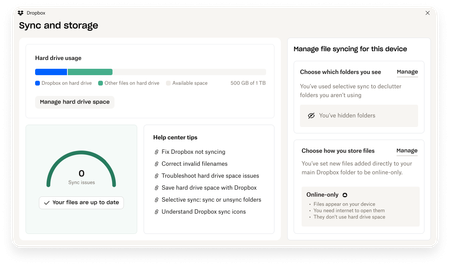
Today i came accross an issue where our File Server partition for User Profiles became 99% full. As a server admin this is a problem, but we can't just go around deleting stuff we don't like the look of, and rather than talking to 100+ users i decided to use "TreeSize" to show me what are the largest folders and if there are any commonalities. The answer was Dropbox ! Nearly every user has a Dropbox folder under the roaming profile folder the smallest was about 1gb, and the some were even 20gb !!! So in order to keep the file server healthy i created another GPO to go along side the roaming profile & folder re-direction on Windows Server 2012 R2 Standard. Options In the case we want to exclude Dropbox content from the roaming part of a user profile we actually have two options (i chose option 1) 1. Make the folder “local” through group policy, we can exclude some folders from the roaming part of a folder GPO. Logon and logoff will become faster and the Dropbox content just stays on the system and isn’t synced with the profile’s central copy at the profile server. 2. Move the folder through the Dropbox GUI to a location under a local folder (for example %USERPROFILE%\AppData\Local, which is excluded from the roaming part of a profile by default). This has the same result as the previous option, but is only achieved by actually working on the desktop itself which is very time consuming. Option 2 example: http://www.techgainer.com/change-dropbox-default-folder-location-windows/ Solution Exclude Folders from Roaming Profiles Edit the GPO to exclude specific folders in roaming profiles: Click Start, point to Programs, point to Administrative Tools, and then click Active Directory Users and Computers. In the console tree, right-click your domain, and then click Properties. Click the Group Policy tab, click the GPO that you want to work with, and then click Edit. Under User Configuration, expand Administrative Templates, expand System, and then click User Profiles. In the Setting list, double-click Exclude directories in roaming profile, and then click Enabled. In the Prevent the following directories from roaming with the profile box, type Dropbox. When you are finished not including folders from roaming profiles, click OK. Quit the Group Policy snap-in, click Now assign your new GPO to the correct User OU in question. Problem Solved !7.7KViews0likes0CommentsExciting news — we’ve launched the new Sync & Storage Dashboard in the Dropbox desktop app!
This dashboard makes it easier than ever to keep your files organized and your computer running smoothly. With just a click, you can: Get a real-time view of your sync status Quickly spot and resolve any syncing issues Monitor and manage how much disk space your Dropbox files are using Adjust your selective sync and storage preferences To open the dashboard, click the Dropbox icon in your taskbar (Windows) or menu bar (Mac), then select your avatar and choose Sync & storage. We’re excited for you to try it out! Please let us know your thoughts and how we can make it even better!7.7KViews6likes14Comments
MacOS, high CPU usage by open directory, symlinks in Dropbox
Hi, I just wanted to share how I solved this high-CPU-usage problem. The short story is: delete all your symbolic links from under the Dropbox folder. Long story: I'm on macOS High Sierra and I found that a system process ("daemon") called "opendirectoryd" keeps using 50--100% of CPU all the time as long as the computer is up. I don't know exactly when this started, but it started recently, say a few weeks. I searched the Net and found a lot of discussions about the daemon using a lot of CPU time. Apparently there are so many different causes. Some of the discussions pointed to Dropbox. I indeed found that Dropbox is the cause: when I pause syncing, the daemon's CPU use immediately drops well below 1% and as soon as I resume Dropbox syncing, the daemon's CPU use shots up and stays there forever. But all the Dropbox-related answers say that you should delete dead symbolic links. I did delete the few dead symbolic links I had in my Dropbox folder but the problem persisted. Then I came across this document in the Dropbox help: https://www.dropbox.com/help/desktop-web/high-cpu-usage which says that Dropbox uses a lot of CPU time to hand symbolic links (dead or not). Although I didn't want to do that, I bit the bullet and deleted all my symbolic links under the Dropbox folder and moved the files and folders from my main directory to Dropbox. Now, the opendirectoryd daemon stays calm.5.5KViews0likes0Comments
A "portable" Dropbox
Hello. I'm not sure if this has been done before, or if this is the place to post. I've put together a "portable" Dropbox called CrispyBox (link to the GitHub project). I've been using it for a few weeks, works pretty well. Wonder what people think (or if this has been done).4.9KViews0likes0CommentsSurprising fix to linux account-linking problem: login via pure text terminal, rather than X desktop
Dear Dropbox folks, I was having difficulty getting Dropbox to work on Linux (Ubuntux 18.04), and had removed and reinstalled the dropbox client without success. Even when I reinstalled the daemon with dropbox start -i, I still never was able to get the message: Starting... To link this computer to a Dropbox account, visit the following url: https://www.dropbox.com/cli_link_nonce?nonce=[some string] I had unlinked the Linux box via the web interface, and I had expected that completely deleting my Dropbox installation, folder, .dropbox and .dropbox-dist dirs would remove any linking info locally on my computer, hence prompting dropbox newly to set up linking to this machine when I started the daemon. However, that didn't happen. That was when I was logged in via a standard graphical desktop, which was a detail that I didn't think was relevant. However, when I logged in remotely to the Linux box via a purely text-based ssh-window, and ran dropbox start from there, suddenly I did get the long sought after "To link this computer" message, along with the link, and that link worked. It seems that somehow the dropbox client is better at asking for machine-linking via a text-only client than when it is run as part of a graphical X Windows desktop? This seems weird, but it appears to be what happened. Anyway, I figured I'd post this, in case anyone else is having similar problems. Raj2.4KViews0likes2Comments
Connection Issues: Computer is currently offline
After uninstalling and reinstalling the dropbox app, I could not get the desktop app to connect back to my account. It would keep getting me the message: "computer is currently offline", even though my internet was functioning correctly. After several hours I found the reason and the only solution that will work. 1. logon to your dropbox account on a web browser. 2. go to settings > security 3. scroll down to devices 4. find the device (desktop or laptop) that you are trying to connect, and delete it 5. restart your router 6. restart your computer. 7. make sure that your computer time and date are synced and accurate with the time zone that you're at now. Now try to click on your desktop app, and it should prompt you to link your dropbox account to your desktop application. Good luck!2.4KViews1like2CommentsTell Us How You Use Dropbox
No two people use Dropbox in exactly the same way. Some of you rely on it every day for work, others for school, creative projects, or keeping life organized - and we love that. We’d love to hear how you’re using Dropbox today - is it something you use once in a while, is it part of your day to day, are there any features you can’t live without? What workflows have you built that save time or reduce friction? And where do you see opportunities for us to do better? Your tips, ideas, and honest feedback really help us to make sure we can share useful tips, and they help other community members discover new ways to get more out of Dropbox too. Share your experience, favorite features, or suggestions in the comments below. Your voice truly helps shape the future of the Dropbox community 😁 The Dropbox Community Team2.2KViews3likes11Comments
Desktop app syncing, connecting, and other problems might be a beta
Some issues with the desktop application are sometimes because of using a beta version (I’ve just learned about what beta means). This can be problems with syncing, connecting, starting up, and more. Make sure that your version has a 4 in the middle (like the current one 149.4.4568) because that means it is a stable version. If you have a 3 in the middle (like 150.3.4987) you are using a beta version. To turn this off, turn off Early Releases in your account settings online like this https://help.dropbox.com/accounts-billing/settings-sign-in/enable-early-releases. Then, install the current stable version by going here https://www.dropbox.com/downloading. You do not need to uninstall the desktop app beta. Just install the stable one over it. 😎1.3KViews1like0Comments
Basic account allows to to three devices whether those devices still exist or not
Beware. We ran into this issue while trying to document a different issue. Apparently the three devices counts any device which was logged in in the past and never explicitly logged out. My wife had two devices currently in use, her laptop on which she could not sign in, and her phone on which she had closed the app. But she had a prior laptop and tablet, on both of which she had used Dropbox before. Opening the Dropbox app on her phone, she then explicitly signed out there, THEN she could sign in on her laptop. Then it gets interesting. On sign-in, she was plopped into the setup sequence, even though she had used Dropbox on that laptop just days before. There appeared to be no way to escape it, so we went through. After that the original issue was gone!1.3KViews0likes1Comment