Your workflow is unique 👨💻 - tell us how you use Dropbox here.
Setting up the apps
12 TopicsTell Us How You Use Dropbox
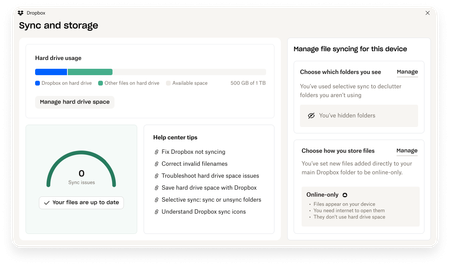
No two people use Dropbox in exactly the same way. Some of you rely on it every day for work, others for school, creative projects, or keeping life organized - and we love that. We’d love to hear how you’re using Dropbox today - is it something you use once in a while, is it part of your day to day, are there any features you can’t live without? What workflows have you built that save time or reduce friction? And where do you see opportunities for us to do better? Your tips, ideas, and honest feedback really help us to make sure we can share useful tips, and they help other community members discover new ways to get more out of Dropbox too. Share your experience, favorite features, or suggestions in the comments below. Your voice truly helps shape the future of the Dropbox community 😁 The Dropbox Community Team2.2KViews3likes11CommentsExciting news — we’ve launched the new Sync & Storage Dashboard in the Dropbox desktop app!
This dashboard makes it easier than ever to keep your files organized and your computer running smoothly. With just a click, you can: Get a real-time view of your sync status Quickly spot and resolve any syncing issues Monitor and manage how much disk space your Dropbox files are using Adjust your selective sync and storage preferences To open the dashboard, click the Dropbox icon in your taskbar (Windows) or menu bar (Mac), then select your avatar and choose Sync & storage. We’re excited for you to try it out! Please let us know your thoughts and how we can make it even better!7.7KViews6likes14CommentsGet the best out of your Dropbox account at work as a Team Member or Admin. 👩💻
If you use Dropbox for business we want to make sure you get the most out of your plan. Whether you’re a team member or a team admin, knowing what your role lets you do (and what doesn’t) can save you a ton of time and headaches. First things first, are you a Team Member or an Admin? If you’re not sure whether you’re a team member or an admin, here is how to find out: Sign in at dropbox.com using your work email. Click your avatar (Profile pic or initials) in the top-right hand corner. Select Admin Console from the dropdown Note: If you see the Admin Console option, you have admin access; if you don’t, you are a team member. If you are an admin, you may have specific admin rights (like managing users, security or billing). To check this: In the admin console go to members Find your name and check the admin role column To understand what each role includes check it out here As a Team Member: What You Can and Can’t Do Depending on your team set-up, you might see or be able to do slightly more or less than what is listed here. Don’t worry, it’s not personal, it just means the admin sorted things to keep everything running as smooth as possible. If in doubt give your admin or team lead a nudge. What you can do: Access your Dropbox from anywhere - web, desktop app, or mobile app. Upload, rename, and organise files and folders. Share files or folders with others, set view/edit permissions. Use team folders if you’ve been granted access. Comment on files an keep track of any updates. Scan and upload documents using the mobile app. Enable camera uploads on mobile for automatic photo backup. What you can’t do: Add or remove users from the team. Change admin settings or view activity reports. Restructure team folders unless given explicit permissions. More guidance is available here in the Dropbox Team Member Learning Guide. As an Admin: What You Can and Can’t Do Just a heads-up – not all admins have the same powers! What you can do will depend on the specific admin role you've been given. What you can do (depending on your admin role): Invite or remove team members. Assign admin roles to other users. Create and manage team folders, control folder-level permissions. Set security policies – such as two-factor authentication device approvals. Monitor team activity through logs and reports. Manage billing and subscription details (if you're the Billing Admin). What you can’t do: View every file by default – Admins don’t have automatic access to user content unless it’s shared with them or in shared/team folders. Act outside your assigned role – For example, a Reporting Admin can’t manage billing or user permissions unless given that access. Need Admin Access? If you believe you should have admin permissions (e.g. to manage users, oversee content, or configure settings), you’ll need to speak to an existing admin on your team. To find out who the admins are: Go to to the admin console (if you can see it) Click Members Look under the Admin role column, This shows who holds admin rights and what type they have If you do not have access to the admin console: As a regular team member on a Dropbox Business/Teams account, you generally cannot directly see a list of admins from your own account interface. The ability to view admin roles is typically restricted to those with admin privileges who can access the Admin Console. To know who your admins are, you can: Ask your team or IT department: They can tell you who the admins are. Look for admin communications: Sometimes, admins send out team-wide messages or manage shared folders, and their names may be visible in those contexts. Check for admin labels: In some cases, when viewing shared folders or team spaces, you might see labels or notes indicating who manages them, which could hint at admin roles. Hint: Look back in your emails and see who invited you to the team - they will be a Team Admin. To wrap things up, knowing the difference between team members and admins in Dropbox can really help everyone work better together. When you understand your role and what you can do, it makes collaborating and sharing resources a breeze.589Views2likes4CommentsHow I Use Dropbox as a Community Manager 👩💻
Hi everyone, it’s Theresa here, and I’m sure you’ve seen me bopping around the Community. I am one of the Community Managers here at Dropbox, and I’d love to share how I use Dropbox on a daily basis. Now, I’m not just saying this… I have relied on Dropbox long before I worked here, but more about that later. Here are some of the ways I use Dropbox to do my job. One of my favourite tools is, of course, Dropbox Paper. It’s amazing for pulling together documents in real time. Whether I’m creating content or helping choose our Community Member of the Month, it’s truly one of the best tools for collaboration. I can easily invite teammates to jump in, edit, and leave comments directly in the document. My favourite feature has to be the ability to tag and create new documents right within the one I’m working on. As a creative, ideas can come to me suddenly - and just as quickly disappear. By simply typing “+” and adding my idea, a new document link is created instantly, so I can capture the thought and return to flesh it out later. The built-in Dropbox Screenshot tool is an absolute lifesaver for sharing visuals. I use it all the time to grab screenshots of Community feedback, social media buzz, or highlights from recent events. It adds a real spark to my reports and presentations, making it much easier for everyone to see the impact of what we’re doing. And because I share them straight from Dropbox, there’s no messing about with endless email threads or bulky attachments. Setting it up is so so easy: just head to your Dropbox preferences, go to the Backups tab, and tick the option to “Save screenshots to your Dropbox.” From then on, every time you press Command + Shift + 4 (or Print Screen on Windows), your screenshot will be saved and ready to share in seconds. Outside of work, I'm a musician. I have been using Dropbox to keep my music projects organised for so many years, it is second nature. So, I am based in Ireland, but the rest of my band are over in the Netherlands, so having a shared space where we can all work together is a massive help. I keep a folder for each song with everything we need - lyrics, demo recordings, MIDI files, staging images, and notes on the music. It means we’re all on the same page, even from different countries. By the time we get to rehearsals, we’ve already done most of the groundwork, so we can hit the ground running. The fact that we can leave comments directly on files by opening a file in Dropbox and clicking the speech bubble icon is an amazing way to keep the conversation, give feedback, or suggest changes in the one place rather than going back in forth in emails/messages. (Handy when the group chat is mostly GIFs and Memes). I hope this inspires others on using Dropbox in their work life (and also their outside work life). It for sure relieves some stress to keep that life/work balance in check.150Views0likes0Comments
Android 14: Camera Uploads needs access to storage
Those of you who have this error: 1. In Android Settings, go to Apps. Select Dropbox. 2. Click "Force Stop". 3. Click "Permissions". 4. Click on "Photos and Videos". 5. Select "Don't Allow". 6. Restart Dropbox. Open Dropbox Settings. 7. Click on Camera Uploads. 8. Dropbox will ask you for permission again. Select "Allow All". 9. Done. It's fixed.Solved12KViews22likes16Comments
Surprising fix to linux account-linking problem: login via pure text terminal, rather than X desktop
Dear Dropbox folks, I was having difficulty getting Dropbox to work on Linux (Ubuntux 18.04), and had removed and reinstalled the dropbox client without success. Even when I reinstalled the daemon with dropbox start -i, I still never was able to get the message: Starting... To link this computer to a Dropbox account, visit the following url: https://www.dropbox.com/cli_link_nonce?nonce=[some string] I had unlinked the Linux box via the web interface, and I had expected that completely deleting my Dropbox installation, folder, .dropbox and .dropbox-dist dirs would remove any linking info locally on my computer, hence prompting dropbox newly to set up linking to this machine when I started the daemon. However, that didn't happen. That was when I was logged in via a standard graphical desktop, which was a detail that I didn't think was relevant. However, when I logged in remotely to the Linux box via a purely text-based ssh-window, and ran dropbox start from there, suddenly I did get the long sought after "To link this computer" message, along with the link, and that link worked. It seems that somehow the dropbox client is better at asking for machine-linking via a text-only client than when it is run as part of a graphical X Windows desktop? This seems weird, but it appears to be what happened. Anyway, I figured I'd post this, in case anyone else is having similar problems. Raj2.4KViews0likes2Comments
Connection Issues: Computer is currently offline
After uninstalling and reinstalling the dropbox app, I could not get the desktop app to connect back to my account. It would keep getting me the message: "computer is currently offline", even though my internet was functioning correctly. After several hours I found the reason and the only solution that will work. 1. logon to your dropbox account on a web browser. 2. go to settings > security 3. scroll down to devices 4. find the device (desktop or laptop) that you are trying to connect, and delete it 5. restart your router 6. restart your computer. 7. make sure that your computer time and date are synced and accurate with the time zone that you're at now. Now try to click on your desktop app, and it should prompt you to link your dropbox account to your desktop application. Good luck!2.4KViews1like2Comments
Basic account allows to to three devices whether those devices still exist or not
Beware. We ran into this issue while trying to document a different issue. Apparently the three devices counts any device which was logged in in the past and never explicitly logged out. My wife had two devices currently in use, her laptop on which she could not sign in, and her phone on which she had closed the app. But she had a prior laptop and tablet, on both of which she had used Dropbox before. Opening the Dropbox app on her phone, she then explicitly signed out there, THEN she could sign in on her laptop. Then it gets interesting. On sign-in, she was plopped into the setup sequence, even though she had used Dropbox on that laptop just days before. There appeared to be no way to escape it, so we went through. After that the original issue was gone!1.3KViews0likes1Comment
Is Users Dopbox filling your Servers Profile Hard Drive ? How to Exclude accross a windows domain !
Today i came accross an issue where our File Server partition for User Profiles became 99% full. As a server admin this is a problem, but we can't just go around deleting stuff we don't like the look of, and rather than talking to 100+ users i decided to use "TreeSize" to show me what are the largest folders and if there are any commonalities. The answer was Dropbox ! Nearly every user has a Dropbox folder under the roaming profile folder the smallest was about 1gb, and the some were even 20gb !!! So in order to keep the file server healthy i created another GPO to go along side the roaming profile & folder re-direction on Windows Server 2012 R2 Standard. Options In the case we want to exclude Dropbox content from the roaming part of a user profile we actually have two options (i chose option 1) 1. Make the folder “local” through group policy, we can exclude some folders from the roaming part of a folder GPO. Logon and logoff will become faster and the Dropbox content just stays on the system and isn’t synced with the profile’s central copy at the profile server. 2. Move the folder through the Dropbox GUI to a location under a local folder (for example %USERPROFILE%\AppData\Local, which is excluded from the roaming part of a profile by default). This has the same result as the previous option, but is only achieved by actually working on the desktop itself which is very time consuming. Option 2 example: http://www.techgainer.com/change-dropbox-default-folder-location-windows/ Solution Exclude Folders from Roaming Profiles Edit the GPO to exclude specific folders in roaming profiles: Click Start, point to Programs, point to Administrative Tools, and then click Active Directory Users and Computers. In the console tree, right-click your domain, and then click Properties. Click the Group Policy tab, click the GPO that you want to work with, and then click Edit. Under User Configuration, expand Administrative Templates, expand System, and then click User Profiles. In the Setting list, double-click Exclude directories in roaming profile, and then click Enabled. In the Prevent the following directories from roaming with the profile box, type Dropbox. When you are finished not including folders from roaming profiles, click OK. Quit the Group Policy snap-in, click Now assign your new GPO to the correct User OU in question. Problem Solved !7.8KViews0likes0Comments
Desktop app syncing, connecting, and other problems might be a beta
Some issues with the desktop application are sometimes because of using a beta version (I’ve just learned about what beta means). This can be problems with syncing, connecting, starting up, and more. Make sure that your version has a 4 in the middle (like the current one 149.4.4568) because that means it is a stable version. If you have a 3 in the middle (like 150.3.4987) you are using a beta version. To turn this off, turn off Early Releases in your account settings online like this https://help.dropbox.com/accounts-billing/settings-sign-in/enable-early-releases. Then, install the current stable version by going here https://www.dropbox.com/downloading. You do not need to uninstall the desktop app beta. Just install the stable one over it. 😎1.3KViews1like0Comments