Your workflow is unique 👨💻 - tell us how you use Dropbox here.
desktop
50 TopicsWhat’s included in my Dropbox plan? Plus edition
If you use Dropbox there are a ton of amazing features available to you, but different plans have different features so we want to make sure you know exactly what you have access to! This time, we’re going to focus on Dropbox Plus accounts - so listen up if you’re a Plus user. Here is a list of the features available to Plus users, that I’m sure most people are already aware of, or using regularly already, but it never hurts to be reminded! 2 TB (2,000 GB) of storage space. Shared folders and links - learn the ins and outs of links here. Dropbox Paper - this is a big one, so here’s a refresher on that. Anywhere access Integrated desktop experience Best-in-class sync technology Mobile offline folders Camera upload Send up to 2 GB per Transfer File requests Web previews and comments Viewer info Remote device wipe File recovery and version history - 30-day history Dropbox Rewind - 30-day history Full text search Plus button Web previews and comments Integrated cloud content 256-bit AES and SSL/TLS encryption So those are the ones you likely already know, but there are some new and exciting features for Dropbox Plus users this year as well, and now’s your chance to learn all about them. Dropbox Family The Dropbox Family plan has 2 TB of storage space that can be shared by up to 6 members, even grandparents or kids away at college. With Dropbox Family, you and your family can securely organize and share content, like photos, videos, and important documents. Dropbox Passwords: Dropbox Passwords lets you seamlessly sign in to websites and apps by storing your passwords. The Passwords app remembers your usernames and passwords on all your devices—so you don’t have to. Dropbox Vault: Dropbox Vault helps you secure and organize your most sensitive information in the cloud. Vault is a PIN-protected folder in your Dropbox account that you can access any time and on any device. There’s even more new features, including Computer Backup, Hellosign and the App Centre so you can get more details here. Support: If you need help with your Plus account, you have access to priority email support, the Help Centre, and of course the Dropbox Community is always here to help.38KViews3likes2CommentsHow Connie, a member of the Community, uses Dropbox
We love hearing how you, the Community members use Dropbox. Everyone has their own favorite features and little hacks, so we want to share some with you! Up first, we have Connie (ConF2_0), a long time Dropbox Plus customer, member of the Dropbox Community, and avid Vault user. Connie sat down with Gavin, a member of our Dropbox team, and told him all about how she uses Dropbox and why she loves Vault. I am Connie and I currently live in Germany. I've lived here for two years now. I've been a speech language pathologist for more than 30 years and that's what brought me to Dropbox, actually. I worked in a school setting for years and I frequently needed to be able to take work home. I needed a way to do this without having to carry stuff and make copies. I could email my spreadsheets, and reports and things, but I kept thinking “I don't know, emailing doesn't really make me comfortable - it's supposed to be really secure, but I'm not sure." I honestly cannot remember how I stumbled on Dropbox but I thought, “Oh, this is perfect!”, so I set up my account and I've been a user ever since. I was able to start writing my notes and reports at school, and then put them in Dropbox and finish them up when I got home. I could work on my spreadsheets and lesson materials at home and have them back at school waiting for me the next day. My only concern was that as a health care provider, you need to be able to ensure security and privacy. Before Vault, I was using a third party app to encrypt my school files. I thought “there's got to be another way, Dropbox has got to be able to do this”. That third party app was sometimes cumbersome and I'd lock myself out of files. Now, it's so easy - anything that I need to have protected gets uploaded to the Vault - done. No extra passwords to remember, no extra copying and/or downloading! Thanks Connie! We love to hear stories like this and how we can make Dropbox better for all of you. How do you use Dropbox? Tell us in the comments below! Share your tips, tricks, the features you love and how you make the most of Dropbox, whether it’s at home, at work or at school!10KViews8likes4CommentsHow to free up space with online and offline file options
Storing and saving your files is important, and making sure your files are available where you need them can help with that. So, let’s figure out if you need to have your files available online or offline. Why should I make my Dropbox files available offline? Whatever device you’re using with Dropbox, whether it’s a computer, tablet, or phone, you can make your files and folders available offline. This is similar to downloading your files, except it also keeps them in Dropbox. This way, your files are saved offline on your device as well as online in your Dropbox account. So, whether you’re on the move, or you have wifi that drops, you can make your files available offline and keep on working. While you’re offline, changes made to your offline files won’t “sync”. This means that the changes you make offline won’t sync between your offline device and everywhere else you access your files in Dropbox. Once you are back online, Dropbox will sync the changes you made to your offline files everywhere you access them in Dropbox. How do I make files available offline? The short version of it is, within your Dropbox folder in File Explorer (Windows) or Finder (Mac), find the file you’re looking for and right-click on it, and then simply choose Make available offline. Easy! For more info, you can head over here. What are Dropbox online-only files? As the name suggests, these files are available only when you’re online. Since this frees up space on your computer or your hard drive, it is the perfect option if your laptop is at capacity, but you still want to access your files. If you set a file or folder to online-only, you’ll still see the file or folder in the Dropbox folder on your computer, but it’s just a placeholder. You can only open it if you’re connected to internet. Dropbox removes it from your computer’s hard drive, so that it only takes up space in your Dropbox account online. How to make a file or folder online-only: To set a file or folder to online-only manually: Open File Explorer (Windows) or Finder (Mac). Open the Dropbox folder. Right-click the file or folder you’d like to set to online-only. Under Quick Actions, click Make online-only. If you’d like to save your file or folder back to your computer’s hard drive, repeat this step and click Make available offline. So, now you know the difference between online-only and offline files and when each one might suit better. So, why not look at your files and folders and see if you can free up some space? Do you separate your files depending on where and when you need them?9.1KViews3likes1CommentUnderstanding A, B, C, and D Drives: What They Mean and How They’re Used
Hey there, it's Theresa here 👋. You might see me around the Community, popping into different threads and joining conversations and I often notice users looking for the best ways to manage their storage effectively 🚀. By default, Dropbox saves files on your computer’s internal drive, typically the C: drive 👨💻. But sometimes, you need a little extra space, and the D: drive can be a great alternative. It helps free up valuable room on your primary drive while still giving you seamless access to your important files. If you want to learn more about setting up Dropbox on an external drive, check out this guide. But what about those other drives? The ones labeled A: and B:? Why don’t modern computers use them? And what exactly does the C: drive do? Let’s take a nostalgic and practical dive into the world of drive letters and what they mean in computing 💻. A: and B: Drives Ah, the A: and B: drives - ancient relics of computing! Back in the day, these drives were the VIP section for floppy disks, the original storage superheroes of the 80s and 90s. For those lucky enough to have never experienced floppy disks, let me explain: they were small, portable, and could hold a whopping 1.44 MB to 2.88 MB of data. That’s right, an entire three documents …if you were lucky 💾. Modern computers no longer come with A: or B: drives, as the floppy disk has been banished to the land of obsolete tech alongside VHS tapes and Blockbuster memberships 📼. However, those letters are still reserved for these iconic disks, almost like a tribute to the O.G’s of storage - here, computers have to pay their respects to the ancestors too. C: Drive The C: drive is the most important and commonly used drive in a computer system. It is typically the main hard drive (HDD) or solid-state drive (SSD) that contains the operating system (like Windows), applications, and most of your files 💻. In modern Windows systems, the C: drive is like your default "everything" space. It’s where the system stores its most prized possessions, from system files to personal documents to that folder full of memes you forgot about. Installing Dropbox on your C: drive is a great way to store your cloud files locally on your computer while keeping them synced across all your devices. So, think of the C: drive as the top drawer of your desk: it holds all the stuff you need every day, the stuff you’ll probably need soon, and the stuff you just threw in there to deal with later. Keep it clean…or don’t - but either way, the C: drive is where it all goes down 👩💻. D: Drive The D: drive is the unsung hero stepping in when you need a little extra space. It’s like the spare room in your house, or that second closet where you shove everything when company’s coming over 🙊. The D: drive is typically assigned to secondary storage devices. This could be a second hard drive, an optical drive (AKA CD/DVD drives ..remember those?), or even a partition on the same physical hard drive as the C: drive. And let’s not forget its role as the go-to for removable storage like USB flash drives or external hard drives. (Hint: Set up Dropbox on you D: Drive for those "I’ll definitely organise this later" files) 👨💻. So, whether you're optimizing storage, decluttering your digital space, or just taking a trip down memory lane, it’s always good to know what’s going on behind the scenes 😉. And hey, if you ever need help managing your files, you know where to find me 👩💻. I’ll be around the Community, diving into conversations and helping out wherever I can. Got any storage tricks, you or even fun computer nostalgia to share 💾💿📼? Drop them in the comments.. I’d love to hear them!8.3KViews3likes3CommentsGetting started with Dropbox desktop and mobile apps
A beginners guide to Dropbox apps We’re delighted to be here with you as you take your first steps with Dropbox and our aim is to make them as simple and easy to take as possible. Today, we’re going to be talking about Dropbox apps. Here’s everything you need to know: What is the Dropbox desktop app? Downloading the Dropbox desktop app Getting started with the Dropbox desktop app What is the Dropbox mobile app? Downloading the Dropbox mobile app Getting started with the Dropbox Mobile app What is the Dropbox Desktop app? When you download the Dropbox Desktop app, you’re basically adding two things to your computer, the Dropbox folder, which you can find in File Explorer (Windows) or Finder (Mac). and the Dropbox icon, which will sit in your taskbar (Windows) or your menu bar (Mac). Having the Dropbox desktop app will allow you to access, view, save, edit and share all of the files in your Dropbox account, directly from your desktop. This means you won't need to waste time logging into various accounts to find your files and folders and you can even access them offline if you are out and about with no connection. Downloading the Dropbox desktop app Downloading the Dropbox desktop app, or Dropbox installer, is very simple and can be done by clicking this link. Once you click on it, the download will start automatically. Once the download is complete, you’ll see the Dropbox installer at the bottom of your browser, you’ll need to click on it to open it and then double click the Dropbox logo to begin the installation. Then, follow the onscreen prompts to complete the process. Getting started with the Dropbox desktop app Once you’ve got the Desktop app installed, you’ll be asked to either log in or create an account. When you’ve done one of these, you’ll be asked to select the folders you want to sync to your Dropbox account, this allows you to choose exactly what files and folders are added to your Dropbox account. Once your files are synced, you’re ready to start using the Dropbox Desktop app! If you click on the Dropbox icon in the taskbar (Windows) or menu bar (Mac), you’ll be able to search for your files, check your notifications, view your latest activity, keep up to date with your sync history and manage your account preferences. What is the Dropbox mobile app? The Dropbox mobile app allows you to manage your Dropbox account while on the go, through your phone or tablet. You’ll be able to access all of your files and folders and get work done where ever you are, you can even make files available offline so you don’t need to worry about losing internet access when you’re out and about! Downloading the Dropbox mobile app The Dropbox mobile device is available on both Android and iOS devices, to get it all you need to do is go to your preferred app store, or you can simply scan the QR code in the image below. Once you’ve found it, simply install the app and log-in and you’re good to go! Getting started with the Dropbox mobile app Now that you’ve got the Dropbox mobile app installed, you’re ready to start using all of it’s awesome features, but rather than us boring you with the finer details, here’s a quick video to let you know exactly what you can do. So that’s it, now that you’ve got both your desktop and mobile apps up and running, you’ll be able to stay completely on top of your work, no matter where you are, or if you’re online and off-line! We’d love to share more tips and guides to help you master any other Dropbox features you may be struggling with. So, if you have any questions at all, please do not hesitate to ask, we are here to help! We want to hear about how using the desktop or mobile apps has improved your workflow with Dropbox, so please leave a comment below and let us know.7.8KViews6likes0CommentsLearn all about camera uploads with Dropbox
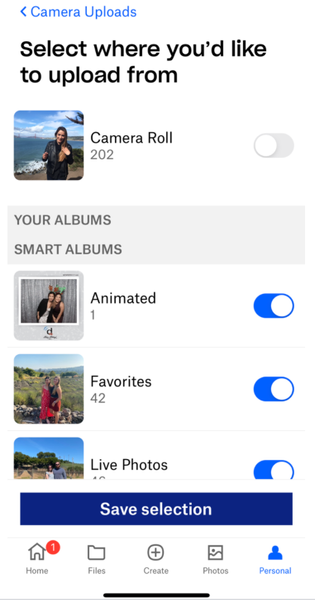
Creating memories is so important, and backing those memories up is just as important! It might not be as exciting to store your photos as it is to create those memories, but it means that you can look back on your photos and relive those moments for years to come. Well, we’re here to make sure you know all about camera uploads so you never lose a photo again! How do I back up my mobile photos? What is camera uploads? Camera uploads is an optional feature that automatically uploads photos from your mobile device to Dropbox. Once you enable camera uploads, your photos will upload to the Camera Uploads folder in your Dropbox account. You can move them wherever you want from that folder once they’re safely uploaded too 😀 How to back up your photos with camera uploads To back up directly from your mobile device, you can do so by tapping in to the Dropbox app, tap ‘settings’ or ‘account’ and there you will see the camera uploads option. Tap that and follow the next step which will be either allow or upload. And hey presto your photos are uploaded to you Dropbox account. If you want to back up all of your photos while on desktop, you simply have to plug a camera, or your mobile device, into a computer with the Dropbox desktop app installed. You’ll see a prompt asking if you’d like to enable camera uploads for that device. Once you accept, that device will automatically upload your camera roll each time the device is plugged in to that computer. iOS updates Any Apple fan knows that HEIC photo files can be a hassle, so now, for new camera uploads users, the setting to transcode HEIC to JPG will be on by default. For existing camera upload users, you will need to manually turn that on. Don’t want to back up your entire camera roll? Go to “Upload from” in Settings and select which albums you want automatically backed up to Dropbox. If you only want to upload your ‘Favorites’ for example, simply toggle on your “Favorites” album. Background uploading Want an even easier way to back up your photos on an apple device? It’s simple, just enable background uploading. Background uploading allows Dropbox to upload photos even when the Dropbox app is closed. Why aren’t my photos backing up? If you notice that your photos aren’t uploading at a certain point, make sure you have the most recent version of the Dropbox app installed. It’s also worth noting that camera uploads won’t work if your mobile device battery is too low. If you’re still having upload issues, check out this troubleshooting guide. Gone are the days of losing or breaking a phone and worrying about whether the photos can be recovered. Now you can look back on all of your photos, whether they’re selfies, that one wild festival, family memories or even just avocado toast. Do you organise your photos in a specific way or leave them all in one big folder?7.7KViews0likes0CommentsExciting news — we’ve launched the new Sync & Storage Dashboard in the Dropbox desktop app!
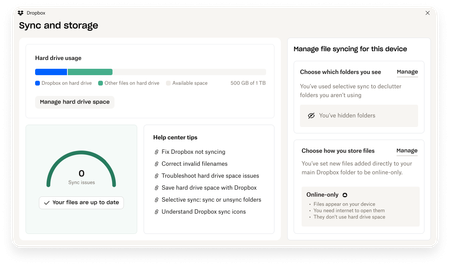
This dashboard makes it easier than ever to keep your files organized and your computer running smoothly. With just a click, you can: Get a real-time view of your sync status Quickly spot and resolve any syncing issues Monitor and manage how much disk space your Dropbox files are using Adjust your selective sync and storage preferences To open the dashboard, click the Dropbox icon in your taskbar (Windows) or menu bar (Mac), then select your avatar and choose Sync & storage. We’re excited for you to try it out! Please let us know your thoughts and how we can make it even better!7.7KViews6likes14Comments
Export bulk Dropbox image folder URLs
The problem is that there are hundreds of photos. It is almost impossible to enter the URL for each rock sample manually. I need some automated way to copy the Dropbox photo URLs. You can use my script below to generate bulk Dropbox links. * Requires TamperMonkey or GreaseMonkey addon in your browser. I wrote a script to accomplish this: https://gist.github.com/tyhallcsu/89d6c672f93e94cbd651354b587306b4 This is a userscript that extracts image URLs from a Dropbox page and copies them to the clipboard when a button is clicked. The script creates a button on the page that, when clicked, scrolls to the bottom of the page, waits for new images to load, and extracts the image URLs. The script then joins the URLs into a string separated by newlines. It then puts the links on your clipboard with ?dl=0 replaced with ?raw=1 parameters. Floating button in the bottom right of your browser window: Code: // ==UserScript== // name Extract All Dropbox Image URLs in Folder to Clipboard // @namespace https://www.example.com/ // @version 3 // @description Extracts image URLs from a Dropbox page and copies them to the clipboard when a button is clicked. // @author Tyler Hall Tech // match https://www.dropbox.com/* // Grant GM_setClipboard // Grant GM_log // run-at document-idle // ==/UserScript== (function() { 'use strict'; const SECONDS_TO_WAIT_FOR_SCROLL = 1; // adjust as needed const DOWNLOAD_URL_REPLACEMENT = '?raw=1'; // function to get all image link elements function getImageLinks() { const imageLinks = document.querySelectorAll('a.dig-Link.sl-link--file[href*="dl=0"]'); return Array.from(imageLinks).map(link => link.getAttribute('href').replace(/\?dl=0$/, DOWNLOAD_URL_REPLACEMENT)); } // function to scroll to the bottom of the page and wait for new images to load async function waitForImagesToLoad() { window.scrollTo(0, document.body.scrollHeight); await new Promise(resolve => setTimeout(resolve, SECONDS_TO_WAIT_FOR_SCROLL * 1000)); } // create an array to hold the image URLs let imageUrls = []; // add a button to the page that will copy the image URLs to the clipboard when clicked const copyButton = document.createElement('button'); copyButton.classList.add('dig-Button', 'dig-Button--primary', 'dig-Button--standard', 'copy-urls-button'); copyButton.textContent = 'Copy all URLs'; copyButton.style.position = 'fixed'; copyButton.style.bottom = '20px'; copyButton.style.right = '20px'; copyButton.style.zIndex = '9999'; document.body.appendChild(copyButton); // add a click event listener to the button copyButton.addEventListener('click', async function() { let finished = false; let numUrls = 0; while (!finished) { // scroll to the bottom of the page and wait for new images to load await waitForImagesToLoad(); // get the newly loaded image URLs const newImageUrls = getImageLinks().filter(url => !imageUrls.includes(url)); imageUrls.push(...newImageUrls); // check if all images have been loaded finished = newImageUrls.length === 0; numUrls += newImageUrls.length; } // join the image URLs into a string separated by newlines const imageUrlString = imageUrls.join('\n'); // copy the image URL string to the clipboard GM_setClipboard(imageUrlString, 'text'); // disable the button and change the text to indicate that the URLs have been copied copyButton.disabled = true; copyButton.textContent = `${numUrls} URL(s) copied to clipboard`; // enable the button again after 3 seconds setTimeout(function() { imageUrls = []; copyButton.disabled = false; copyButton.textContent = 'Copy all URLs'; }, 3000); }); })(); Hope this helps someone. I hope Dropbox natively supports this some day. But for now, this works just fine 🙂6.2KViews2likes9CommentsDropbox Smart Sync Icons Missing on Windows 10 - SOLVED
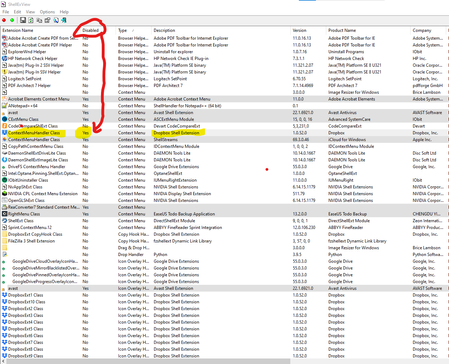
After spending almost an entire week with Dropbox tech support, uninstalling, re-installing, cleaning registries, running command scripts, MULTIPLE TIMES... We were getting nowhere. So, I did some serious research on the web looking for ways to locate and fix Windows Right-Click "Context Menus". I found a utility called ShellExView by Nirsoft. Which pointed to another page ( fix-slow-right-click-crashes-shell-extensions ) with some more explanation on how to use it. Apparently, the problem was that, for some strange reason, as you can see in the screenshot below, the Dropbox “ContextMenuHandler Class” was marked as “Disabled”. I simply did a Right-Clickover it, and selected to “Enable selected items”. Then re-started Explorer using ShellExView's Ctrl+E option to restart the Windows shell. Please NOTE... Restarting the Explorer shell is an essential step. This should NOT be skipped. And… VOILA!!! After a few seconds... ALL of the Dropbox Context Menu items magically now appear!!! For FOLDERS, it shows like this: And for FILES, it looks like this: Hope this helps! All the best, Jacob5.8KViews0likes14Comments
MacOS, high CPU usage by open directory, symlinks in Dropbox
Hi, I just wanted to share how I solved this high-CPU-usage problem. The short story is: delete all your symbolic links from under the Dropbox folder. Long story: I'm on macOS High Sierra and I found that a system process ("daemon") called "opendirectoryd" keeps using 50--100% of CPU all the time as long as the computer is up. I don't know exactly when this started, but it started recently, say a few weeks. I searched the Net and found a lot of discussions about the daemon using a lot of CPU time. Apparently there are so many different causes. Some of the discussions pointed to Dropbox. I indeed found that Dropbox is the cause: when I pause syncing, the daemon's CPU use immediately drops well below 1% and as soon as I resume Dropbox syncing, the daemon's CPU use shots up and stays there forever. But all the Dropbox-related answers say that you should delete dead symbolic links. I did delete the few dead symbolic links I had in my Dropbox folder but the problem persisted. Then I came across this document in the Dropbox help: https://www.dropbox.com/help/desktop-web/high-cpu-usage which says that Dropbox uses a lot of CPU time to hand symbolic links (dead or not). Although I didn't want to do that, I bit the bullet and deleted all my symbolic links under the Dropbox folder and moved the files and folders from my main directory to Dropbox. Now, the opendirectoryd daemon stays calm.5.5KViews0likes0Comments