We’re Still Here to Help (Even Over the Holidays!) - find out more here.
dropbox capture
13 TopicsDiscover Dropbox Transfer in video!
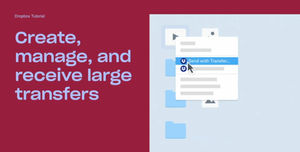
Hi beloved Community! Has any of you used Dropbox Transfer, our feature allowing you to share large files to anyone, Dropbox user or not? We put together a video featuring Madison, one of our Product Marketing Manager who built this amazing feature, and some of our users who will explain themselves, in their own words, how Transfer works! Check Dropbox Transfer video here! Did you like this video? And would you like to see more lightweight, educational videos on Dropbox features in the future?1.5KViews3likes0Comments
Open Feedback to Dropbox
Dropbox has the potential to make a huge leap forward not by inventing something radically new, but by strengthening and bundling the tools it already has. Here’s what could truly make the difference for many professionals and businesses: Reintroduce and expand Dropbox Capture. Today, video and screen recording is a daily need for teams, customer support, and remote collaboration. This tool should not disappear, it should be stronger. Enhance and integrate e-signature features. Make them more seamless, reliable, and part of the core Dropbox experience. For the Italian market, enabling authentication with the CIE (Electronic Identity Card) would make the application a must-have and extremely interesting. Boost DocSend, review its interface and make it more user-friendly. The tool is powerful, but its full potential emerges only when it’s intuitive to use and included in an accessible bundle. Significantly increase file sync capacity. Many users complain about the ~500,000 files (or performance decline oltre i ~300.000 file sincronizzati sul computer) limit in Dropbox’s desktop app The winning move would be to create a unified, accessible bundle that combines these tools at a fair price. This would bring clear, tangible value to users and set Dropbox apart from competitors in a meaningful way. Sometimes innovation is not about the next big thing. It’s about making what you already have indispensable.148Views3likes2CommentsWhat Do You Want to See on the Community?
Hey everyone, my name is Emmet and I’m in charge of the Experience for our users on the Dropbox Community. The Community Team is working on improvements to the Community and your voices are important to this conversation. We want to know what you think we’re doing well and what you feel we could be doing better. When giving feedback, please be as detailed as possible. The more information we have the better. Your experience can be about any part of the Community experience from creating an account, posting a thread, receiving emails etc. Please feel free to let us know what you think about all our sections and any features/areas of the Community you would like to see in the future. Also, while we do work closely with other areas of the support experience, this thread is specifically about the Dropbox Community. We pass on feedback about other areas of support to those teams as we receive them, but the focus of this thread is on the Community experience.1.7KViews2likes4CommentsCapture update
Thank you for being a valued Dropbox Capture user. After careful consideration, we’ve decided to discontinue Dropbox Capture on March 24th. Please note that you’ll still be able to use the screenshot tool through the Dropbox desktop app. After March 24th, you will no longer be able to create new screen recordings, audio clips, GIFs, or videos using Capture. The Capture desktop app—and Capture via web access—will no longer be available. Good news: We’re continuing to add new screenshot functionality within the Desktop app. On March 24th, you will be able to use the screenshot tool to capture the exact part of the screen you want to send. You will be able to add extra emphasis to your screenshots with text, shapes, drawings, and arrows. We understand that your content is important, so know that you will not be losing any of your existing Capture images and videos. To learn more about this change, please read this article.1.7KViews0likes29Comments🌟🤝Community Spirit Badge 🤝🌟
Hey everyone! 🌟 It’s Theresa here. You’ve probably seen me hanging out in the Community, jumping into conversations and joining discussions (if you haven’t seen me before, well, hello 👋). And while doing that, I’ve noticed something pretty great (well, we all have here on the Dropbox Community Team) – so many of you are out here making this Community an amazing place. Whether you're helping others, sharing useful tips, or just bringing good vibes ✨, your contributions really stand out. To recognise and celebrate this, we’ve created a brand-new badge… This badge is all about celebrating the people who make this space feel like home. It’s for those who do more than just answer questions – the ones who offer a helping hand 🤝, share great tips 💡, and keep the good vibes flowing. Whether you're solving tricky problems 🧩, sharing useful resources 📚, or just making the Community a fun place to hang out 😃, we see you and we appreciate you. The Community Spirit Badge is a one-time award 🏆, so if you earn it, you know you're doing something special. It's a little extra recognition for those who truly bring the Community to life. We’re so excited 🎊 to launch this new badge and can’t wait to start recognizing the amazing individuals who truly bring the spirit of this Community to life. And if you spot someone who you think deserves the Community Spirit Badge, don’t hesitate to tag me Theresa within the thread. T 💙 (Dropbox Community Manager)821Views5likes0CommentsWhat’s new: October product updates
There are some things that make us nervous during Spooky Season, but Dropbox updates are never scary! Check out the updates below and join the conversation in the comments below! Do more with Capture You’ve definitely heard us talking about our beta product, Dropbox Capture, and how you can use it to share feedback. But now, it’s finally out of beta and available to everyone. Capture lets you clearly say what you mean on your own time. Whether you have a Basic, Plus, or Family plan you can capture up to 2 hours (of 1080p video) per recording (or your storage limit, whichever comes first). And even better, you can edit videos that are up to 5 minutes long. Pro, Standard, Advanced, and Enterprise accounts get unlimited 4K recordings (up to their storage limit) and video editing. Start using Capture today to: Reclaim your time: Instantly edit, share, and access your recordings in one place. Make yourself heard: Bring focus and clarity to your message while engaging collaboratively with others on their own time. Build at scale: Create a knowledge database with as many recordings as your storage allows that can be viewed anytime. We would love to hear about how you plan to use Capture to now that you can make longer videos, and edit it how you would like! Any requests? How about file requests! Since their introduction, file requests make it easy to collect large files from clients and collaborators—simply and securely. How many times have you known all about a file but someone forgot to add you? With this update, any user on a Professional, Standard or Advanced account gets: Password protection: The people uploading files need to input the password beforehand. The ability to resend expired requests: Resend file requests if they have expired. File upload information: View stats around file uploads, such as recipient name, upload status, and number of uploads. Set up file requests now and get access to the files you need. Branded sharing updates to get excited about If you run a business, you know how important branding can be, and now Dropbox makes it easier to be cohesive. Present yourself professionally by easily managing your brand whenever you share files. With this update, you get: Better brand representation: Add a background image and logo directly on the branding page within account settings. Improved branding previews: Preview shared files and folders with branded backgrounds and logos. Set up branded sharing and start sharing today. There you have it, and we will have some news about eSignature updates too, so keep your eyes peeled!4.8KViews1like1CommentHow we use Dropbox: Youcef Captures the moment
We love to share stories of how our Dropboxer colleagues use Dropbox. Whether you’re using Dropbox for project management or to organize photos, it’s always handy to share tips and advice. We all have slightly different roles, and everybody has different preferences when it comes to workflows. You might have seen YoucefDropbox on the Dropbox Community before, but we’re his biggest fans and he is a Dropbox Capture expert so I asked him to share some info on how he uses Dropbox. How I use Dropbox Capture in my day to day work I use Dropbox Capture often to explain things quickly to my team and ensure everyone is on the same page. Capture has many useful features, like creating GIFs in no time or adding markup while recording a video. But there is one that I particularly love that many don't know about yet, so check out my capture below to discover it. We love to hear about useful little tips like this, they so easily become part of our daily routines and save a lot of busy work. Do you have any of those helpful little tips to share? Leave it in the comments below! And if you’re new to the tool, discover how to get started with Dropbox Capture in our simple guide.7.4KViews6likes5CommentsHow have you used Dropbox lately?
So you might have seen our little exploration into how Dropboxers use Dropbox, from the small stuff like online games and to do lists, right up to the big stuff, like buying a home and sharing baby photos. In fact, I’ll be back soon to share how I recently used Dropbox to take the pain out of planning a wedding (tips and tricks incoming). Great and all as it is to hear how we use Dropbox, we want to know how you use it! Day to day, big projects, sharing files with friends and family - we want to know about it. Share in the comments below, and if your tips are truly inspiring, who knows, you might even earn the Mighty Badge and the extra space that comes with it!8.9KViews1like4CommentsDropbox Basic: Learn the Basics
If you are reading this, chances are you are new to Dropbox. Welcome! Many of us begin our Dropbox journey with a Basic Account, which has so many perks, and of course, it is free! The basics of your Basic account: Users and Space The Dropbox Basic account allows for 1 user. This means you are the only person that can use this account. But don’t worry, one user doesn’t just mean one device - you can have 3 different devices connected to your Dropbox account. I connected my dropbox account to my phone, tablet, and laptop. When I was in Ghana, I was able to access all of my files from my phone, and to upload some photos. Want to learn more about connecting your mobile devices? Discover how to make the most of your mobile access to Dropbox. Using your Dropbox Basic account: So to get started, you can upload almost any file type to your Dropbox account and keep your important files safe! Whether it’s music files, pictures, media, documents, simply upload and you can access your files anytime, anywhere! With a Dropbox Basic plan you have 2GB of space to use. And of course, we keep your files safe! Dropbox uses multi-factor authentication to ensure that all of your files are secure. Check out how Dropbox uses encryption to provide security for your files. When I received my first multi-factor message I said to myself, “Come on Safety”. Dropbox Basic tools you might not know about: The tools within Dropbox are the real secret sauce. Here are some Dropbox features and products you might not know about, check them out below and find out if they can help you to make plans, organize files and save time! Dropbox Paper is a collaboration tool with endless possibilities! Charts, headings and formatting is made easy with one click, LITERALLY. This program is great for creating proposals, project plans and just quickly taking notes. The best part of it is that it takes up very little space in your Dropbox account. Trust me, I make paper docs for all of my todo lists, to plan family trips and to organize any personal projects. Paper has truly become one of my favorite products to use. HelloSign allows you to send 3 documents for eSignature per month. In the digital world we live in, this is a perfect way to get a signature from someone you may not see in person. Explore HelloSign, a simple and easy way to get documents signed securely online. I recently needed a contractor to sign a document that I drafted to fix my home and the document was signed and sent back to me within minutes. And of course, the signed docs are safe and secure too! Dropbox Capture is a tool used to Capture the attention of the person you‘re chatting to. With Capture you can share your thoughts with screenshots, GIFs, or simple videos recorded right on your screen. The upside is that you can clearly say what you mean without scheduling another meeting. Learn more about how to use Dropbox Capture. Having a Dropbox Basic account is more than just a space to store your information. Use Dropbox to manage and organize your files, whether it’s for a project, sharing memories or connecting with others. 😁 Will you use these tips to make the most of your Dropbox Basic account?8.8KViews6likes1CommentDropbox Basic: work within the box
Maximize your Dropbox account and work within the box. Dropbox transforms your folders into connected workspaces. Working within Dropbox allows you to keep your account tidy as well as navigate your virtual files. Dropbox is now my personal toolkit where I keep my files tidy and use features provided by Dropbox to make my virtual workspace functional. This saves me time daily. Find files faster You can spend less time searching for files and more time completing task with your Dropbox Basic Account. Think of your Dropbox folder as your own personal file library. You create the organization system for the files and folders, making locating files the least of your worries. Create a folder hierarchy For my Dropbox file library I create a folder hierarchy by giving every file a designated home. When giving every file a home, I group folders and subfolders into categories that are useful to me. The hierarchy is created when I add fewer folders at the top level, then add more towards the bottom. Depending on the files, I also use intelligent filters and visual browsing to quickly find the content I need to streamline my workflow. Naming conventions Establishing a naming convention that helps with grouping the folders has saved me time and energy when looking for files. I save several files for different parts of my workflow such as personal life, vacation life and family life, so using naming conventions is my saving grace. Some naming conventions that I’ve found helpful are listed below. Alphabetical order Chronological order (YYYY-MM-DD) Numerical order By group (i.e., client, location, file type) Adding tags Adding tags to files and folders is also another way to keep tabs on your work. Using tags allows you to quickly search for a document or file that is tagged. Some tags you can use include, #family, #work, #school. Creating tags is just another technique you can use to locate files and folders quickly. Here’s how: Click the checkbox to the left of the file or folder you want to tag. Type your tag in the # Add a tag box in the right-side panel. Press Return (Mac) or Enter (Windows). To search by tag, use the search bar at the top of your screen. You can also remove tags from a selected file or folder by clicking the X to the right of the tag. Dropbox features Working within Dropbox has allowed me to explore the additional features that Dropbox provides with the Basic Account. Some of these features include Dropbox Capture, Dropbox Replay and Dropbox Shop to name a few. DropBox Capture: The pandemic has pushed us to make the best out of our new reality through virtual communication, and Dropbox Capture adds to that convenience. Dropbox Capture allows you to get your message across with screenshots, GIFs, or simple videos recorded right on your screen. I’ve previously used Dropbox Capture to create video tutorials for my students and they found it fun and easy to follow. You can use Dropbox Capture to send video emails, tutorials, and much more. Dropbox Replay: Dropbox Replay on the other hand allows you to easily edit videos collaboratively. Do you sometimes need feedback from your best friend and get frustrated with trying to explain what part of the video you need help with? If you are a videographer, avid Tik Toker or create reels as a hobby, this Dropbox feature will make your video editing so much simpler. Dropbox Replay makes it easy to consolidate comments, take action on feedback, and finalize your video and audio projects in one place. And, when it's that easy, everyone loves it. Dropbox Shop: My best friend who makes T-shirts uses Dropbox Shop as a virtual store. She easily set up her online storefront with pictures directly from her Dropbox account. You can setup your first listing in 3 clicks, customize your online storefront, and sell directly to your customers with products that you have available in your Dropbox Account. Dropbox Password: Dropbox Passwords allows you to sync and store your passwords, generate new random passwords, and automatically capture and fill passwords on the web and in apps. You won't forget another password with this feature. Working within Dropbox has allowed me to explore creative ways to stay organized and virtually connected. Exploring Dropbox has opened up doors for my friends and has truly served as a way for me to stay on top of my personal life. Learn more about how to work within the box by accessing Learn the Fundamentals course on Dropbox Learn.2.3KViews0likes0Comments