We’re Still Here to Help (Even Over the Holidays!) - find out more here.
share
2624 Topics
How can I remove the 'edit document' permission from a shared document?
I just shared a document with Y. I didn't want them to be able to edit it, but I don't see where I should have set that up before I sent it to them. Now that it's been sent to Y, can I still make that change? thanks in advance for the help4Views0likes1CommentDropbox Basic: Work Outside the Box
If you work with more than one person, you more than likely have needed to share a document or file to work simultaneously or receive feedback. With your Dropbox Basic account, you collaborate with friends and family and work outside of the box. Even if they do not have an account, you can still collaborate with them! Dropbox has made it easy to share files with friends and collaborate on projects. Share files with friends and family I recently learned that you can share files from Dropbox with friends or family that do not have an account. When you share a file or folder using Dropbox, the recipient receives an email with a link to the file or folder. The recipient does not need a Dropbox account to view or edit it though. Just this past week, I shared a Paper document with my sorority sister, and she was able to view and edit the file without any issue. On the file was a to-do list for the both of us and we worked together on the document. Learn more about how to add to-do list to your paper document. You can also control whether people can edit or view your files and folders when you share them and even after you share them. Edits and comments that’s made to a shared file or folder are updated live for everyone they’ve been shared with. This allows for any changes to projects to be implemented right away and ensures everyone is on the same page. Ways to Collaborate Sharing files is usually top priority when working with others. With Dropbox apps and integrations, sharing, syncing and collaboration is made easy. Whether you are sharing a school project, presentation, bachelor trip details, or planning your 30th birthday party, it is likely that you will pass the file along to someone else for their input. As sad as this may seem, Summer vacation for students and teachers will be ending in about 1 month. The time will come during the school year where you will have to participate in the good ol’ school project. The conversation of how you will collaborate to ensure everyone is working together always comes up, and you can suggest using Dropbox. With your Dropbox account, you can collaborate with your school project team members that do not have a Dropbox account. You can use word processing applications such as G-Suite and Microsoft Office Online. Learn more about how to use these integrations. This will allow for an automatic sync after each team member contributes to the project. Your Dropbox account allows you to collaborate with multiple team members from multiple locations at one time. It’s a big year for celebrating! Gathering in large groups has finally become a norm since 2020. People have planned large parties and events to celebrate weddings and birthdays. To do this, you will likely collaborate with friends and family virtually. Don’t forget that you can use Dropbox Paper to create a guest-list, or a to-do list where you can tag the other party hosts. You can even create the invites with Dropbox’s Canva integration. The beauty of using your Dropbox account for tasks like this is that you can use 3 different applications and all users can access files in one place. Things to know when collaborating When collaborating on a file, Dropbox has features that allows the file to be shared and protected when multiple people are editing. Dropbox has collaboration tools for sharing work, and guards old documents by locking the file or creating a conflicted copy. Here are some tips and tricks you can use to collaborate. Create link: Create a link with Dropbox that allows you to easily share the files with friends and teammates. To create a link: Open the Dropbox folder in File Explorer (Windows) or Finder (Mac). Right-click or command-click the file or folder you'd like to share. Click Share…. If a link hasn't been created, click Create link. The link is copied to your clipboard. Create a to-do list: When saving, sharing and collaborating on files and folders, you can add a checkbox that becomes tasks for the people you are working with. When you or someone else with permission click a checkbox, the line of text next to it is crossed out with a strikethrough. Mention someone: To notify collaborators, click the @ icon. This allows you to insert the email address or name of someone in your Dropbox contacts. The person is notified by email and their Dropbox account shows that they have been tagged in a folder. This is a helpful and easy way to communicate asynchronously. Your Dropbox Basic account is a great way to work with family and friends. Leave a comment and tell us how you use Dropbox to collaborate with family and friends!2.4KViews0likes0CommentsHow to request a Dropbox file
Dropbox is amazing as a collaborative tool - and collaboration goes both ways, so while you might be great at sharing files with your team, not everyone is. Don’t worry though, that doesn’t mean you’re stuck without your files - you can just request access and carry on! You might have seen us sharing tips on how to share your files with others here, well now we are going to flip that, and explain how you can request someone else’s files. Why would I need to request a Dropbox file? Let’s say that you discuss a file with a teammate in a meeting, and they promise to share the file with you. The next day, you notice you don’t have access yet. Looks like your teammate got pulled into a meeting right after you spoke and completely forgot to add you to the file. No problem, you can use Dropbox file requests to eliminate stress for you, and for them! Some other reasons you might want to use file requests: Anyone can send you a file you've requested, whether they have a Dropbox account or not. All the files you collect are automatically organized into a Dropbox folder you choose. People who upload files to your file request cannot access your Dropbox account. Only you can view files uploaded by others, unless you decide to share them. How do I request a Dropbox file? That all sounds good, so how do I request the files I need? Easy, just follow the steps below. Sign in to dropbox.com. Click File requests in the left sidebar. Click New request above the list of file requests. Under Title, enter a name for your request. Under Description, add details about the request, if you’d like. Choose the folder where uploaded files will go. You’ll see a default folder path. f you want to change it, click Change folder and pick a different destination.  (Optional) Set a deadline for submissions (available on some plans).  Click Create. Invite people to upload files: Type the email or name of the person (or people) you want to request files from - they’ll receive an email invitation. Or click Copy link to copy the upload link and share it wherever you want.  If you already know the exact link of the file you want access you can simply add it to the request: To copy a link instead, click Copy next to Share a link instead. You can paste the link into an email, message, or wherever you’d like people to access it. Click Share. You’ll receive an email confirmation, and an email notification when files are uploaded to your file request. Now you can get access to your files in no time! And if that wasn’t enough info, you can learn even more here. Tell us how you collaborate with your team in the comments below.2KViews0likes1CommentUpdating view-only links in Dropbox Replay
It would be great if you could update videos with in view-only links or if they act like "live" feedback links. At the moment view-only links are locked to the version at which you selected, if there was an another version at the top which said "live" or something similar, which always showed the most up to date video file, but in a view-only setting, that would be perfect.24Views1like1Comment
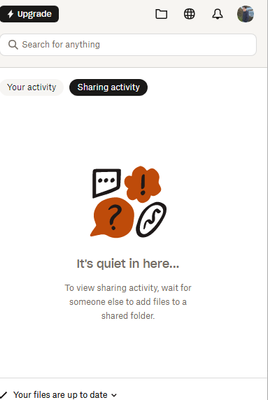
Sharing activity in the desktop app isn't working.
Hi Team, Yesterday, for a reason that I am not sure of(the only thing we did, was add another user with access to a certain dir)...the "sharing activity" has stopped working...we are working on a shared dropbox with several people constantly updating /adding files...and now on the app, you cant see the changes being made... Its on different computers....but tried reinstalling the app, restarting etc...nothing. any help will be appreciated,25Views0likes3Comments
Why was my sharing paused?
Dropbox Plan - Basic/Free Device - Mac Studio Operating System/Browser (if using the web). - Mac OS 15.7.2 / Safari Question or Issue I've been using Dropbox for 10 yrs or more and never ran into this problem. I need to share a folder of images and I'm getting this message "We’ve interrupted your sharing activity. For details or to contact support..." Why am I getting this message??? I've only used 1.9GB of the 3.25GB given. I've emptied the "deleted files" folder. I discovered in the "Shared" option that there are Lots of folders, but there's no way of deleting them (though I had previously deleted them). The only option that I've found is to "Join Folder" which I don't want to do. 1 - are they taking up unnecessary space in my Dropbox? 2 - do I need to get rid of them, and if so, how? I need to get this resolved ASAP. Thanks for the help.24Views0likes1Comment
I shared a folder with someone but they cannot access the contents
Device HP laptop Operating System/Browser (if using the web) (Windows 11) I just posted this but it's not showing up. I shared a parent folder with my VA for photos with 7 child folders inside it. She couldn't access that folder. So I shared one child folder with her and she can open that one, but doesn't see all the photos that I put into it. Both the parent folder and child folder show that they are "shared'. What's am I doing wrong? I can put screenshots if it would help. Thank you!Solved85Views0likes10CommentsUsers downloading a file from a dl=0&raw=1 shared link get a 0 bytes download
Question or issue I’m trying to share .pdf files with my clients by redirecting (302) them to shared link with dl=0&raw=1 query params in link to force browser open it in browser. By the way, almost every russian client get file download, but receiving 0 bytes, error to download and somehow file name is file.pdf in downloads, but in dropbox is other name, something like Привет.pdf. I’ve tested it by my own and there is no problems. It opens in android and ios in different browsers. Is it problem that they trying to download file in russia?50Views0likes2Comments
My files aren't being received by others.
I've been sending files for quite some time to different email addresses. Recently, my clients are not getting the shared files. It says in Dropbox that it's sent, even if I send it multiple times it says it's sent. I tried to send to myself as well and am not receiving the files, though I did receive a reminder email. I have deleted and reinstalled the app, etc. Samsung S21.Solved129Views0likes11Comments