Your workflow is unique 👨💻 - tell us how you use Dropbox here.
sync
42 TopicsHow to Link your Calendars to Dropbox
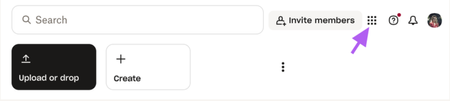
As we step into 2025, integrating tools and apps has become essential for seamless workflows 💪. Our lives revolve around our schedules and calendars so linking your Dropbox account with your Google or Outlook calendar not only saves time but also boosts productivity by centralizing your tasks, files, and appointments in one place 👨💻. Here’s a step-by-step guide to linking Dropbox with your calendar and contacts for ultimate productivity: Log in to Dropbox.com via the web browser Click the grid in the left-hand corner Select App Centre to find what you wish to link. Search Calendar within the search bar to find your desired calendar application. Select connect on your desired calendar linkage. Follow the on-screen instructions to grant Dropbox access to your calendar and contacts. For Google Calendar, you may need to log in to your Google account and confirm permissions. For Outlook, log in to your Microsoft account and complete the authorization. Linking Dropbox with your Google or Outlook calendar and contacts is a simple way to stay organized and save time 💌. It keeps your files, schedules, and contacts connected, making it easier to manage meetings, deadlines, and teamwork 🤝💬. Give it a try and see how it can simplify your workflow and boost your productivity.2.7KViews7likes0CommentsFall Photography Tips & Tricks
Fall, or autumn as we call it here in Ireland, is arguably the most photogenic season. Missing out on capturing its beauty would be a shame. Here’s how you can make the most of this vibrant time of year with some simple photography tips. Play with Colour in Your Composition The fall colour palette is so recognisable and it is with no doubt one of the main things that sets your Autumnal photos apart from the rest of the year. With nature slowly turning to beautiful gold, orange, red and brown, it is no wonder the rich autumn colours are so iconic and play to the senses to give a warm feeling to a photo. To emphasize these, you can easily link Photoshop to Dropbox, allowing you to boost the already present colours in post-editing, enhancing the natural vibrancy of the scene. Capture the Magic During Golden Hour To truly make the most of fall’s spectacular display, shoot your landscapes during the golden hour (the hour after sunrise and the hour before sunset). This warm, soft light enhances the already vivid fall colors, casting a romantic glow over your photos. It’s the perfect time to capture the essence of a crisp autumn walk through a forest or along a quiet country road. Want to share a photo of a glorious autumn sunset on your social media? Easily add watermarks to your photos - Nature may be beautiful but, you deserve some credit too! 😉 Explore Fall in the City Fall isn’t just for those in rural areas, cities offer their own unique autumnal charm. Capture the season’s essence with shots of fall fashion, urban wildlife, or maybe you could get really artsy with puddle reflections. The contrast of vibrant leaves against urban landscape can create real visual impact. It can be exciting in the city - we easily get inspired and may take waaay too many photos ( speaking for myself, especially with my weakness for fall fashion). We want to share what we see with family and friends, and Dropbox makes it so easy to share large, high-resolution photographs with sharable links. Stay Safe When you’re out chasing that perfect autumnal shot, safety should always be a priority. Be cautious of slippery surfaces, especially near bodies of water or on hiking trails with fallen leaves and damp ground, wear sturdy shoes with good grip, carry a fully charged phone, and respect wildlife by giving animals their space. Tips from a Photographer One of our talented Community managers, who also happens to be an incredible photographer, shared some valuable fall photography tips with us: “I love capturing leaves falling and love using reflections in my photos, especially during autumn. There is such a panoply of colours that you can capture. I often recommend using trees, windows, etc. to help frame your photos. It helps capture the moment and really draw yourself into the experience” Here are a few examples of Emmet’s amazing photography. As you can see he really can capture that natural mystical radiance found in Ireland during the Autumn months. So what are your top photography tips for fall? Share your thoughts and join the conversation below! Let’s capture the beauty of this incredible season together.1.1KViews7likes2CommentsExciting news — we’ve launched the new Sync & Storage Dashboard in the Dropbox desktop app!
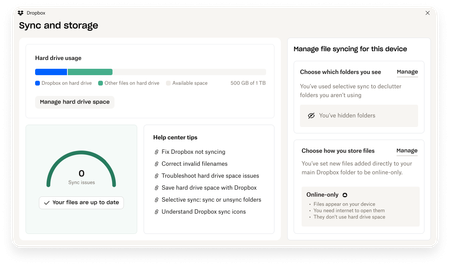
This dashboard makes it easier than ever to keep your files organized and your computer running smoothly. With just a click, you can: Get a real-time view of your sync status Quickly spot and resolve any syncing issues Monitor and manage how much disk space your Dropbox files are using Adjust your selective sync and storage preferences To open the dashboard, click the Dropbox icon in your taskbar (Windows) or menu bar (Mac), then select your avatar and choose Sync & storage. We’re excited for you to try it out! Please let us know your thoughts and how we can make it even better!7.6KViews6likes14Comments
Using Selective Sync to free up space
Today on Twitter we'll be talking about Selective Sync. If you have a folder in your Dropbox account that you rarely use - such as back ups of important documents, photos from old holidays, or work files that you don't need on your home PC - you can use Selective Sync to free up that space on your hard drive. You can view your Selective Sync settings in the 'preferences' of your Dropbox desktop app. For a more detailed guide, check out our help center article here. Do you use Selective Sync at home or at work? Do you find it works well for your needs, or do you have any suggestions on how we could improve it? We'd love to hear your thoughts!2.2KViews6likes0Comments
iPad Files app not showing Dropbox folders and how I managed to solve this.
In working with a new iPad, I discovered that the Files app was not correctly connecting with Dropbox. No Dropbox folders showed up either in the Files app or in any other app with an open feature that would normally have been able to access Dropbox files. Oddly, when I clicked “Dropbox” in the list, there were no folders but I could add a folder and that new folder showed up in Dropbox on other devices (and in the Dropbox app on the iPad)! So there was some connection but not much… This is not an issue I’m experiencing on any of my other Apple devices (Mac or iOS). In talking with Apple support they had me delete the Files app, reboot the iPad, then reinstall “Files.” I did that, but to no effect. They escalated me to a higher level of support but while I was waiting, I also deleted Dropbox and reinstalled it. That solved the problem! So, if you can’t access your Dropbox folders and files in Files or in any of your other iPad apps, just delete and reinstall Dropbox—problem solved (at least for me, this time!)6.3KViews4likes6Comments
Qr code to have others directly upload photos to my Dropbox account.
Maybe an idea would be to offer a qr code to upload pictures to a set drive drive. So like at a wedding the guests could scan the code and upload the photos they have took that day/evening. Then maybe within your dropbox you could team up with a photo printing company like FreePrints and get prints straight away quoit the need of downloading photos and uploading to their site Just an idea Chris14KViews4likes1Comment
SOLUTION: Print Screen Button opens Snipping Tool (or Snip & Sketch) instead of saving to Dropbox
I initially was going to post to ask for help, but I finally got this figured out!! First of all, Dropbox has a feature to save screenshots automatically. Go to preferences and then Backup and you should find a setting to "share screenshots to dropbox". Now the problem/solution: So, I have a new Lenovo laptop running windows 10. I noticed that instead of saving screenshots to Dropbox when I press the "print screen" button on my keyboard that it would open Snip & Sketch software. I tried uninstalling that software and now it just opens Snipping Tool instead. For the life of me I couldn't figure out how to simply save a screenshot into Dropbox . I tried restarting, reinstalling. I tried all the different variations of taking a screenshot, such as Windows Key + PrtSc etc etc. I tried removing Snipping Tool with registry edit but couldn't find it. I turned off the setting “Print Screen Shortcut” in the “Easy of Access Keyboard” settings which SHOULD have done the trick but did NOT. It even says I need to restart which I did, and it still didn't work. Then I read online you can take screenshots with WINDOWS KEY + VOLUME DOWN And I got the beautiful notification "A SCREENSHOT WAS ADDED TO DROPBOX" WOOHOO! Problem Solved!! For some reason, that command now behaves like the old print screen button used to. (You might need to also find your “ease of access keyboard settings” and turn off the setting “Print Screen Shortcut” which I did prior to discovering this awkward solution, so if this didn’t work for you, try turning that setting off and trying again) I hope this helps someone out there. It took me 2 hours to figure this out.5.3KViews4likes3CommentsHow to free up space with online and offline file options
Storing and saving your files is important, and making sure your files are available where you need them can help with that. So, let’s figure out if you need to have your files available online or offline. Why should I make my Dropbox files available offline? Whatever device you’re using with Dropbox, whether it’s a computer, tablet, or phone, you can make your files and folders available offline. This is similar to downloading your files, except it also keeps them in Dropbox. This way, your files are saved offline on your device as well as online in your Dropbox account. So, whether you’re on the move, or you have wifi that drops, you can make your files available offline and keep on working. While you’re offline, changes made to your offline files won’t “sync”. This means that the changes you make offline won’t sync between your offline device and everywhere else you access your files in Dropbox. Once you are back online, Dropbox will sync the changes you made to your offline files everywhere you access them in Dropbox. How do I make files available offline? The short version of it is, within your Dropbox folder in File Explorer (Windows) or Finder (Mac), find the file you’re looking for and right-click on it, and then simply choose Make available offline. Easy! For more info, you can head over here. What are Dropbox online-only files? As the name suggests, these files are available only when you’re online. Since this frees up space on your computer or your hard drive, it is the perfect option if your laptop is at capacity, but you still want to access your files. If you set a file or folder to online-only, you’ll still see the file or folder in the Dropbox folder on your computer, but it’s just a placeholder. You can only open it if you’re connected to internet. Dropbox removes it from your computer’s hard drive, so that it only takes up space in your Dropbox account online. How to make a file or folder online-only: To set a file or folder to online-only manually: Open File Explorer (Windows) or Finder (Mac). Open the Dropbox folder. Right-click the file or folder you’d like to set to online-only. Under Quick Actions, click Make online-only. If you’d like to save your file or folder back to your computer’s hard drive, repeat this step and click Make available offline. So, now you know the difference between online-only and offline files and when each one might suit better. So, why not look at your files and folders and see if you can free up some space? Do you separate your files depending on where and when you need them?9.1KViews3likes1CommentHow Andy took his life off of flash drives with Dropbox Folders and Paper
Meet Andy, a Dropbox devotee who has moved his personal and work files from flash drives to Dropbox. This is Andy’s story… What brought me to Dropbox Before I used Dropbox, it was such a pain transferring files between by devices when I was on the go, or needed to do work somewhere that wasn't my main computer. I have a similar story to Drew, really. I never left my flash drive anywhere by accident, but it was a pain to carry flash drives or external hard drives around, and constantly copy data to and from them to transfer. With Dropbox, for both me, and our media production, I don't have to think about it anymore. How I use Dropbox Even for personal use, I've been using Dropbox for more than 8 years now, and Dropbox as a whole has just made everything so much simpler. Especially when collaborating, I find Paper to be a big help. I've used Selective Sync a bit, but as far as actual core productivity and help goes, the big two are just the application itself, and collaborating with Paper. In Dropbox, for the most part, I don't really have a structure. I have general folders for related things, but it's sort of all over the place, since it's all personal for the most part anyway. As far as Paper goes, I don't have a lot of structure. For work, everything tends to be organized into folders, and the main folder is shared between everyone. Because of how small our company is, we don't have a whole lot to organize. I myself don't have a lot of organization either. I certainly am glad Dropbox has the features it has, and I use most of them at least sometimes. Tips for the community Plan ahead and keep organized. Know what you want to do, and know your options before you actually do anything. Do you use Dropbox in a similar way? Have questions for Andy about their workflow? Reply below with your thoughts!2.7KViews3likes0CommentsWhen Things Go Wrong: How to Restore Files with Dropbox
This thread ‘File corrupted and cannot be restored from the version history’ here on the Community got me thinking ... it reminded me of how important file recovery tools can be, especially when things go a bit sideways 😬. So I thought I’d put together a quick guide on how to restore files using Dropbox, just in case you ever find yourself in a similar situation 🛠️. We’ve all been there. You delete a file by mistake 🗑️ or maybe overwrite something important and suddenly you realise you need to get it back. The good news? When you’re using Dropbox, restoring files is straightforward ✅. Here’s how it works and what you need to know ⬇️ 🔍 Check your Deleted files If you have accidentally deleted something, start by checking the Deleted files page on Dropbox.com. You can find it in the left-hand sidebar once you’ve signed in. From there: Browse or search for the file or folder you want to recover Click on it and select Restore By default, Dropbox keeps deleted files for 30 days (or longer if you’re on a Business, Professional or team account with extended version history). So as long as you’re within that time frame, recovery is possible 🕒. 🕰️ Restoring earlier versions If you didn’t delete the file but made changes you regret, Dropbox can help with that too. We keep a version history of your files, so you can go back in time and restore a previous version. Here’s how: Open Dropbox.com and find the file Click the three dots beside it, then choose Version history Pick the version you want to bring back and click Restore This works really well for documents that get edited regularly 📝 – especially if you’re collaborating with others and need to undo changes. 📱💻 Using the mobile app or desktop While the web version gives you full control over file recovery, you can also use the Dropbox mobile app to view deleted files or earlier versions. It’s a bit more limited, but good for quick fixes on the go. On the desktop app, any restored file will sync back to your device automatically once you’ve completed the restore online – so there’s no need to manually re-download it 🔁. ❓ What if I still can’t find a file? If you’re still not seeing the file you need or you’re unsure when it was deleted, it’s worth checking with your team admin (if you’re on a team account), or you may be able to find your answer here on the Community 🤝. 💬 Got questions? Or maybe a story to share? Hey, if you’ve ever had one of those moments where Dropbox saved the day – whether it helped you recover a last-minute report, saved your college project 🎓, or just rescued a file you thought was gone for good … drop a comment below ⬇️. It’s always so cool to hear how these features are helping our Community members 💙.239Views2likes0Comments