Your workflow is unique 👨💻 - tell us how you use Dropbox here.
sync
42 Topics
Qr code to have others directly upload photos to my Dropbox account.
Maybe an idea would be to offer a qr code to upload pictures to a set drive drive. So like at a wedding the guests could scan the code and upload the photos they have took that day/evening. Then maybe within your dropbox you could team up with a photo printing company like FreePrints and get prints straight away quoit the need of downloading photos and uploading to their site Just an idea Chris14KViews4likes1CommentHow to free up space with online and offline file options
Storing and saving your files is important, and making sure your files are available where you need them can help with that. So, let’s figure out if you need to have your files available online or offline. Why should I make my Dropbox files available offline? Whatever device you’re using with Dropbox, whether it’s a computer, tablet, or phone, you can make your files and folders available offline. This is similar to downloading your files, except it also keeps them in Dropbox. This way, your files are saved offline on your device as well as online in your Dropbox account. So, whether you’re on the move, or you have wifi that drops, you can make your files available offline and keep on working. While you’re offline, changes made to your offline files won’t “sync”. This means that the changes you make offline won’t sync between your offline device and everywhere else you access your files in Dropbox. Once you are back online, Dropbox will sync the changes you made to your offline files everywhere you access them in Dropbox. How do I make files available offline? The short version of it is, within your Dropbox folder in File Explorer (Windows) or Finder (Mac), find the file you’re looking for and right-click on it, and then simply choose Make available offline. Easy! For more info, you can head over here. What are Dropbox online-only files? As the name suggests, these files are available only when you’re online. Since this frees up space on your computer or your hard drive, it is the perfect option if your laptop is at capacity, but you still want to access your files. If you set a file or folder to online-only, you’ll still see the file or folder in the Dropbox folder on your computer, but it’s just a placeholder. You can only open it if you’re connected to internet. Dropbox removes it from your computer’s hard drive, so that it only takes up space in your Dropbox account online. How to make a file or folder online-only: To set a file or folder to online-only manually: Open File Explorer (Windows) or Finder (Mac). Open the Dropbox folder. Right-click the file or folder you’d like to set to online-only. Under Quick Actions, click Make online-only. If you’d like to save your file or folder back to your computer’s hard drive, repeat this step and click Make available offline. So, now you know the difference between online-only and offline files and when each one might suit better. So, why not look at your files and folders and see if you can free up some space? Do you separate your files depending on where and when you need them?9.1KViews3likes1CommentExciting news — we’ve launched the new Sync & Storage Dashboard in the Dropbox desktop app!
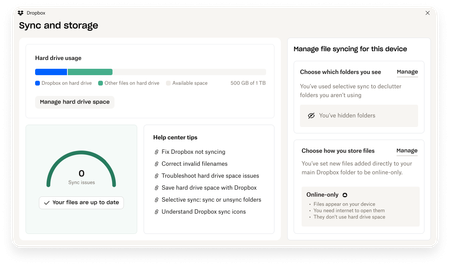
This dashboard makes it easier than ever to keep your files organized and your computer running smoothly. With just a click, you can: Get a real-time view of your sync status Quickly spot and resolve any syncing issues Monitor and manage how much disk space your Dropbox files are using Adjust your selective sync and storage preferences To open the dashboard, click the Dropbox icon in your taskbar (Windows) or menu bar (Mac), then select your avatar and choose Sync & storage. We’re excited for you to try it out! Please let us know your thoughts and how we can make it even better!7.6KViews6likes14Comments
iPad Files app not showing Dropbox folders and how I managed to solve this.
In working with a new iPad, I discovered that the Files app was not correctly connecting with Dropbox. No Dropbox folders showed up either in the Files app or in any other app with an open feature that would normally have been able to access Dropbox files. Oddly, when I clicked “Dropbox” in the list, there were no folders but I could add a folder and that new folder showed up in Dropbox on other devices (and in the Dropbox app on the iPad)! So there was some connection but not much… This is not an issue I’m experiencing on any of my other Apple devices (Mac or iOS). In talking with Apple support they had me delete the Files app, reboot the iPad, then reinstall “Files.” I did that, but to no effect. They escalated me to a higher level of support but while I was waiting, I also deleted Dropbox and reinstalled it. That solved the problem! So, if you can’t access your Dropbox folders and files in Files or in any of your other iPad apps, just delete and reinstall Dropbox—problem solved (at least for me, this time!)6.3KViews4likes6Comments
Share pictures with loved ones automatically?
My wife keeps the pictures of our two year old daughter synced with dropbox. We want to share pictures of her with our large extended family, but we also don't want to post the pictures to social media. I created an app that takes dropbox folder and creates a secured online photo gallery for your friends and family. https://www.producthunt.com/posts/myphotos-by-gembani6.1KViews2likes3CommentsDropbox Smart Sync Icons Missing on Windows 10 - SOLVED
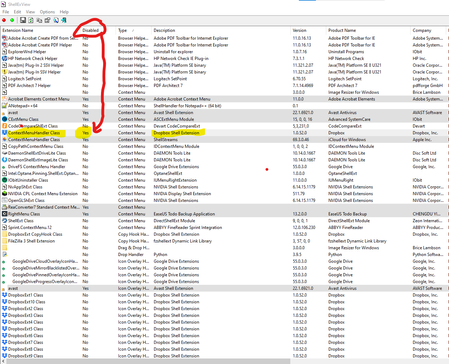
After spending almost an entire week with Dropbox tech support, uninstalling, re-installing, cleaning registries, running command scripts, MULTIPLE TIMES... We were getting nowhere. So, I did some serious research on the web looking for ways to locate and fix Windows Right-Click "Context Menus". I found a utility called ShellExView by Nirsoft. Which pointed to another page ( fix-slow-right-click-crashes-shell-extensions ) with some more explanation on how to use it. Apparently, the problem was that, for some strange reason, as you can see in the screenshot below, the Dropbox “ContextMenuHandler Class” was marked as “Disabled”. I simply did a Right-Clickover it, and selected to “Enable selected items”. Then re-started Explorer using ShellExView's Ctrl+E option to restart the Windows shell. Please NOTE... Restarting the Explorer shell is an essential step. This should NOT be skipped. And… VOILA!!! After a few seconds... ALL of the Dropbox Context Menu items magically now appear!!! For FOLDERS, it shows like this: And for FILES, it looks like this: Hope this helps! All the best, Jacob5.8KViews0likes14CommentsTips for remote working with Dropbox
At the moment, people and teams are adjusting to the realities of a distributed workforce at a whole new scale. We want to share some tips to help make the transition as seamless as possible and ensure you stay connected and keep work moving. Get Syncing The first step in preparing yourself for remote working is to store everything you need in the cloud. That way, you and your team can access all the materials needed to keep projects moving. Sync files across all your devices and platforms. To start, sign in to your Dropbox account on each device, then add your files and folders to the Dropbox folder on your computer, phone, or tablet. The latest version of all your files and folders will be synced automatically and available on all your devices, so you won’t need to email updated versions to your team. The green checkmark lets you know all your important files are completely synced. Get offline access on all your devices. What happens if your WiFi or mobile signal drops and you can’t get online? No worries. Locally synchronized folders and files are available on the desktop app when you are offline. Once you get reconnected, Dropbox will automatically sync your folders and files with any changes you made. Upload photos and scan documents with the Dropbox mobile app With the Dropbox mobile app, you can scan documents and upload phots taken with your phone into the Dropbox folder of your choice. Dropbox Professional and Business users can even search for text within their scans, thanks to optical character recognition (OCR). Save space on your hard drive. With Dropbox, you can move files and folders to online-only, so you can work without worrying about filling up your hard drive. They’ll still be visible and accessible from your desktop, just a click away—open a file and it will automatically sync to your hard drive. Want more tips on getting the most value from Dropbox when you’re working from home? Check out How Dropbox can support distributed work.5.6KViews1like0Comments
MacOS, high CPU usage by open directory, symlinks in Dropbox
Hi, I just wanted to share how I solved this high-CPU-usage problem. The short story is: delete all your symbolic links from under the Dropbox folder. Long story: I'm on macOS High Sierra and I found that a system process ("daemon") called "opendirectoryd" keeps using 50--100% of CPU all the time as long as the computer is up. I don't know exactly when this started, but it started recently, say a few weeks. I searched the Net and found a lot of discussions about the daemon using a lot of CPU time. Apparently there are so many different causes. Some of the discussions pointed to Dropbox. I indeed found that Dropbox is the cause: when I pause syncing, the daemon's CPU use immediately drops well below 1% and as soon as I resume Dropbox syncing, the daemon's CPU use shots up and stays there forever. But all the Dropbox-related answers say that you should delete dead symbolic links. I did delete the few dead symbolic links I had in my Dropbox folder but the problem persisted. Then I came across this document in the Dropbox help: https://www.dropbox.com/help/desktop-web/high-cpu-usage which says that Dropbox uses a lot of CPU time to hand symbolic links (dead or not). Although I didn't want to do that, I bit the bullet and deleted all my symbolic links under the Dropbox folder and moved the files and folders from my main directory to Dropbox. Now, the opendirectoryd daemon stays calm.5.5KViews0likes0Comments
SOLUTION: Print Screen Button opens Snipping Tool (or Snip & Sketch) instead of saving to Dropbox
I initially was going to post to ask for help, but I finally got this figured out!! First of all, Dropbox has a feature to save screenshots automatically. Go to preferences and then Backup and you should find a setting to "share screenshots to dropbox". Now the problem/solution: So, I have a new Lenovo laptop running windows 10. I noticed that instead of saving screenshots to Dropbox when I press the "print screen" button on my keyboard that it would open Snip & Sketch software. I tried uninstalling that software and now it just opens Snipping Tool instead. For the life of me I couldn't figure out how to simply save a screenshot into Dropbox . I tried restarting, reinstalling. I tried all the different variations of taking a screenshot, such as Windows Key + PrtSc etc etc. I tried removing Snipping Tool with registry edit but couldn't find it. I turned off the setting “Print Screen Shortcut” in the “Easy of Access Keyboard” settings which SHOULD have done the trick but did NOT. It even says I need to restart which I did, and it still didn't work. Then I read online you can take screenshots with WINDOWS KEY + VOLUME DOWN And I got the beautiful notification "A SCREENSHOT WAS ADDED TO DROPBOX" WOOHOO! Problem Solved!! For some reason, that command now behaves like the old print screen button used to. (You might need to also find your “ease of access keyboard settings” and turn off the setting “Print Screen Shortcut” which I did prior to discovering this awkward solution, so if this didn’t work for you, try turning that setting off and trying again) I hope this helps someone out there. It took me 2 hours to figure this out.5.3KViews4likes3CommentsWhat you need to know about storing and backing up your photos with Dropbox
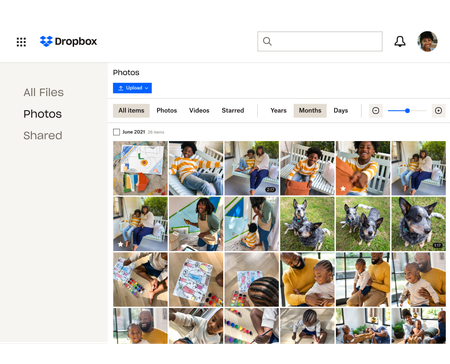
We see a lot of questions about storing, sharing and backing up your photos on Dropbox so here are some tips to make that as easy as possible! Back up photos automatically to your Dropbox account You know we love an automatic process, so whether it’s your camera roll photos, your screenshots or your document scans, your cloud photos are some of the most important files you have. In fact our own Emmet told us about a time when he almost lost his photos due to a tech malfunction - “One of my old hard drives of photos got corrupted several years ago. This was almost a year of photos. Thankfully, lot of these had been saved to my Dropbox account automatically, and this was important as a couple who I was friends with wanted a high definition photo of them from the first night they went out together, and I was only able to share it on their wedding day because it was saved on Dropbox.“ Keeping full-resolution copies backed up with online photo storage means you can access them anytime, and you know there is a safe and secure copy in the cloud. Here are just a few ways Dropbox can keep your photos safe: Camera uploads: Once you turn this on, photos from your phone or tablet will be automatically backed up to Dropbox. Or in our desktop app, photos will be copied from cameras, memory cards, or mobile devices whenever you connect one to your computer. Screenshot backups: You can set up our desktop app to automatically move screenshot images to your Dropbox, or have mobile device screenshots backed up using camera uploads. Document scanning: The native/built-in scan functionality in the Dropbox mobile app lets you use your phone’s camera to scan and make digital backups of receipts, whiteboards, and paper documents. Share your photos with links, shared folders and control access Storing your photos is great, but chances are you will want to share some - whether it’s with family members, teammates or the expense team at work. There are a few ways you can do that, and you can manage the access with a few clicks as well. Shared links: You can easily create a link to share any file or folder in your Dropbox. Copy and paste your link into an email, text message, or chat, to share with anyone—even if they don’t have a Dropbox account. Access control: Keep your photos in the right hands by adding password protection, expiration dates, and sign-in requirements to your shared links. Shared folders: Want to collect your photos and someone else’s in the same place? Share files back and forth by inviting other people to sync a folder between your account and theirs. Organize your photos: Saving and sharing your photos can be great but it’s no use if you can’t find the one your looking for, so organizing and viewing your photos is essential too! Here are some tips on how to do that, and if that’s not enough you can see how our own Eliene organizes her photos. Photo browsing: View and browse all of your photos and videos from the Photos tab in our mobile app or on the web. Image previews: View over 35 image file types from dropbox.com or our mobile app. You can preview common files like JPEG, PNG, TIFF, and GIF; app-specific types like Photoshop and Illustrator; raw formats like CR2, DCR, and DNG; and even iOS HEIC photos. Best of all, there’s no need for special photo software. Image tagging: Find your photos fast by adding searchable hashtags to individual photos or an entire folder. How do you manage your photos with Dropbox? Share your tips in the comments below, or if you have any questions you, we can answer those too!4.8KViews1like2Comments