Need to see if your shared folder is taking up space on your dropbox 👨💻? Find out how to check here.
Forum Discussion

SistemasMVH1
4 years agoExplorer | Level 3
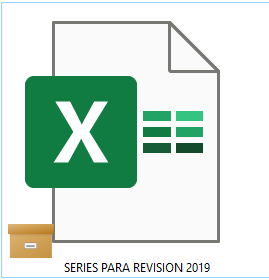
Orange box icon meaning
What does this orange box icon means? I'm on desktop, windows 11.


DG111
4 years agoHelpful | Level 5
Problem Solved 👏
Hi Nancy, I finally worked it out. It is definitely a Onedrive icon. Disabling Onedrive was not enough to get rid of the icon on the files. I had to actually uninstall it and do a restart. The icon on my files is now gone.
Just a note to anyone that is doing this to be aware that this will remove your Onedrive files from your computer but it is still available in the cloud. Maybe copy the files first just to be safe.
Thank you for trying to assist me with this 😀

Nancy Dropbox Community Moderator
4 years agoDropbox Community ModeratorI’m really glad to hear you were able to sort this out!
If you need something else, we’re here for you.
Have a great rest of your week!
 thartgrove4 years agoNew member | Level 2
FYI uninstalling and deleting One Drive completely does not prevent this icon from continuing to show up. It still puts itself on files i've recently accessed, especially image files (jpg, png, etc...). It doesn't affect the file from being opened, but I do have a ton of issues with image thumbnails not showing up, especially in the camera uploads folder.
I'm on Windows 11. It makes me think WIndows 11 still grabs your files somehow, regardless of location and syncs them with one drive, even after One Drive completely deleted. Sketchy stuff.
 propertyexplorations3 years agoExplorer | Level 4
I read several of the entries, trying to get rid of the file box on all my dropbox files, because it's super annoying that you can't open your files unless you're online. I didn't see the solution, but I found one.
If the dropbox logo is in the bottom right corner near the time (Windows) right click it, then when the pop up comes up click on your initials in the top right corner, a drop down box will open and click on preferences. A new window will pop up for dropbox preferences, click on the sync tab. There is a section that says "save hard drive space automatically" yes or no. I had no checked, which is what you want, but then there is a drop down selection to the right that allows you to choose "available offline" or "online-only" choose available offline. I had online-only selected and as soon as I switched it to available offline all the little boxes went away.
There maybe another way to get to dropbox preferences, above is how I found it.
 Nickelplate2 years agoExplorer | Level 4
I've uninstalled OneDrive and the briefcase icons remain. I'm also not getting any Dropbox options when I right-click a folder or file. I'm unable to request files for keeping offline, and all other context menu options are missing.
- Mark2 years ago
Super User II
Nickelplate wrote:
I've uninstalled OneDrive and the briefcase icons remain. I'm also not getting any Dropbox options when I right-click a folder or file. I'm unable to request files for keeping offline, and all other context menu options are missing.
The icon is from OneDrive, so, if its still there its an issue with OneDrive's uninstall from the system.
In terms of context menus that USUALLY means Dropbox isn't installed OR it isn't running.
Try to redownload from www.dropbox.com/downloading

About View, download, and export

Need support with viewing, downloading, and exporting files and folders from your Dropbox account? Find help from the Dropbox Community.
The Dropbox Community team is active from Monday to Friday. We try to respond to you as soon as we can, usually within 2 hours.
If you need more help you can view your support options (expected response time for an email or ticket is 24 hours), or contact us on X, Facebook or Instagram.
For more info on available support options for your Dropbox plan, see this article.
If you found the answer to your question in this Community thread, please 'like' the post to say thanks and to let us know it was useful!


