Our Community is in read-only mode until April 8th, learn more here. You can still search existing threads or get help via Dropbox Support, the Dropbox Help Center, or Learn.
Forum Discussion

James3410
6 months agoExplorer | Level 3
Unable to see the cloud icons on my folders after the app's latest update.
Operating System
Windows 11 Dropbox App Version/Browser Version
232.4.5988
Question or Issue
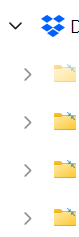
I put all my files on online only and usually I'm able to see the cloud icon on top of th...
- 6 months ago
James3410 wrote:
... usually I'm able to see the cloud icon on top of the files/folders here but I can't view them anymore after the latest update, is this a feature or bug?
If you were updated to the Dropbox for Windows update, the status icons no longer appear directly on your file icons. They're now shown in a separate Status column in the Details view, as shown below, or next to the files in the Icon view. The status icons are no longer displayed in the left-hand navigation.
This is a change enforced by Microsoft when using their Cloud Files API.


jacobtrevorson
6 months agoHelpful | Level 5
This update is horrible. There's no way for Dropbox to work around this?? Now I have another column taking up space in my folders.
- Rich6 months ago
Super User II
jacobtrevorson wrote:
There's no way for Dropbox to work around this?? Now I have another column taking up space in my folders.
The Status column is a function of the Microsoft Cloud Files API. The File Provider API from Apple is the similar for Macs. The APIs allow sync services like Dropbox to better integrate into the operating system, and the Status column allows for a more unified experience regardless of the sync service you use.
If you wish the status icons to appear directly on the files again, you can switch to one of the Icon views.
About View, Download, and Export

Get support with viewing, downloading, and exporting files and folders from your Dropbox account.
The Dropbox Community team is active from Monday to Friday. We try to respond to you as soon as we can, usually within 2 hours.
If you need more help you can view your support options (expected response time for an email or ticket is 24 hours), or contact us on X, Facebook or Instagram.
For more info on available support options for your Dropbox plan, see this article.
If you found the answer to your question in this Community thread, please 'like' the post to say thanks and to let us know it was useful!


