Your workflow is unique 👨💻 - tell us how you use Dropbox here.
Forum Discussion

Briskola
3 years agoCollaborator | Level 8
Cannot move files between dropbox and Backup
Hello, before I did it quietly, but since the transition to Dropbox Backup took place, through the web page it is no longer possible to transfer dropbox files and put them in the backup folders or vi...

Jay Dropbox Community Moderator
3 years agoDropbox Community ModeratorHi Briskola, currently it isn't possible to modify any files in the backup from the Dropbox site.
This can only be done when changing the files directly on your machine, which will then sync to that backup with the changes.
Your feedback and comments are greatly appreciated!

Mike1975
2 years agoExplorer | Level 3
Removing this function assumes that a user syncs everything between their computer and Dropbox. Personally I also use Dropbox to store items not on my machine, for example photos or videos that I don't want clogging up space on my laptop.
I used to use the web version of dropbox to move items that are on my machine desktop (and therefore synced to dropbox) to folders on dropbox not synced to my laptop, thereby removing them from my desktop but still on Dropbox. Working this way means I avoid having to upload those files to dropbox again, just so they can sit in a separate folder already in dropbox.
I've problem just confused the hell out of you (sorry). But this is a key feature of any cloud storage system.
- Rich2 years ago
Super User II
Mike1975 wrote:
I used to use the web version of dropbox to move items that are on my machine desktop (and therefore synced to dropbox) to folders on dropbox not synced to my laptop, thereby removing them from my desktop but still on Dropbox.
And you can still do that. I do the same thing to move files into an un-synced folder so those files are removed from the computer but remain in my account online. Nothing has changed with that.
What this thread is referring to is the inability to modify a backup session, not the actual folders and files in your Dropbox account. When you use the backup feature to back up your key folders or an external drive to Dropbox, those backups are stored in a separate area in your account which isn't meant to be modified. The only way to change files in the backups, is to change those files on the computer or device being backed up and allow them to be backed up again.
- Mike19752 years agoExplorer | Level 3
Thank @Rich for taking the time to respond. It's appreciated.
I might not have explained myself too well, so apologies if that is the case.
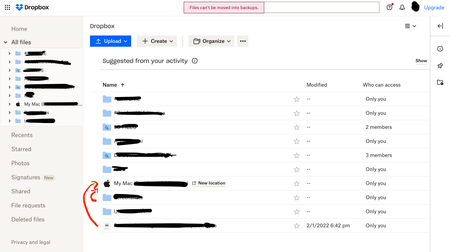
I understand how the backup system works differently but the issue I have is that when I click on the folder menu on the left (in the web version) when not in the backup area, it forces the backup area to load, rather than remaining in the old school dropbox version. Therefore I can't actually get to a folder that is synced on my computer without being in the backup area. That means I'm unable to move it out of there to my non-sync'd folders.
- Rich2 years ago
Mike1975 wrote:
... when I click on the folder menu on the left (in the web version) when not in the backup area, it forces the backup area to load, rather than remaining in the old school dropbox version.
Can you post a screenshot of the area you're clicking? Be sure to mask any private information. And in the meantime, try the following link. It should take you directly to the file listing for your account (not the backup area).

About Delete, Edit, and Organize
Solve issues with deleting, editing, and organizing files and folders in your Dropbox account.
The Dropbox Community team is active from Monday to Friday. We try to respond to you as soon as we can, usually within 2 hours.
If you need more help you can view your support options (expected response time for an email or ticket is 24 hours), or contact us on X, Facebook or Instagram.
For more info on available support options for your Dropbox plan, see this article.
If you found the answer to your question in this Community thread, please 'like' the post to say thanks and to let us know it was useful!


