Your workflow is unique 👨💻 - tell us how you use Dropbox here.
Forum Discussion

KEAlt
10 months agoNew member | Level 1
Naming conventions are sometimes buggy in subfolders.
I have a parent folder with an automation that's supposed to rename every file in its subfolders to a certain format, but it's been very buggy on if it actually works or not... I don't know if it's ...

KEAlt
10 months agoNew member | Level 1
This is the parent folder
Sorry, I said the date format backwards
Sorry, I said the date format backwards

Jay Dropbox Community Moderator
10 months agoDropbox Community ModeratorThanks for the images. I've managed to replicate the same behavior you mentioned, and after a lot of testing, I was able to figure out how to avoid this, and more importantly, why this is happening.
Long story short, to prevent this from occurring in subfolders, on the File request page, click the 'Set naming conventions button' there:
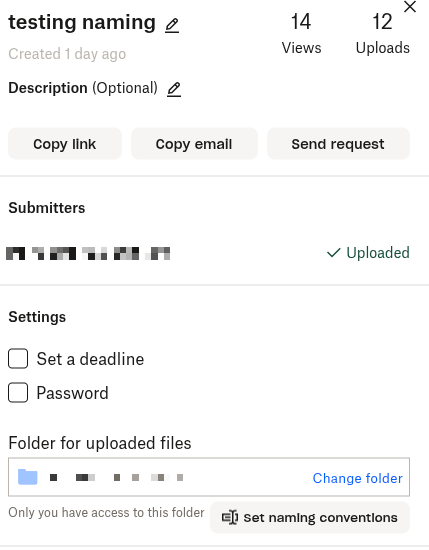
Then, for the next window, remove the Sender's name option entirely so it looks like this.
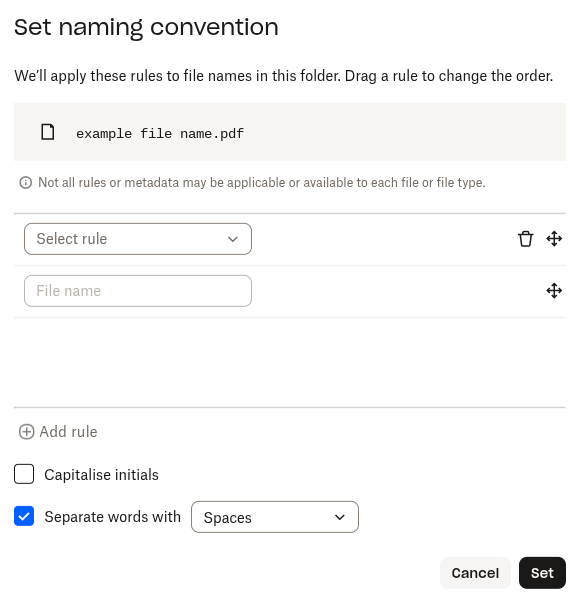
The folder I chose is a subfolder of a page with the exact automation you created, and all files came out with the correct name.
Now, if you want to know why this was occurring, because file requests automatically add the sender's name in the default naming convention after the filename, this means that files would look like 'test1 Jay.png'.
After doing the tests, my belief is that Dropbox can only access the 'sender's name' once in total. So, when the automation tried to add a sender name, it couldn't access it, and left it blank.
The filename itself, which is then added by the automation 'correctly' would be the test1 Jay.png, which was generated by the original naming convention in the file request, hence the wrong order you were seeing (with sender name and filename in a different order on your end).
When you remove the sender's name from the original file request, the parent folder automation would be able to grab that variable, and then put it in the correct order.
Could you test this out and let me know if this helps?
- KEAlt10 months agoNew member | Level 1
I think that worked, but all my previous files are not affected, where if I put the convention in the file request, it fixes all the names.
I'm confused why my parent folder doesn't have a naming convention option anymore, only an automation option that only seems to apply when new files are uploaded, so the old ones aren't renamed- Jay10 months ago
Since the naming convention is inside an automation in the parent folder, as opposed to just a naming convention, this process is only run once, meaning that it won't be able to run on the previous files.
Otherwise, this could lead to it endlessly repeating the automation and making file names longer and longer forever.
- KEAlt10 months agoNew member | Level 1
So if I remove the automation, I'll get the naming convention option back?
About Delete, Edit, and Organize
Solve issues with deleting, editing, and organizing files and folders in your Dropbox account.
The Dropbox Community team is active from Monday to Friday. We try to respond to you as soon as we can, usually within 2 hours.
If you need more help you can view your support options (expected response time for an email or ticket is 24 hours), or contact us on X, Facebook or Instagram.
For more info on available support options for your Dropbox plan, see this article.
If you found the answer to your question in this Community thread, please 'like' the post to say thanks and to let us know it was useful!


