Your workflow is unique 👨💻 - tell us how you use Dropbox here.
Forum Discussion

mblatz01
2 years agoExplorer | Level 3
Dropbox Context Menu (Including "Copy Dropbox Link") not Appearing in Explorer
Windows 10 Home Edition 64-bit, ver 22H2
Dropbox ver 173.4.6706
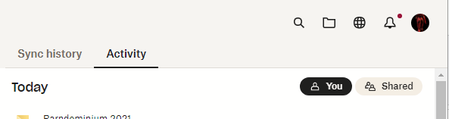
When I open up my Dropbox folder from DB desktop app (using folder icon in Dropbox panel displayed):
And t...

mblatz01
2 years agoExplorer | Level 3
re: O/S, no, not a major upgrade. Of course, Windoze more or less does whatever it wants re: weekly or monthly fixes/patches/releases. But to be fair, I am not really sure when I lost the DB file level "create link" functionality. And, to be clear, I can get a link if I got to Dropbox on the web and login, it's just a PitA.
The "link icon" I referred to is the middle one when a line item in the app panel is hovered over (the first and second are disabled/grayed out, the third (the ellipsis) is active:

Megan Dropbox Community Moderator
2 years agoDropbox Community ModeratorHi mblatz01, thanks for the details!
Keep in mind that his issue may be related to other applications on your computer that use the icon overlay and context menu functionality of your OS.
As you are on Windows, please note that it has a limit of 15 overlay icons that Windows Explorer can load, and the operating system reserves 4 for its own use. If there are more than 15 (which would mean the Google Drive icons), then the Dropbox icons or context menus may not show.
To fix this and move the Dropbox sync icons to the first 15 positions:
- Follow the steps in the following article to open your Windows 10 registry editor (applicable to Windows 11 also):- https://support.microsoft.com/en-us/windows/how-to-open-registry-editor-in-windows-10-deab38e6-91d6-e0aa-4b7c-8878d9e07b11
- A “Registry Editor” window will open.
- Navigate through the following folders: “HKEY_LOCAL_MACHINE” > “SOFTWARE” > “Microsoft” > “Windows” > “CurrentVersion” > “Explorer” > “ShellIconOverlayIdentifiers”.
- Rename (right-click and click Rename) the files, so that the Dropbox files appear in the first 15 files in the list. You can do this by putting spaces in front of those file names, so that they move higher up in the list.
- Close and restart both of your computer and the Dropbox desktop app.
- mblatz012 years agoExplorer | Level 3
I'll see if this makes sense...hard to see how it can work for folders but not files, but I'll check it out.
- mblatz012 years agoExplorer | Level 3
Megan Before I rename (or delete) anything, I want to ask about the several DropboxExt## entries. Are all of these (10 of them!) normal? Necessary? Also, I note that they are not 15 entries down. Is that relevant? And I don’t use OneDrive or GoogleDrive, really...they just were installed once or possibly without my knowledge...do I need their entries?
- Megan2 years ago
Hey mblatz01, keep in mind that all the Dropbox entries would need to be within the top 15.
In the screenshot DropboxExt07 through 10 aren't within that top 15. I suggest that you move them all, at least 3 places "up" to see how that behaves.
You can avoid deleting any other entries for now, but if you must you can later bring them back just by running the relevant app's installer again.
- mblatz012 years agoExplorer | Level 3
Sure! Thanks...
- mblatz012 years agoExplorer | Level 3
Yep...I just responded to email.

About Apps and Installations
Have a question about a Dropbox app or installation? Reach out to the Dropbox Community and get solutions, help, and advice from members.
The Dropbox Community team is active from Monday to Friday. We try to respond to you as soon as we can, usually within 2 hours.
If you need more help you can view your support options (expected response time for an email or ticket is 24 hours), or contact us on X, Facebook or Instagram.
For more info on available support options for your Dropbox plan, see this article.
If you found the answer to your question in this Community thread, please 'like' the post to say thanks and to let us know it was useful!


