Your workflow is unique 👨💻 - tell us how you use Dropbox here.
Forum Discussion

Diego73
7 years agoExplorer | Level 4
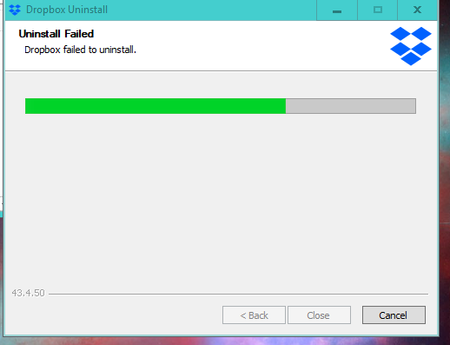
Failed to uninstall the Dropbox desktop app on my Windows 10.
Hello,
not possible uninstall the programm - desktop version
I have also disabled dropbox at starting to avoid any execution
Not icon tray at starting
In windows 10, in program (x86)...
- 7 years agoHey Diego73, welcome to our community!Sometimes, reinstalling our app can help fix the uninstall process.Give this a try:
- Download the offline installer of our Dropbox app.
- Double-click the downloaded file.
- After the install completes, click the Dropbox icon in the system tray.
- Click the gear icon.
- Click Quit Dropbox.
- Try to uninstall Dropbox again.
If the app still won’t uninstall, follow these steps to manually uninstall:- Open Windows File Explorer.
- Copy this line and paste it into the address bar. Press Enter.
%PROGRAMFILES(x86)% - In “Program Files,” open the “Dropbox” folder, then open the “Client” folder.
- In “Client,” you should see a file named DropboxUninstaller.exe. Double-click this file to run the uninstaller.
If the uninstaller fails or doesn’t launch, try running the uninstaller as an administrator:- Right-click DropboxUninstaller.exe.
- Select Run as Administrator.
- Enter the computer admin username and password when prompted.
- Follow the the steps in the uninstaller.
I hope this helps. Let me know.Cheers![This thread is now closed by moderators due to inactivity. If you’re experiencing a similar behavior, feel free to start a new discussion in the Dropbox Community here.]

Sanchez Dropbox Community Moderator
7 years agoDropbox Community ModeratorHey Diego73, welcome to our community!
Sometimes, reinstalling our app can help fix the uninstall process.
Give this a try:
- Download the offline installer of our Dropbox app.
- Double-click the downloaded file.
- After the install completes, click the Dropbox icon in the system tray.
- Click the gear icon.
- Click Quit Dropbox.
- Try to uninstall Dropbox again.
If the app still won’t uninstall, follow these steps to manually uninstall:
- Open Windows File Explorer.
- Copy this line and paste it into the address bar. Press Enter.
%PROGRAMFILES(x86)% - In “Program Files,” open the “Dropbox” folder, then open the “Client” folder.
- In “Client,” you should see a file named DropboxUninstaller.exe. Double-click this file to run the uninstaller.
If the uninstaller fails or doesn’t launch, try running the uninstaller as an administrator:
- Right-click DropboxUninstaller.exe.
- Select Run as Administrator.
- Enter the computer admin username and password when prompted.
- Follow the the steps in the uninstaller.
I hope this helps. Let me know.
Cheers!
[This thread is now closed by moderators due to inactivity. If you’re experiencing a similar behavior, feel free to start a new discussion in the Dropbox Community here.]

About Apps and Installations
Have a question about a Dropbox app or installation? Reach out to the Dropbox Community and get solutions, help, and advice from members.
The Dropbox Community team is active from Monday to Friday. We try to respond to you as soon as we can, usually within 2 hours.
If you need more help you can view your support options (expected response time for an email or ticket is 24 hours), or contact us on X, Facebook or Instagram.
For more info on available support options for your Dropbox plan, see this article.
If you found the answer to your question in this Community thread, please 'like' the post to say thanks and to let us know it was useful!


