Your workflow is unique 👨💻 - tell us how you use Dropbox here.
Forum Discussion

mz5
5 months agoHelpful | Level 6
Dropbox required update, but update failed and so does clean install
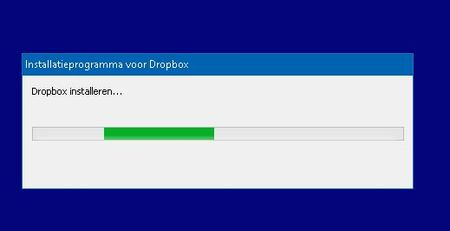
Application Affected Dropbox Device HP Probook 650 Operating System/Browser (if using the web) Windows 10 Pro Dropbox App Version (if using the app) none at this moment, not able to install ...
 5 months ago
I get it, so no easy solution anywhere in sight. But thanks anyway for your efforts!
Dropbox has been providing an excellent solution to me for the last 6 or 7 years. Unfortunately now it seems the product quality has gone downhill and no longer forfills my needs so I have to move on. From my viewpoint as a customer, I need a simple solution that forfills my needs and that works. Not something that requires hours and hours of troubleshooting, and even if we would manage to get it to work now, I do not have a lot of fate anymore that the next update won't break it again.
I just installed another cloud storage product from one of your competitors, took me in total 2 minutes setup time and everything works like a dream straight away. Same price and my data stays in the EU, which is a bonus to me. So I'm happy.
I will end my Dropbox subsciption here, best of luck to you all!

usascholar
5 months agoExplorer | Level 4
Seriously you have to dig into the Registry and start deleting keys for the **bleep** update to work? WTF DropBox... did you fire your competent developers that do the MSI for the updates? Good lord people.
I have been with dropbox over 10 years, this cluster**bleep** of an update is the worst I have seen them screw the pooch on this.
Seriously DropBox, get your act together and push out another update that fixes this update mess.
usascholar
5 months agoExplorer | Level 4
Ok, here is a powershell script I had to create to take out everything dropbox related that was preventing a new install to happen. Use this only after you already uninstalled dropbox, and find that the darn thing wont reinstall... (this happened to me)
Mark this as the solution
<#
Dropbox Deep-Clean Script (PowerShell)
- Removes stray Dropbox processes, services, scheduled tasks
- Uninstalls registered MSI entries bearing "Dropbox"
- Deletes leftover folders (ProgramData, Program Files (x86), LocalAppData)
- Removes stale Event Log source (DbxSvc) that spams errors
- Produces a summary at the end

Run as Administrator. Tested on Windows 10/11 PowerShell 5/7.
#>

# region: guardrails
$ErrorActionPreference = 'SilentlyContinue'
$ProgressPreference = 'SilentlyContinue'

function Write-Info($msg){ Write-Host "[*] $msg" -ForegroundColor Cyan }
function Write-OK($msg){ Write-Host "[+] $msg" -ForegroundColor Green }
function Write-Warn($msg){ Write-Host "[!] $msg" -ForegroundColor Yellow }
function Write-Err($msg){ Write-Host "[x] $msg" -ForegroundColor Red }

# Admin check
$principal = New-Object Security.Principal.WindowsPrincipal([Security.Principal.WindowsIdentity]::GetCurrent())
if (-not $principal.IsInRole([Security.Principal.WindowsBuiltInRole]::Administrator)) {
  Write-Err "Please run this script as Administrator."
  exit 1
}

# endregion

# region: tracking
$did = New-Object System.Collections.Generic.List[string]

# endregion

# region: kill processes
Write-Info "Stopping Dropbox-related processes (if any)..."
$procs = Get-Process | Where-Object { $_.Name -match '^(Dropbox|DropboxUpdate|Dbx|DbxSvc|DropboxUpdater)' }
if ($procs) {
  $procs | ForEach-Object {
    try { Stop-Process -Id $_.Id -Force -ErrorAction Stop; $did.Add("Stopped process: $($_.Name) [$($_.Id)]") } catch {}
  }
} else {
  Write-Info "No Dropbox-related processes found."
}
# endregion

# region: services
Write-Info "Removing Dropbox-related services..."
# Known names + heuristic match
$svcNames = @(
  'dbupdate','dbupdatem',
  'DropboxUpdate','DropboxUpdater','DropboxUpdaterService',
  'DbxSvc'
)

# Add any service whose Name or DisplayName contains 'dropbox' or 'dbx'
$discover = Get-Service | Where-Object { $_.Name -match 'dropbox|dbx' -or $_.DisplayName -match 'dropbox|dbx' }
$targets = @()
$targets += $svcNames | ForEach-Object { Get-Service -Name $_ -ErrorAction SilentlyContinue }
$targets += $discover
$targets = $targets | Sort-Object Name -Unique | Where-Object { $_ }

foreach ($svc in $targets) {
  try {
    if ($svc.Status -ne 'Stopped') {
      Write-Info "Stopping service: $($svc.Name) ..."
      Stop-Service -Name $svc.Name -Force -ErrorAction SilentlyContinue
      Start-Sleep -Milliseconds 300
    }
  } catch {}
  try {
    $out = sc.exe delete $svc.Name | Out-String
    if ($LASTEXITCODE -eq 0) { $did.Add("Deleted service: $($svc.Name)") }
  } catch {}
}
# endregion

# region: scheduled tasks
Write-Info "Removing Dropbox scheduled tasks..."
# Known task names
$taskNames = @('\DropboxUpdateTaskMachineCore','\DropboxUpdateTaskMachineUA')

foreach ($tn in $taskNames) {
  try {
    schtasks.exe /Delete /TN $tn /F | Out-Null
    if ($LASTEXITCODE -eq 0) { $did.Add("Deleted scheduled task: $tn") }
  } catch {}
}

# Heuristic: delete any task whose name contains "Dropbox"
# Parse CSV output to safely get paths
$tasksCsv = schtasks.exe /Query /V /FO CSV 2>$null
if ($tasksCsv) {
  $parsed = $tasksCsv | ConvertFrom-Csv
  $dropTasks = $parsed | Where-Object { $_.'TaskName' -match 'Dropbox' }
  foreach ($row in $dropTasks) {
    $name = $row.'TaskName'
    try {
      schtasks.exe /Delete /TN $name /F | Out-Null
      if ($LASTEXITCODE -eq 0) { $did.Add("Deleted scheduled task: $name") }
    } catch {}
  }
}
# endregion

# region: uninstall MSI-registered Dropbox entries
Write-Info "Checking for installed Dropbox entries (MSI/uninstall keys)..."
$uninstallRoots = @(
  'HKLM:\SOFTWARE\Microsoft\Windows\CurrentVersion\Uninstall',
  'HKLM:\SOFTWARE\WOW6432Node\Microsoft\Windows\CurrentVersion\Uninstall'
)
$toUninstall = @()
foreach ($root in $uninstallRoots) {
  try {
    $toUninstall += Get-ItemProperty "$root\*" | Where-Object {
      $_.DisplayName -and ($_.DisplayName -match 'Dropbox')
    }
  } catch {}
}
$toUninstall = $toUninstall | Sort-Object DisplayName -Unique

if ($toUninstall.Count -gt 0) {
  foreach ($app in $toUninstall) {
    $name = $app.DisplayName
    $uninst = $app.UninstallString
    if (-not $uninst) { continue }

    # Normalize MSI uninstalls to a quiet form
    if ($uninst -match 'MsiExec(\.exe)?\s+/I|/X\s+({[^}]+})') {
      $guid = ($uninst | Select-String -Pattern '{[0-9A-Fa-f-]+' -AllMatches).Matches.Value | Select-Object -First 1
      if ($guid) {
        Write-Info "Uninstalling MSI product $name ($guid) quietly..."
        Start-Process -FilePath "msiexec.exe" -ArgumentList "/x $guid /qn /norestart" -Wait
        if ($LASTEXITCODE -eq 0) { $did.Add("Uninstalled MSI product: $name ($guid)") }
        continue
      }
    }

    # Non-MSI uninstallers: attempt with common silent switches
    Write-Info "Uninstalling non-MSI product $name ..."
    $exe = $uninst
    $args = ""
    if ($uninst.StartsWith('"')) {
      $exe = ($uninst -split '"')[1]
      $args = $uninst.Substring($exe.Length + 2).Trim()
    } else {
      if ($uninst -match '^\S+\s') {
        $exe = $uninst.Split(' ')[0]
        $args = $uninst.Substring($exe.Length).Trim()
      }
    }
    $silentSwitches = @('/quiet','/s','/S','/VERYSILENT','/silent')
    $tried = $false
    foreach ($sw in $silentSwitches) {
      try {
        Start-Process -FilePath $exe -ArgumentList ($args + " " + $sw) -Wait -WindowStyle Hidden
        $did.Add("Attempted uninstall (silent) for: $name")
        $tried = $true
        break
      } catch {}
    }
    if (-not $tried) {
      try {
        Start-Process -FilePath $exe -ArgumentList $args -Wait
        $did.Add("Attempted uninstall (interactive) for: $name")
      } catch {}
    }
  }
} else {
  Write-Info "No uninstall entries with 'Dropbox' found."
}
# endregion

# region: remove stale Event Log source for DbxSvc
Write-Info "Removing stale Event Log source (DbxSvc) if present..."
$evtKey = 'HKLM:\SYSTEM\CurrentControlSet\Services\EventLog\Application\DbxSvc'
if (Test-Path $evtKey) {
  try {
    Remove-Item -LiteralPath $evtKey -Recurse -Force
    $did.Add("Removed Event Log source key: $evtKey")
  } catch {
    Write-Warn "Could not remove Event Log source key (will try to adjust ACL)."
    try {
      $null = takeown.exe /f ($evtKey -replace 'HKLM:\\','HKLM\') /r /d y
      $null = icacls ($evtKey -replace 'HKLM:\\','HKLM\') /grant administrators:F /t
      Remove-Item -LiteralPath $evtKey -Recurse -Force
      $did.Add("Removed Event Log source key after ACL fix: $evtKey")
    } catch {}
  }
} else {
  Write-Info "DbxSvc Event Log source not found (good)."
}
# endregion

# region: delete folders (with ownership fix)
Write-Info "Deleting Dropbox folders..."
$paths = @(
  "C:\ProgramData\Dropbox",
  "C:\ProgramData\DropboxUpdate",
  "C:\Program Files (x86)\Dropbox",
  "$env:LOCALAPPDATA\Dropbox",
  "$env:LOCALAPPDATA\DropboxUpdate",
  "$env:APPDATA\Dropbox"
) | Select-Object -Unique

foreach ($p in $paths) {
  if (Test-Path -LiteralPath $p) {
    try {
      takeown.exe /f "$p" /r /d y | Out-Null
      icacls "$p" /grant administrators:F /t | Out-Null
      Remove-Item -LiteralPath $p -Recurse -Force -ErrorAction SilentlyContinue
      if (-not (Test-Path -LiteralPath $p)) { $did.Add("Deleted folder: $p") }
    } catch {
      Write-Warn "Failed to delete $p. It may be in use."
    }
  }
}
# endregion

# region: optional perf counter tidy (no-op if you don't want it)
$rebuildPerf = $false  # set $true if you want to rebuild counters
if ($rebuildPerf) {
  Write-Info "Rebuilding perf counters (optional step)..."
  try { lodctr /r | Out-Null; winmgmt /resyncperf | Out-Null; $did.Add("Rebuilt perf counters") } catch {}
}
# endregion

# region: summary
Write-Host ""
Write-OK "Cleanup complete."
if ($did.Count -gt 0) {
  Write-Host "Actions taken:" -ForegroundColor Green
  $did | Sort-Object | Get-Unique | ForEach-Object { "  - $_" } | Write-Host
} else {
  Write-Host "No Dropbox remnants were found to remove." -ForegroundColor Green
}

Write-Host ""
Write-Info "Recommended next steps:"
Write-Host "  1) Reboot your PC." -ForegroundColor Cyan
Write-Host "  2) Install Dropbox using the OFFLINE installer (Run as Administrator)." -ForegroundColor Cyan
Write-Host "     URL: https://www.dropbox.com/download?full=1" -ForegroundColor Cyan
# endregion
About Apps and Installations
Have a question about a Dropbox app or installation? Reach out to the Dropbox Community and get solutions, help, and advice from members.
The Dropbox Community team is active from Monday to Friday. We try to respond to you as soon as we can, usually within 2 hours.
If you need more help you can view your support options (expected response time for an email or ticket is 24 hours), or contact us on X, Facebook or Instagram.
For more info on available support options for your Dropbox plan, see this article.
If you found the answer to your question in this Community thread, please 'like' the post to say thanks and to let us know it was useful!


