Your workflow is unique 👨💻 - tell us how you use Dropbox here.
Forum Discussion

twid
3 years agoExplorer | Level 4
Mac OS Ventura - incompatible?
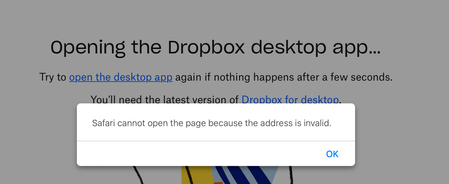
I am a new premium subscriber as of yesterday. I updated to MacOS Ventura on Wednesday. Trying to open the Dropbox desktop app and I receive the error above.
Thanks,
- 3 years ago

raffishtenant
2 years agoHelpful | Level 6
Hi Walter, thanks for the response! My Dropbox version number is 172.3.7425.
Screenshots are a bit awkward at the moment, since I'm actually working with my partner's account on that machine, but I'm sure I can manage it if we think of ones that would be particularly useful. There's very little to see under the "Sync and backups" or "Activity" tabs. "Activity" shows a grand total of three files, and nothing since yesterday. "Sync and backups" shows a lot more, but only up to about 6 hours ago, which is approximately when I changed from my experiment with having every folder unchecked under Selective Sync to having every folder checked once more. This makes me wonder anew what the appropriate setting is: I would expect checked folders to be synced locally, but the only time it appeared to even be trying was when they were unchecked. However, repeated scans with DaisyDisk continue to say that there is virtually nothing on the local disk—15GB of system files and 50GB of everything else—and that's been true regardless of my sync settings.
The status bar has been stuck on "Updating files..." for these last six hours as well. Before that, it showed a consistently decreasing number of files that I would normally assume were syncing, eventually ending up at something like "Everything is up to date." But at no point was I ever able to access any of those files in the local Dropbox directory at /Users/.../Library/CloudStorage/Dropbox.

Hannah Dropbox Community Moderator
2 years agoDropbox Community ModeratorSorry to jump in here, raffishtenant.
One of the expected changes of the new Dropbox for macOS app is that files synced down to the computer from other devices or the website, will sync as online-only by default.
This also includes folders that you removed and then added back through the selective sync settings.
So, I would suggest that you allow the application to finish updating the files and once it's "up to date", you can go ahead and select the files you want to have available offline, right-click on them and choose the "make available offline" option to sync them.
You can do the same with the entire Dropbox folder as well, if you want to make all your files available offline.
- raffishtenant2 years agoHelpful | Level 6
Ahhh...many thanks, Hannah. No worries about jumping in!
I had totally missed the part about the selective sync settings not taking precedence in these circumstances. It seems...unintuitive? But if that's how it works, that's how it works. Whenever it finishes updating, I'll give it a try and report back.- Hannah2 years ago
That sounds great, raffishtenant, I appreciate it!
We'll wait for your update and in the meantime, if you need anything else, please let us know.
- raffishtenant2 years agoHelpful | Level 6
An update, as promised! It's still doing whatever it's doing, but there are enough new developments that I figured it was worth a quick post in the meantime.
After running overnight, the "Updating files..." process finally finished and arrived at "Everything is up to date." I navigated to Library/CloudStorage and right-clicked on the Dropbox folder to select "Make available offline." The app soon came back with a list of around 250GB worth of files (out of 2.2TB) and began to count them down to zero. Now it's finished with that and has been on "Updating files..." again for a few hours.
I'm trying to be optimistic that this is simply an intermediate stage of a long process, but also concerned that a rescan with DaisyDisk still shows absolutely no increase in the total space used on the disk (which is still at 83GB). This appears to be supported by the fact that I still can't seem to locate a single file that has actually been synced locally. I've found a few that don't have the "download from cloud" icon next to them in the Finder column view, but even those, when I double-click to open them, briefly display the "filling circle" icon which is normally used to indicate an active download.
So I guess we'll see...
About Apps and Installations
Have a question about a Dropbox app or installation? Reach out to the Dropbox Community and get solutions, help, and advice from members.
The Dropbox Community team is active from Monday to Friday. We try to respond to you as soon as we can, usually within 2 hours.
If you need more help you can view your support options (expected response time for an email or ticket is 24 hours), or contact us on X, Facebook or Instagram.
For more info on available support options for your Dropbox plan, see this article.
If you found the answer to your question in this Community thread, please 'like' the post to say thanks and to let us know it was useful!


