Your workflow is unique 👨💻 - tell us how you use Dropbox here.
Forum Discussion

twid
3 years agoExplorer | Level 4
Mac OS Ventura - incompatible?
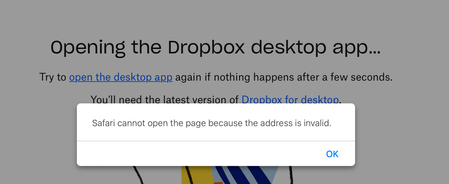
I am a new premium subscriber as of yesterday. I updated to MacOS Ventura on Wednesday. Trying to open the Dropbox desktop app and I receive the error above.
Thanks,
- 3 years ago

raffishtenant
2 years agoHelpful | Level 6
Ahhh...many thanks, Hannah. No worries about jumping in!
I had totally missed the part about the selective sync settings not taking precedence in these circumstances. It seems...unintuitive? But if that's how it works, that's how it works. Whenever it finishes updating, I'll give it a try and report back.

Hannah Dropbox Community Moderator
2 years agoDropbox Community ModeratorThat sounds great, raffishtenant, I appreciate it!
We'll wait for your update and in the meantime, if you need anything else, please let us know.
- raffishtenant2 years agoHelpful | Level 6
An update, as promised! It's still doing whatever it's doing, but there are enough new developments that I figured it was worth a quick post in the meantime.
After running overnight, the "Updating files..." process finally finished and arrived at "Everything is up to date." I navigated to Library/CloudStorage and right-clicked on the Dropbox folder to select "Make available offline." The app soon came back with a list of around 250GB worth of files (out of 2.2TB) and began to count them down to zero. Now it's finished with that and has been on "Updating files..." again for a few hours.
I'm trying to be optimistic that this is simply an intermediate stage of a long process, but also concerned that a rescan with DaisyDisk still shows absolutely no increase in the total space used on the disk (which is still at 83GB). This appears to be supported by the fact that I still can't seem to locate a single file that has actually been synced locally. I've found a few that don't have the "download from cloud" icon next to them in the Finder column view, but even those, when I double-click to open them, briefly display the "filling circle" icon which is normally used to indicate an active download.
So I guess we'll see... - raffishtenant2 years agoHelpful | Level 6
Well, so much for that.
"Everything is up to date." But it's not. There is nothing on the local drive.
I've checked "Make available offline" for the Dropbox folder multiple times. There's no visual indication of whether or not Dropbox actually recognized this, but it clearly thinks it's done everything it needs to do at this point.
My next move is to attempt to duplicate the Dropbox folder, in the hope that this will absolutely force it to perform the downloads. Probably not. - raffishtenant2 years agoHelpful | Level 6
Yeah...as expected, that doesn't appear to be working. The Finder has been displaying "Preparing to copy," and the Dropbox app has been displaying "Updating files," for about 18 hours now. In the past, I might have been inclined to take this as a good sign, since 2.2TB normally takes about two days to sync on our end. Those statuses might mean that Dropbox is in fact syncing locally and the Finder is simply waiting for it to finish before it begins the copy.
Except: as always (and unlike our past experiences before the new beta came along), there's no change in the space used on the local disk according to DaisyDisk, and literally every subfolder continues to display the "download from cloud" icon in the Finder. So it's as difficult as ever to have faith that anything is actually happening.
Accordingly, in case it helps anyone else, we're now preparing for our last-ditch solution. Unfortunately, the only machine which will currently sync my partner's files locally is her laptop, which doesn't have enough space for all of them. (This is one of the main reasons that we were hoping to sync to the second machine in the first place.) So we're getting ready to:
1) Use selective sync to make the remainder of her most mission-critical ~1TB available locally.
2) Back those files up to two external drives and delete them from Dropbox.
3) Sync down the remaining ~1 TB and back those up as well.
4) Cancel our respective Dropbox subscriptions and start fresh with Microsoft OneDrive (plus 100% complete local backups, including system files, that don't use the cloud as an intermediary. We've learned our lesson on that front.) - Hannah2 years ago
Thanks for your feedback here, raffishtenant, I hope you had a good weekend.
What is the sync status of the app now? Did it continue syncing your files?
If not, can you select the folders in the Dropbox folder and choose to make them available offline that way, to see if it works?
- raffishtenant2 years agoHelpful | Level 6
Hi Hannah, thanks again for the response.
Interesting. I had tried your suggestion once before with no luck, but that was while Dropbox had been "Updating files" overnight. This time it had eventually reached "Everything is up to date," though there was still nothing on the disk. Now when I try it, it's clearly doing something: the status still consistently reads "Everything is up to date," but the "downloading circle" is appearing sequentially on each subfolder, and when it has completed its fill and goes away, the files (including those within subfolders of the subfolders) are locally available.
If this does finally result in a complete sync, we'll count our blessings for now, though I'm hoping that we won't need to explicitly do this with each new subfolder that gets added at the top level. I suppose we should test that next. - raffishtenant2 years agoHelpful | Level 6
Well, drat. After that promising start, I'm sorry to say that things pretty much ground to a halt. It synced roughly 23GB over the course of 10 hours (which over a gigabit connection is obviously...not great), but at some point toward the end of that period it simply stopped, with Activity Monitor showing essentially no network traffic. All of the subfolders which I had previously selected as "Make available offline" had reverted to the "cloud with down arrow" icon. I have now re-clicked all of those icons, and they have changed once again to "cloud without down arrow," and the sync appears to be resuming, but it's still agonizingly slow after the first half-hour. At this rate, assuming it doesn't keep simply stopping, I calculate that the sync will be complete in approximately 40 days.
Absolutely maddening. - Hannah2 years ago
I understand where you're coming from, raffishtenant.
Hopefully, the app will finish syncing soon, but if there's an issue, e.g. it gets completely stuck, do let us know!
- raffishtenant2 years agoHelpful | Level 6
Hi Hannah, thanks again. I will certainly keep you informed. At the moment, it may be a bit difficult for us to gauge whether it has "completely stopped": every time we think it has, it throws us a tiny bone or two. For example:
• The status bar reads "Everything is up to date" the vast majority of the time. However, every once in a while, it says something like "Updating 1 file," then goes back to "Everything is up to date."
• We have DaisyDisk keeping constant watch on how much disk space (including "hidden space") it believes is in use. This figure has been hovering around 148.8GB for the past few hours. Every once in a while, it will elevate to as much as 2GB more than that, then suddenly drop back down.
To me, this sounds as though a background process is occasionally touching one or more of our files on Dropbox, and Dropbox is attempting to keep those files synced. There's very little to go on in the interface. There's a single file from the last 12 hours under both "Activity" and "Sync and backups," and when we look at that file in the Finder, it is not in fact synced: double-clicking on it briefly shows the "filling circle" icon as it downloads.
So, yeah. I would say that, for all intents and purposes, it has in fact completely stopped. But if this is somehow the expected behavior, and we should hold out hope that something more will eventually happen, we are nothing if not patient.
In the meantime, I'm going to back and re-click the "download from cloud" icons on all of the top-level subfolders and see if maybe the third time will be the charm. 🙂  Annstringer2 years agoExplorer | Level 4
@Hannah
I am the owner of this account. @RaffishTenant is helping me.
THIS IS COMPLETELY UNACCEPTABLE.
The files will not sync down reliably or permanently. When a handful of files do come down (which appears to happen haphazardly), they inevitably become unsynced before we can even bother to copy them elsewhere.
I have lost faith in Dropbox and I want a full copy of all my files on the service. I cannot do that on my primary work machine, but there is no reason I shouldn't be able to do it on another Mac. I've done this many times before.
This is not us, this is your software. FIX IT.
@RaffishTenant is the person to contact about specific behavior, because he's been monitoring this, but I need you to fix your software. If I have to purchase a Windows machine just to get off of your service, you better believe I'm gonna hold Dropbox responsible for those costs. And I will make sure every designer, video editor and developer I know, knows how awful this has been.
FIX THIS.
About Apps and Installations
Have a question about a Dropbox app or installation? Reach out to the Dropbox Community and get solutions, help, and advice from members.
The Dropbox Community team is active from Monday to Friday. We try to respond to you as soon as we can, usually within 2 hours.
If you need more help you can view your support options (expected response time for an email or ticket is 24 hours), or contact us on X, Facebook or Instagram.
For more info on available support options for your Dropbox plan, see this article.
If you found the answer to your question in this Community thread, please 'like' the post to say thanks and to let us know it was useful!


