We’re Still Here to Help (Even Over the Holidays!) - find out more here.
Forum Discussion

Lynda C.3
11 years agoNew member | Level 1
Where is the gear icon on my Dropbox desktop app?
Anyone know where to find the gear icon on Dropbox?
I have Windows 10 and finally, finally found the gear icon and preferences. I agree that finding this should have been easier -- it should appear when one clicks the DropBox icon on one's desktop. But it doesn't. I created a very quick and dirty set of 4 screenshots that shows, in a very simple way (which is how I can understand these things) how I got to it. It starts with (1) the "show hidden icons" button that looks like an up arrow, on the lower right-hand corner of my screen (the area known as the "systems tray" - then (2) I clicked the DropBox icon (has a little check-mark on it) - then (3), a little box opens (labeled, "up to date" and lists "recently changed") and, lo and behold, the blasted gear icon appears in the upper right corner of it, so (4) I clicked that and got a dropdown menu that included "preferences." My very amateur set of screenshots is here:


62 Replies
Replies have been turned off for this discussion
 semblancere7 years agoNew member | Level 2
This worked for me, thank you!!
 glitalien7 years agoNew member | Level 2
I can't see the gear icon when I open the dropbox app on my desktop to be able to selectively sync. How can I find it? I only see my files
- glitalien7 years agoNew member | Level 2
When I open my app, I only see my files, no icons or menus with preferences! help
- Daphne7 years ago
Dropbox Community Moderator
Hey there glitalien,So you should see a small Dropbox icon in your menu bar/system tray near the time display on your screen. If you click on this icon you will see the small window where the gear icon will be in the top left.It sounds as though you may be clicking the shortcut which directs you to you Dropbox folder which is why you only see your files. If you do not see the Dropbox icon in your menu bar/system tray, then you can launch the app by:Windows: Press the Start key, search for “Dropbox desktop application”Mac: From the Applications menu, choose “Dropbox desktop application”Let me know how it goes - Thanks! - SummerSpencer7 years agoNew member | Level 2
2019 update - to get to preferences, for me it was selective sync, things have changed. Now,
1) You need to click on the 'hidden icons' arrow at the bottom, like the screen shot
2)Click on the dropbox icon once and this opens a new pop-up window
3) In that pop-up window, you have to click on your account profile (three vertical dots) in the upper right corner
4)Click on preferences
5) Click on "Sync"
6) Click on "Selective Sync"
I am tied into my school's shared Dropbox. But within a week, I was getting notices from Dropbox that I needed to pay for upgraded space. This is because every single grade level was syncing to my personal account, when I was only concerned with one. My guess, as a cynic, would be that this feature is well hidden so people get frustrated enough to purchase the upgraded storage from Dropbox. It should be accessible when I log into my DB account. Not burried through a hidden icon, 5 levels deep.
- gr59597 years agoNew member | Level 2
That did not help me. The gear box is still not visible. I would like to add a screenshot but screenshots only land in Windows 10 clipboard and are rejected because of lack of space. GR
- Spring-Sun6 years agoExplorer | Level 3
that still didn't help me
- Spring-Sun6 years agoExplorer | Level 3
I am using MacBook Pro 10.15.3
please help me find it.
Thx
- ChristineL6 years agoHelpful | Level 5
Hi Lynda
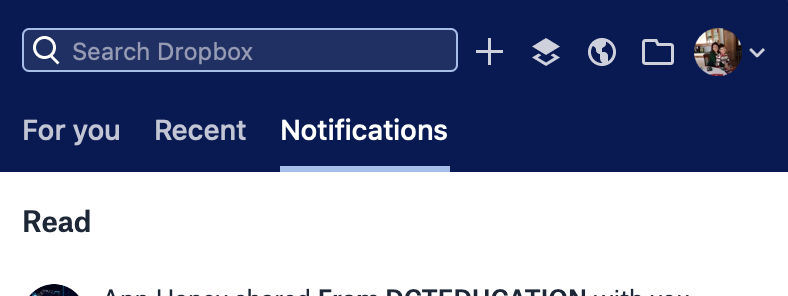
The gear icon doesn't seem to be where it was. In stead try clicking on the Dropbox icon on the very bottom right of your screen, then click on the downward arrow to the right of your photo, You can then pause syncing etc.
Hope this helps
Christine
- ChristineL6 years agoHelpful | Level 5
Sorry, Annozie, I am not familiar with Macbooks
Hope someone else can help



About Apps and Installations
Have a question about a Dropbox app or installation? Reach out to the Dropbox Community and get solutions, help, and advice from members.
The Dropbox Community team is active from Monday to Friday. We try to respond to you as soon as we can, usually within 2 hours.
If you need more help you can view your support options (expected response time for an email or ticket is 24 hours), or contact us on X, Facebook or Instagram.
For more info on available support options for your Dropbox plan, see this article.
If you found the answer to your question in this Community thread, please 'like' the post to say thanks and to let us know it was useful!


