Need to see if your shared folder is taking up space on your dropbox 👨💻? Find out how to check here.
Forum Discussion

litgit
4 months agoHelpful | Level 6
Dropbox desktop app on Mac forces sync preference to be online-only repeatedly
Latest macOS: Sequoia 15.6.
Dropbox: 230.4.8797
I have been noticing a sync issue warning in Dropbox menu bar for a few days so I checked settings today:
I had sele...
 4 months ago
Hi Nancy
I had not on the same system but before the mac reinstall/reset - same Dropbox a/c. Even on previous install I had enabled it by mistake seeing a popup or prompt/message "you are eligible.." (something like that; don't remember exactly) and had successfully disabled going through some hoops and what not. On this install I didn't enable File Provider to begin with.
I’d just like to make sure that there are no remnants of File Provider folders
I don't know how to check that. Just in case it helps you - I see `DropboxSoftwareUpdate` and `DropboxMacUpdate.app` at `~/Library/Dropbox`. Also `~/Library/CloudStorage/` is just empty.
By the way I could see these as well https://help.dropbox.com/sync/macos-sync-icons#Dropbox-sync-icons-in-the-menu-bar (didn't test the notification and camera upload ones because I haven't enabled camera upload and there were no notifications for me) - as the link shows it's only menu bar app icons No sync icons on dropbox files/folders and no special (i.e the Dropbox logo one) Dropbox sidebar icon
I can't see any Dropbox related context menu options when I right click on any Dropbox files or folders in ~/Dropbox folder.
Update: I went inside Mac `System Settings > General` and then in `Extensions` sections I could see these Dropbox related extensions:
"File Providers" extension section: "Dropbox" extension was disabled there. I enabled it
and then I could see this change:
Sidebar Dropbox icon was now the Dropbox icon (not the generic finder icon) - just like Finder Dropbox icon already was (shown in a screenshot above)
And I also could see Dropbox related options in context menu when I right clicked on any file or folder inside ~/Dropbox folder
After this I looked through others and found "Sharing" extensions section: A "Dropbox Transfer" extension which was already enabled. So maybe it was always enabled or got enabled (or even got added; I don't know as I hadn't checked it before) automatically after I enabled "File Provider" Dropbox extension above. Anyway no change to report because of this because I did not change this.
Still no sync icons on local Dropbox files and folders. (Even after many Dropbox/Finder restarts. I in fact "fore quit" everything in Activity Monitor with 'dropbox' in its name)
PS. IMHO - It would be helpful if you (I assume you are from Dropbox) could tell me such possible settings beforehand as I as a user do not know what system/settings changes Dropbox does to OS or expects to be present beforehand. Will save a lot of to and fro from both sides.

D P
3 months agoCollaborator | Level 8
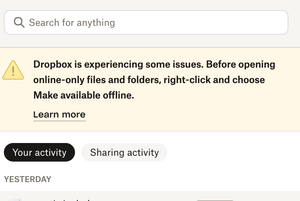
Just for fun, I tried opening a ticket as well. #25505442 The suggestion: try reinstalling 😅😆 who could have predicted it!
Anyway, you'll never guess what happened! (Nothing. No effect.) All files edited elsewhere are still online-only until I open them one by one.
The cherry on top:
If we don’t hear from you within 24 hours, we’ll proceed with resolving your request.
Jeez, sorry for not rushing to waste my time and bandwidth beta testing your program.

Hannah Dropbox Community Moderator
3 months agoDropbox Community ModeratorHey D P, thanks for posting and sorry to hear about that.
I've opened a new ticket for you, so feel free to check your inbox.
No need to worry about the time needed to reply, whenever you're ready, you can reply back to the email to continue troubleshooting at any time.
About Apps and Installations
Have a question about a Dropbox app or installation? Reach out to the Dropbox Community and get solutions, help, and advice from members.
The Dropbox Community team is active from Monday to Friday. We try to respond to you as soon as we can, usually within 2 hours.
If you need more help you can view your support options (expected response time for an email or ticket is 24 hours), or contact us on X, Facebook or Instagram.
For more info on available support options for your Dropbox plan, see this article.
If you found the answer to your question in this Community thread, please 'like' the post to say thanks and to let us know it was useful!


