Your workflow is unique 👨💻 - tell us how you use Dropbox here.
Forum Discussion

Megane Racat Dropbox Product Manager
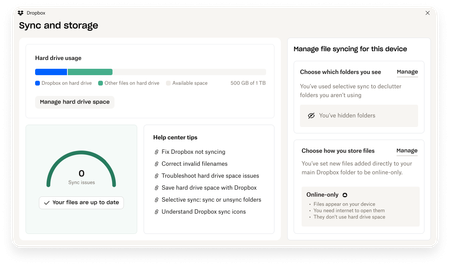
6 months agoDropbox Product ManagerExciting news — we’ve launched the new Sync & Storage Dashboard in the Dropbox desktop app!
This dashboard makes it easier than ever to keep your files organized and your computer running smoothly.
With just a click, you can:
Get a real-time view of your sync status
Quickly spot and...

plutogenie
5 months agoHelpful | Level 5
I find the new Manage hard disk space tool very clunky (compared to the old approach of using Explorer in Windows 11), and the interface difficult to use. Here is an example of what I see:
There are various issues:
- The size of the window for viewing files (in the above, I am viewing via the Folders tab) is very small. There is no option to resize or expand the window to get a good look at the Folders and Files being explored to see what I might like to Make online-only. I find I need to switch between this tool/view, and the identical Explorer view, to see what is going on better. Doing that renders this tool useless, when I was previously able to do it all via Explorer and use the old Dropbox icons on Folder names to drill down to offline files.
- The blue and yellow icons are so drained of colour and shape, it's impossible to work out what they represent. I'm guessing they are intended to represent the file-type. But they are so indistinct and impossible to read/see, they serve no useful purpose.
- When you expand a Folder, there is very little in the way of visual cues distinguish the unexpanded Folders from the expanded Folders and Files. Essentially there is a little bit of indenting, and a ">" for Subfolders. But it is all on a white background, and thus almost no difference. Perhaps a different shading for expanded Folders would help?
- When you check a File or Folder, again there is little-to-no visual cue (apart from a tick in the checkbox) that it has been selected. Shading selected File/Folder names, in addition to the tick in the checkbox, would help.
- Personally, I find approach of selecting Folders and Files with checkboxes, and clicking on the Make online-only global button, difficult to use. For e.g. you need to decide everything and then click the button, or make interim selections and click the button which then resets the folder view and requiring one to start again. A more effective option (similarly to using Explorer) would be to have a Make online-only option against the individual Files and Folders so that you can do it bit-by-bit. When you have complex file-structures like I do with 2TBs of content, my suggestion might be more effective. The new approach created by Dropbox works okay if you have simple file-structures and/or very few files to manage (e.g. those using the free Dropbox).
- Another alternative to a Make online-only option against each File/Folder would be to give users the option to navigate the Folders/Files in a similar way to Explorer. This would mean that, instead of only being allowed to expand Folders, that users could opt to open a folder and see only its contents with checkboxes. In this way, the behaviour is similar to navigating Folders/Files in Explorer, and the Make online-only button would apply checkbox changes only to the 'open' folder.
- It's currently a bit buggy. For e.g. when I checked some files in subfolders, and clicked Make online-only, the Folders tab went completely blank, as though ALL files and folders had been made online-only. I had to close and reopen Manage hard disk space, and reselect the Folders tab, for the Folders to reappear again. Other times when I clicked Make online-only the Folders tab worked okay (i.e. only removed the ones I made online-only), and I haven't worked out what causes the bug consistently to reproduce.
I hope this feedback helps. In theory, it could be a useful tool, but currently it isn't and I find I need to use both Explorer and this tool to achieve what I could previously do just in Explorer. The update to Windows sync icons, and this tool, is a major step backwards, in my view.
- Amy5 months ago
Community Manager
Hi plutogenie - thank you for sharing such detailed and thoughtful feedback, it is really helpful for the team!
I've shared this with the folks working on this, so it may take a little time to review and come back with an update about what else is planned - but the team can investigate that buggy behaviour in the meantime as well. I'll be in touch as soon as I have more information.
 Tam732 months agoNew member | Level 2
has you received any updates on your very specific and detailed post? Im scrolling and not sure why more comments seem to go unanswered and when they do respond, its in a separate thread, making it hard to notice replies.
- plutogenie2 months agoHelpful | Level 5
Hi Tam73,
No, I haven’t received any update about the issues I raised. And looking at the tool just now, none of the issues have been addressed. It suggests Dropbox has no interest in user concerns.
- Amy2 months ago
Hi plutogenie and Tam73 - apologies for the radio silence on this - I promise your comments were shared with the team and they are working on some updates, but I'm afraid I don't have anything new to share right this minute - I've re-shared this with the team so I'll share an update when I hear back, and I will share any timeline info as soon as I can.

About Dropbox Tips and Tricks
Find helpful advice and smart ways to get more out of Dropbox.474 PostsLatest Activity: 19 hours ago
The Dropbox Community team is active from Monday to Friday. We try to respond to you as soon as we can, usually within 2 hours.
If you need more help you can view your support options (expected response time for an email or ticket is 24 hours), or contact us on X, Facebook or Instagram.
For more info on available support options for your Dropbox plan, see this article.
If you found the answer to your question in this Community thread, please 'like' the post to say thanks and to let us know it was useful!

