Your workflow is unique 👨💻 - tell us how you use Dropbox here.
desktop
50 Topics
Dropbox Desktop vs CloudMounter, Cyberduck, Mountain Duck for Multiple Accounts - which is better?
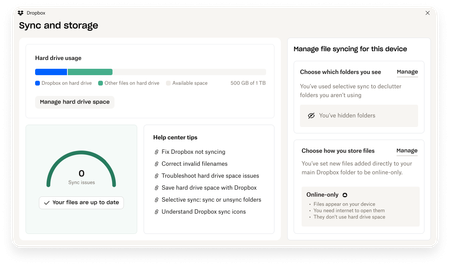
Hey, I just joined the Dropbox Forum and need some advice from experienced users. I really hope someone has some tips. I’ve got two Dropbox accounts (personal + work) and I’m thinking whether to stick with the native Dropbox client or switch to a cloud manager, since I might add Google Drive later. I want everything to show up like normal folders in Finder/Explorer, avoid syncing the entire cloud to my disk, survive sleep/reconnects, and not lose share permissions when moving files between accounts. If you’ve done this, is it smarter to keep the Dropbox app if you only use Dropbox, or go with a manager from the start? Curious about real-world differences in speed, caching, stability and security — short tips or quick examples would be much appreciated.208Views0likes4CommentsExciting news — we’ve launched the new Sync & Storage Dashboard in the Dropbox desktop app!
This dashboard makes it easier than ever to keep your files organized and your computer running smoothly. With just a click, you can: Get a real-time view of your sync status Quickly spot and resolve any syncing issues Monitor and manage how much disk space your Dropbox files are using Adjust your selective sync and storage preferences To open the dashboard, click the Dropbox icon in your taskbar (Windows) or menu bar (Mac), then select your avatar and choose Sync & storage. We’re excited for you to try it out! Please let us know your thoughts and how we can make it even better!7.8KViews6likes14Comments
Export bulk Dropbox image folder URLs
The problem is that there are hundreds of photos. It is almost impossible to enter the URL for each rock sample manually. I need some automated way to copy the Dropbox photo URLs. You can use my script below to generate bulk Dropbox links. * Requires TamperMonkey or GreaseMonkey addon in your browser. I wrote a script to accomplish this: https://gist.github.com/tyhallcsu/89d6c672f93e94cbd651354b587306b4 This is a userscript that extracts image URLs from a Dropbox page and copies them to the clipboard when a button is clicked. The script creates a button on the page that, when clicked, scrolls to the bottom of the page, waits for new images to load, and extracts the image URLs. The script then joins the URLs into a string separated by newlines. It then puts the links on your clipboard with ?dl=0 replaced with ?raw=1 parameters. Floating button in the bottom right of your browser window: Code: // ==UserScript== // name Extract All Dropbox Image URLs in Folder to Clipboard // @namespace https://www.example.com/ // @version 3 // @description Extracts image URLs from a Dropbox page and copies them to the clipboard when a button is clicked. // @author Tyler Hall Tech // match https://www.dropbox.com/* // Grant GM_setClipboard // Grant GM_log // run-at document-idle // ==/UserScript== (function() { 'use strict'; const SECONDS_TO_WAIT_FOR_SCROLL = 1; // adjust as needed const DOWNLOAD_URL_REPLACEMENT = '?raw=1'; // function to get all image link elements function getImageLinks() { const imageLinks = document.querySelectorAll('a.dig-Link.sl-link--file[href*="dl=0"]'); return Array.from(imageLinks).map(link => link.getAttribute('href').replace(/\?dl=0$/, DOWNLOAD_URL_REPLACEMENT)); } // function to scroll to the bottom of the page and wait for new images to load async function waitForImagesToLoad() { window.scrollTo(0, document.body.scrollHeight); await new Promise(resolve => setTimeout(resolve, SECONDS_TO_WAIT_FOR_SCROLL * 1000)); } // create an array to hold the image URLs let imageUrls = []; // add a button to the page that will copy the image URLs to the clipboard when clicked const copyButton = document.createElement('button'); copyButton.classList.add('dig-Button', 'dig-Button--primary', 'dig-Button--standard', 'copy-urls-button'); copyButton.textContent = 'Copy all URLs'; copyButton.style.position = 'fixed'; copyButton.style.bottom = '20px'; copyButton.style.right = '20px'; copyButton.style.zIndex = '9999'; document.body.appendChild(copyButton); // add a click event listener to the button copyButton.addEventListener('click', async function() { let finished = false; let numUrls = 0; while (!finished) { // scroll to the bottom of the page and wait for new images to load await waitForImagesToLoad(); // get the newly loaded image URLs const newImageUrls = getImageLinks().filter(url => !imageUrls.includes(url)); imageUrls.push(...newImageUrls); // check if all images have been loaded finished = newImageUrls.length === 0; numUrls += newImageUrls.length; } // join the image URLs into a string separated by newlines const imageUrlString = imageUrls.join('\n'); // copy the image URL string to the clipboard GM_setClipboard(imageUrlString, 'text'); // disable the button and change the text to indicate that the URLs have been copied copyButton.disabled = true; copyButton.textContent = `${numUrls} URL(s) copied to clipboard`; // enable the button again after 3 seconds setTimeout(function() { imageUrls = []; copyButton.disabled = false; copyButton.textContent = 'Copy all URLs'; }, 3000); }); })(); Hope this helps someone. I hope Dropbox natively supports this some day. But for now, this works just fine 🙂6.2KViews2likes9Comments
Really appreciate the new Sync and Storage Dashboard
Before I saw the announcement, I stumbled upon the Sync & Storage Dashboard while reviewing some updates in my Dropbox on my laptop. I like the clear visibility into the current storage on my device, as well as tips on improving storage and managing which files/folders are using storage, etc.226Views2likes7CommentsHow I Use Dropbox as a Community Manager 👩💻
Hi everyone, it’s Theresa here, and I’m sure you’ve seen me bopping around the Community. I am one of the Community Managers here at Dropbox, and I’d love to share how I use Dropbox on a daily basis. Now, I’m not just saying this… I have relied on Dropbox long before I worked here, but more about that later. Here are some of the ways I use Dropbox to do my job. One of my favourite tools is, of course, Dropbox Paper. It’s amazing for pulling together documents in real time. Whether I’m creating content or helping choose our Community Member of the Month, it’s truly one of the best tools for collaboration. I can easily invite teammates to jump in, edit, and leave comments directly in the document. My favourite feature has to be the ability to tag and create new documents right within the one I’m working on. As a creative, ideas can come to me suddenly - and just as quickly disappear. By simply typing “+” and adding my idea, a new document link is created instantly, so I can capture the thought and return to flesh it out later. The built-in Dropbox Screenshot tool is an absolute lifesaver for sharing visuals. I use it all the time to grab screenshots of Community feedback, social media buzz, or highlights from recent events. It adds a real spark to my reports and presentations, making it much easier for everyone to see the impact of what we’re doing. And because I share them straight from Dropbox, there’s no messing about with endless email threads or bulky attachments. Setting it up is so so easy: just head to your Dropbox preferences, go to the Backups tab, and tick the option to “Save screenshots to your Dropbox.” From then on, every time you press Command + Shift + 4 (or Print Screen on Windows), your screenshot will be saved and ready to share in seconds. Outside of work, I'm a musician. I have been using Dropbox to keep my music projects organised for so many years, it is second nature. So, I am based in Ireland, but the rest of my band are over in the Netherlands, so having a shared space where we can all work together is a massive help. I keep a folder for each song with everything we need - lyrics, demo recordings, MIDI files, staging images, and notes on the music. It means we’re all on the same page, even from different countries. By the time we get to rehearsals, we’ve already done most of the groundwork, so we can hit the ground running. The fact that we can leave comments directly on files by opening a file in Dropbox and clicking the speech bubble icon is an amazing way to keep the conversation, give feedback, or suggest changes in the one place rather than going back in forth in emails/messages. (Handy when the group chat is mostly GIFs and Memes). I hope this inspires others on using Dropbox in their work life (and also their outside work life). It for sure relieves some stress to keep that life/work balance in check.150Views0likes0Comments
Can I break the connection between my Dropbox account and local Dropbox folder?
Hello... I recently backed everything up to drop box, then had it restored to my computer. All the files are on my computer and in Dropbox. When I delete those duplicate fils in Dropbox, they are deleted from my computer. How do I stop that from happening and just delete them from Dropbox? Thanks.437Views0likes2Comments
Why can I only back up specific folders? [SOLVED]
An older thread (https://www.dropboxforum.com/discussions/101001016/why-can-i-only-back-up-specific-folders/612837 ) (replies are turned off) said: I just started using the back up feature in Dropbox but it seems to only back up 3 folders: DOWNLOADS, DESKTOP & DOCUMENTS. I don't keep important stuff in any of these. How do I select my 2 most important folders? It doesn't seem to let me choose. So far I have only seen answers confirming that is true, and tough luck - you are stuck with this maddeningly limited functionality. I just wanted to say that there is a great solution, but it does require a higher learning curve. It is called rclone (https://rclone.org/dropbox/ ) - free and Open Source software designed to integrate as many different cloud storage solutions as possible, and enable you to copy between them, and also back and forth with any folder on your computer that you so choose. Perfect! The downside is the learning curve as by default, you need to type commands into a command line to use it (I've created script files to do that work on a monthly basis, so I don't manually type in any commands any more). BUT there are multiple GUI's (Graphical User Interfaces) for rclone, including one in beta from the rclone team themselves - this provides a 'point and click' interface that is easier to use. I haven't tried any of the GUI's so I can't recommend any, but I'd say it is well worth a shot!235Views0likes2CommentsSpring Clean your Desktop with Dropbox 🌸
🌸 Spring isn’t just for cleaning your home, it’s the perfect excuse to give your digital space a fresh start too 💻✨. If your desktop looks like a chaotic mess of random files and folders 📂, it may be slowing you down (and let’s be honest, stressing you out 😵💫). But don’t worry, with Dropbox, tidying up your digital messiness is easier than ever. Here’s how to get organised and bring some Springtime zen 🧘♂️🌿 to your workspace. Move Files to the Cloud – Transfer important documents photos and work files to Dropbox. This keeps them safe and accessible from any device while clearing up space on your desktop 💻 . Create Folders and Subfolders – Organise your files by category project or date. A clear folder structure makes it easier to locate what you need without searching through endless icons 📂. Use Selective Sync – With Dropbox Selective Sync you can access files from your desktop without taking up space on your hard drive. Mark files as online-only to free up even more room. Check out Amy’s article on Dropbox Selective Sync here. Delete or Move Old Files – If you no longer need certain files consider deleting or moving them to online only within Dropbox. Keeping only what you use regularly helps maintain a clean and efficient workspace 📤. Set Up Automated Backups – Use Dropbox Backup to ensure your desktop files are always protected. In case of accidental deletion or device failure you can easily restore your data ✨. A tidy desktop means less digital clutter and more focus on what really matters. Say goodbye to the endless hunt for lost files and hello to a smoother workflow. Plus, who doesn’t love a fresh start? 🤗 🌟 We want to hear from you! What’s your secret to a clutter-free digital life? Drop your best decluttering tips below ⬇️ 💙340Views1like0CommentsUnderstanding A, B, C, and D Drives: What They Mean and How They’re Used
Hey there, it's Theresa here 👋. You might see me around the Community, popping into different threads and joining conversations and I often notice users looking for the best ways to manage their storage effectively 🚀. By default, Dropbox saves files on your computer’s internal drive, typically the C: drive 👨💻. But sometimes, you need a little extra space, and the D: drive can be a great alternative. It helps free up valuable room on your primary drive while still giving you seamless access to your important files. If you want to learn more about setting up Dropbox on an external drive, check out this guide. But what about those other drives? The ones labeled A: and B:? Why don’t modern computers use them? And what exactly does the C: drive do? Let’s take a nostalgic and practical dive into the world of drive letters and what they mean in computing 💻. A: and B: Drives Ah, the A: and B: drives - ancient relics of computing! Back in the day, these drives were the VIP section for floppy disks, the original storage superheroes of the 80s and 90s. For those lucky enough to have never experienced floppy disks, let me explain: they were small, portable, and could hold a whopping 1.44 MB to 2.88 MB of data. That’s right, an entire three documents …if you were lucky 💾. Modern computers no longer come with A: or B: drives, as the floppy disk has been banished to the land of obsolete tech alongside VHS tapes and Blockbuster memberships 📼. However, those letters are still reserved for these iconic disks, almost like a tribute to the O.G’s of storage - here, computers have to pay their respects to the ancestors too. C: Drive The C: drive is the most important and commonly used drive in a computer system. It is typically the main hard drive (HDD) or solid-state drive (SSD) that contains the operating system (like Windows), applications, and most of your files 💻. In modern Windows systems, the C: drive is like your default "everything" space. It’s where the system stores its most prized possessions, from system files to personal documents to that folder full of memes you forgot about. Installing Dropbox on your C: drive is a great way to store your cloud files locally on your computer while keeping them synced across all your devices. So, think of the C: drive as the top drawer of your desk: it holds all the stuff you need every day, the stuff you’ll probably need soon, and the stuff you just threw in there to deal with later. Keep it clean…or don’t - but either way, the C: drive is where it all goes down 👩💻. D: Drive The D: drive is the unsung hero stepping in when you need a little extra space. It’s like the spare room in your house, or that second closet where you shove everything when company’s coming over 🙊. The D: drive is typically assigned to secondary storage devices. This could be a second hard drive, an optical drive (AKA CD/DVD drives ..remember those?), or even a partition on the same physical hard drive as the C: drive. And let’s not forget its role as the go-to for removable storage like USB flash drives or external hard drives. (Hint: Set up Dropbox on you D: Drive for those "I’ll definitely organise this later" files) 👨💻. So, whether you're optimizing storage, decluttering your digital space, or just taking a trip down memory lane, it’s always good to know what’s going on behind the scenes 😉. And hey, if you ever need help managing your files, you know where to find me 👩💻. I’ll be around the Community, diving into conversations and helping out wherever I can. Got any storage tricks, you or even fun computer nostalgia to share 💾💿📼? Drop them in the comments.. I’d love to hear them!8.4KViews3likes3CommentsWhy does Dropbox remove a file from my hard drive when I "back up" to Dropbox?
Why does Dropbox remove a file from my hard drive when I "back up" to dropbox? The "dropbox help" info does not explain this. I've selected the option to "keep copies on my hard drive", but files still vaporize off my hard drive as soon as I copy them to dropbox. Do I need to turn off synching? I didn't mean to turn it on in the first place, and now it seems it seems I've inadvertently given dropbox permission to mess with my computer such that if I change any settings or if I unsynch a folder/file, it will disappear off dropbox AND OFF MY HARD DRIVE. I guess I don't understand Dropbox at all. But what does Dropbox not understand about the concept of a "BACK-UP"? A back-up is a copy, not a replacement. I don't want synching across devices etc. I just want a few files backed up to the cloud, and for the original FILES ON MY COMPUTER TO BE LEFT ALONE PLEASE. The help info is totally unhelpful on this. Can anyone tell me how to do this without losing files?Solved508Views0likes5Comments