Your workflow is unique 👨💻 - tell us how you use Dropbox here.
GUI
82 Topics
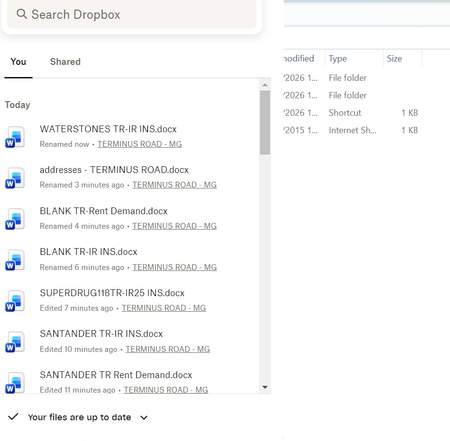
Every time I open my Dropbox folder the tray window pops open
Question or Issue I am using an HP laptop running windows 11 with the Dropbox app downloaded Recently, every time I open Dropbox, a box with my history pops up - SEE BELOW This is REALLY annoying, as I can't access my folders list which is hidden behind it. I have to keep tapping things until it disappears! How do I stop it appearing please?21Views0likes1Comment
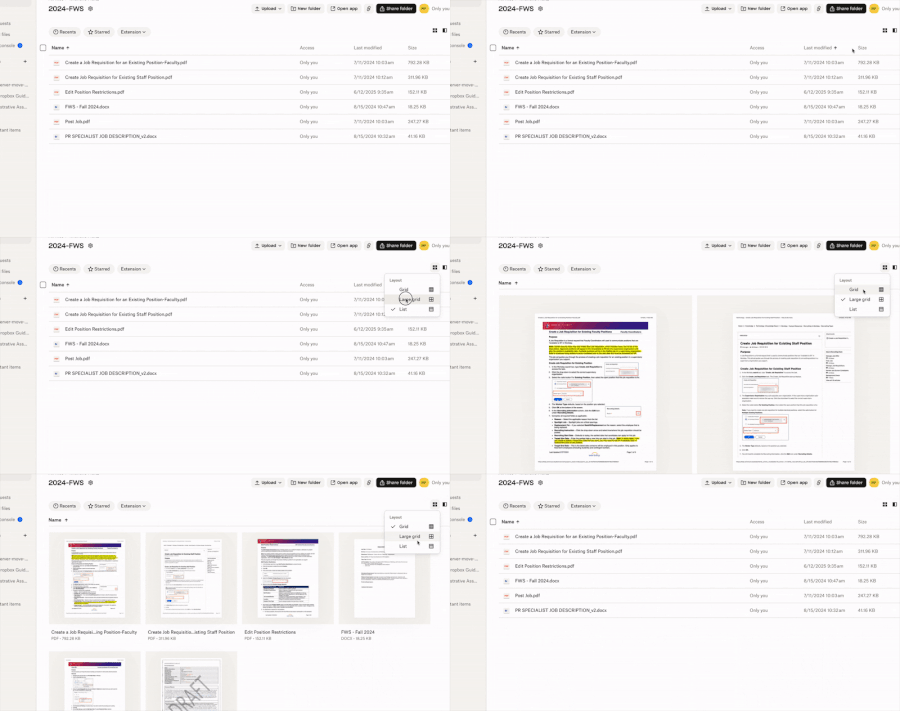
I can't change the Dropbox web column headers
I was able to add Size header to my columns on Dropbox website last year sometime. But now when I go there to switch my List view column headers, I no longer get the inverted caret. However, I get it with Grid view and Large Grid view. Where did it go? It's the same in Safari as in Chrome. Application Affected Dropbox website Device MacBook Pro Operating System/Browser (if using the web) macOS Sequoia 15.7.4 Dropbox App Version (if using the app) NA26Views0likes1Comment
QuickLook is flickering on Mac OS
Integration Affected Finder Device MacBook Air, M3, 16GB RAM Operating System/Browser (if using the web) macOS Tahoe 26.2 Dropbox App Version (if using the app) 242.3.5699 Question or Issue I have been having the same issue as described in this thread for at least 1 month. It makes Quick Look (and therefore Finder) really awful to use. If you try to QuickLook or preview a pdf, image, etc. the quicklook state resets and refreshes. For example, I navigate in Finder to a pdf in my dropbox. I press SPACE to quicklook the item. I scroll down the PDF. The QuickLook resets/refreshes and I lose my place in the document. There is a huge impact on everyday tasks. Troubleshooting efforts: I viewed this topic and followed the suggestions there. It did not help. If I quit the Dropbox app, the issue persists. I found something really interesting. If I look at the Path Bar at the bottom of Finder, the folder icons keep changing several times per second (matching the flickering in QuickLook). Sometimes the icons in the Path Bar show as blank gray squares with dashed outlines or Green folders with check marks. It appears that these mini icons are constantly changing. If I disable the Path Bar, then the flickering stops in the quicklook. Again this happens in the Dropbox section of Finder, and not elsewhere. I've shown an example of the two options I see flicker on the Path Bar. Again the file previews and quicklooks flicker also, which is more problematic. I point out the Path Bar as a potentially useful piece of information to determine the problem. Thank you!57Views0likes2Comments
Feedback on the latest desktop version of Dropbox for Windows
Application Affected Dropbox Windows App (upgrade pushed 2/12/26) Device HP Envy x360, Lenovo IdeaPad5, Microsoft Surface Go 4 Operating System/Browser (if using the web) Windows 11 Dropbox App Version (if using the app) Version number no longer display in app! Question or Issue the new status window (right-click on icon) is too large. Looks nice, but too much white space, unnecessary icons that cannot be disabled. The window does not display properly on Surface Go 4 machine. Window does not position properly, and the bottom is cut off. The status window still has the long-standing issue with not closing properly when you click away from the window. The icon does not display properly in the tool bar (it is hidden) even when Dropbox is set not to hide. In other words, you reset the user's settings (Rude!) Overall, this is a fix where there wasn't a problem, creating new bugs that weren't there before. The new design is pretty, but puts form over function, ultimately making the app less useful.50Views0likes1Comment
The redesigned menu bar window always opens in the first Space on Mac OS
Application Affected Dropbox for Mac desktop app Device MacBook Pro 15" M1 Operating System macOS Sequoia 15.7.2 Dropbox App Version 241.4.4795 Question or Issue Clicking the menu bar icon to open the Dropbox popup window (recently synced files, etc.) always switches me back to the first space before opening. Toggling off "Use redesigned Dropbox menu bar" restores functionality of the popup opening in my current space. For additional context: I do not have "Automatically rearrange Spaces based on most recent usage" enabled I do not have "When switching to an application, switch to a Space with open windows for the application" enabledSolved73Views1like4Comments
File names are cut off on the Dropbox site
How is it possible for an app this old to still not allow a user to alter the field length? 20 odd characters is grossly insufficient for anyone with real organisation habits. Why can I not simply see longer file names? Why? What is the justification for this? Take myself, a 3d modeller. I constantly have files that are categorised by project/object/component (often with more additions like side or versions). It's maddening. We're nor working in 1024 resolutions anymore, we've all got second or third monitors. Screen real estate has never been higher. So why are we stuck with this archaic restriction? Every website I go to can adapt to window size but Dropbox is acting like it's still 2007. If this isn't fixed we're going to stop paying for it.422Views0likes16Comments
Dropbox menu bar icon for Mac OS was missing, here's how I solved it
Application Affected Dropbox Desktop App for Mac Device Macbook Pro (2020 13-inch M1 chip) Operating System Sequoia, MacOS15.37.2 Dropbox App Version 239.4.8301 Question or Issue Hi! I had been having the same issue it seems a bunch of other Mac users have been having: the Dropbox icon for the desktop app disappeared from my menu bar at the top of the screen months ago. The only way to access Dropbox after that (besides via browser) was to navigate to Finder, where I have an icon in the left Favorites list, or by going to Finder > Applications > Dropbox - HOWEVER, that would NOT open the app, but rather a Finder window that listed my Dropbox files. I finally got to the point today where I thought I'd Google to see if I could solve the issue, and quickly found so. many. support threads, both here and on the Mac support forum - but NONE of them were resolved (aside from a few folks who advised simply getting rid of some of the other icons in the menu bar to have the Dropbox one be revealed - but I tried that and it didn't work for me). ANYWAY, I DID FIGURE OUT - SOMEHOW - HOW TO RETURN THE DROPBOX ICON TO MY MENU BAR, so I thought I'd share: For me, all it took, was - INSTEAD of navigating to Dropbox via Finder - using Launchpad. I went to Launchpad, searched for the Dropbox app icon, and clicked on it to try to open the app. It didn't work - BUT! - it DID open the icon back up on my menu bar! And suddenly I have files listed as added "3 minutes ago" that are 4 years old... Hooray! I guess I hadn't actually been syncing all this time? Or who knows at this point. ANYWAY, I thought I'd share this miracle with all the other Mac users out there who were so frustrated at losing the icon in the menu bar :D374Views0likes1CommentCan I remove the "your activity" files?
It seem impossible to imagine but apparently Dropbox has decided that recent activity/files in recent activity are now permanently viewable until replaced by more recent activity. Really? I hope I'm wrong. Dropbox started out as uniquely user friendly and easy to use. I've watched that disappear over the years. It's becoming every bit the arrogant, controlling, short sighted and customer unfriendly type of site that it once stood out from. Again, if anyone has different information, please share. I'm truly hoping I'm wrong.914Views3likes8Comments"Green tick with white background" but I see this icon on almost all of my files.
I've been a user and paid subscriber to Dropbox for about a decade. I use Drobox for sharing my files across multiple devices and occasionally for sharing files with other people who don't always have Dropbox accounts. I don't work as part of an organisation so I don't use any of the team or business related features. I often recommend people use Dropbox over other cloud storage as I've always been impressed with Dropbox. I've just started seeing the normal green background tick replaced with a white background tick on multiple files and folders. According to the help pages these white background ticks can only appear on folders yet I have them on multiple files. The help page says this green tick with a white background and green circle 'Contains files that are both available offline and online-only. A white circle with a green outline and a green checkmark can only appear on a folder. It means the folder contains a mix of files and folders that are ”available offline” and “online-only”.' Looking at the files it looks like some of these are files I've previously shared with other people but that doesn’t match the description here. My recolection is the shared folders had a different icon but that seems to have changed. What would be nice would be for a company to be consistent with their icons rather that occasionally going for a total redesign just because someone has said it's fashionable to have a new look. If you have to have a new look please, at least, keep the basic symbolism consistent with the past for the sake of your long term loyal customers. When you do release an update please also release an update of the help files as the statement that 'A white circle with a green outline and a green checkmark can only appear on a folder' is not true as I have it all over my files.11KViews2likes6Comments
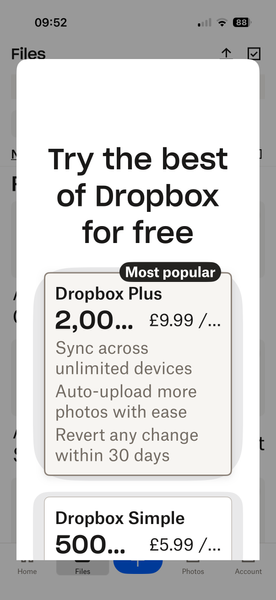
Mobile app on iOS frozen due to an ad pop-up
hi, I have recently found that when opening my dropbox app on my iPhone 16 pro, after about 5 secs the screen is filled with the dropbox advert 'Try the best of Dropbox for free' this covers the whole screen and there is no way of shutting it down. See the screenshot below. Any suggestions apart from the normal, log out log back in again, would be gratefully received. Thanks, JillSolved103Views0likes4Comments