We're making some changes to the Dropbox Community 👩💻 - Find out more here.
Dropbox Capture
57 Topics
Dropbox Capture screen recording skips and buffers upon playback
When I do a screen recording using Dropbox Capture (v94.0.3), the resulting video skips and buffers upon playback. It's unwatchable. I have tried waiting for the full video to load before playing it - that does not help. I've uninstalled and reinstalled Dropbox Capture - that doesn't help. Cleared my cache too, that didn't fix it. I'm using Windows 11 on a PC, and other screen recording software does not do this (Loom, the native Microsoft screen record software, etc). The capture feature works just fine for still images so there is only a problem with screen recording. I've been using Dropbox Capture for a few months since it was in beta--this was not a problem about a month ago. Anyone have a solution?11KViews5likes47Comments
Dropbox iOS Conversion of HEIC Photos to JPG on Portrait Mode Photos not Viewable on Sierra
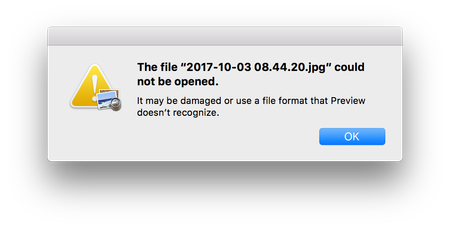
I have my iPhone set to capture HEIC, and Dropbox client set to Save HEIC Photos As JPG. If you take a "Portrait Mode" photo on the iPhone in HEIC, and have Dropbox convert this to JPG, the JPG is unviewable on a Mac running Sierra. Non "Portrait Mode" photos are viewable fine on Sierra, and Portrait Mode photos that can't be viewed on Sierra, can be viewed on High Sierra. NOTE: Portrait Mode is not the orientation of the phone, but a special mode that tries to create fake Bokeh by blurring the background through software. System Info: iPhone 7+ iOS 11.0.2 Dropbox for iOS v66.2.8 macOS Sierra v10.12.6 macOS High Sierra v10.13 Dropbox for Mac v35.4.20 Please see Screenshots:Solved11KViews0likes16CommentsHow have you used Dropbox lately?
So you might have seen our little exploration into how Dropboxers use Dropbox, from the small stuff like online games and to do lists, right up to the big stuff, like buying a home and sharing baby photos. In fact, I’ll be back soon to share how I recently used Dropbox to take the pain out of planning a wedding (tips and tricks incoming). Great and all as it is to hear how we use Dropbox, we want to know how you use it! Day to day, big projects, sharing files with friends and family - we want to know about it. Share in the comments below, and if your tips are truly inspiring, who knows, you might even earn the Mighty Badge and the extra space that comes with it!9KViews1like4CommentsDropbox Basic: Learn the Basics
If you are reading this, chances are you are new to Dropbox. Welcome! Many of us begin our Dropbox journey with a Basic Account, which has so many perks, and of course, it is free! The basics of your Basic account: Users and Space The Dropbox Basic account allows for 1 user. This means you are the only person that can use this account. But don’t worry, one user doesn’t just mean one device - you can have 3 different devices connected to your Dropbox account. I connected my dropbox account to my phone, tablet, and laptop. When I was in Ghana, I was able to access all of my files from my phone, and to upload some photos. Want to learn more about connecting your mobile devices? Discover how to make the most of your mobile access to Dropbox. Using your Dropbox Basic account: So to get started, you can upload almost any file type to your Dropbox account and keep your important files safe! Whether it’s music files, pictures, media, documents, simply upload and you can access your files anytime, anywhere! With a Dropbox Basic plan you have 2GB of space to use. And of course, we keep your files safe! Dropbox uses multi-factor authentication to ensure that all of your files are secure. Check out how Dropbox uses encryption to provide security for your files. When I received my first multi-factor message I said to myself, “Come on Safety”. Dropbox Basic tools you might not know about: The tools within Dropbox are the real secret sauce. Here are some Dropbox features and products you might not know about, check them out below and find out if they can help you to make plans, organize files and save time! Dropbox Paper is a collaboration tool with endless possibilities! Charts, headings and formatting is made easy with one click, LITERALLY. This program is great for creating proposals, project plans and just quickly taking notes. The best part of it is that it takes up very little space in your Dropbox account. Trust me, I make paper docs for all of my todo lists, to plan family trips and to organize any personal projects. Paper has truly become one of my favorite products to use. HelloSign allows you to send 3 documents for eSignature per month. In the digital world we live in, this is a perfect way to get a signature from someone you may not see in person. Explore HelloSign, a simple and easy way to get documents signed securely online. I recently needed a contractor to sign a document that I drafted to fix my home and the document was signed and sent back to me within minutes. And of course, the signed docs are safe and secure too! Dropbox Capture is a tool used to Capture the attention of the person you‘re chatting to. With Capture you can share your thoughts with screenshots, GIFs, or simple videos recorded right on your screen. The upside is that you can clearly say what you mean without scheduling another meeting. Learn more about how to use Dropbox Capture. Having a Dropbox Basic account is more than just a space to store your information. Use Dropbox to manage and organize your files, whether it’s for a project, sharing memories or connecting with others. 😁 Will you use these tips to make the most of your Dropbox Basic account?8.8KViews6likes1Comment
blank login screen with new installed dropbox on new installed macOS high sierra
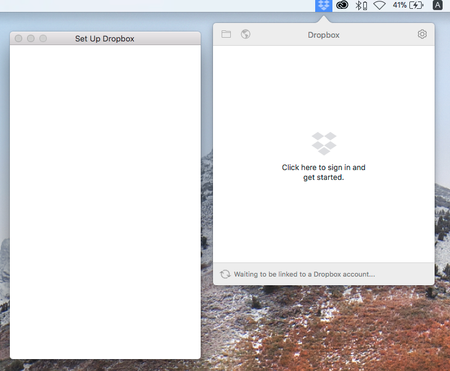
Hi all, Join here today and my first question, since this is my first encountered problem after using dropbox so many years. I fresh install macOS Sierra from recovery mode, new formated ssd, to my MacBook Air (mid 2011), and then upgrade to macOS high Sierra (10.13) immediately. Then I download dropbox desktop app from dropbox.com and successfully installed, while the first running of the application, it pop up a blank "Set Up Dropbox" window, I cannot type anything to login as usual. So I cannot login my dropbox account nor sync file. Captured screen below: I've try restart, re-install dropbox app, and restart my mac, nothing change. Any idea how to solve this problem?Solved8.3KViews0likes12CommentsHow we use Dropbox: Youcef Captures the moment
We love to share stories of how our Dropboxer colleagues use Dropbox. Whether you’re using Dropbox for project management or to organize photos, it’s always handy to share tips and advice. We all have slightly different roles, and everybody has different preferences when it comes to workflows. You might have seen YoucefDropbox on the Dropbox Community before, but we’re his biggest fans and he is a Dropbox Capture expert so I asked him to share some info on how he uses Dropbox. How I use Dropbox Capture in my day to day work I use Dropbox Capture often to explain things quickly to my team and ensure everyone is on the same page. Capture has many useful features, like creating GIFs in no time or adding markup while recording a video. But there is one that I particularly love that many don't know about yet, so check out my capture below to discover it. We love to hear about useful little tips like this, they so easily become part of our daily routines and save a lot of busy work. Do you have any of those helpful little tips to share? Leave it in the comments below! And if you’re new to the tool, discover how to get started with Dropbox Capture in our simple guide.7.5KViews6likes5CommentsWhat’s new: October product updates
There are some things that make us nervous during Spooky Season, but Dropbox updates are never scary! Check out the updates below and join the conversation in the comments below! Do more with Capture You’ve definitely heard us talking about our beta product, Dropbox Capture, and how you can use it to share feedback. But now, it’s finally out of beta and available to everyone. Capture lets you clearly say what you mean on your own time. Whether you have a Basic, Plus, or Family plan you can capture up to 2 hours (of 1080p video) per recording (or your storage limit, whichever comes first). And even better, you can edit videos that are up to 5 minutes long. Pro, Standard, Advanced, and Enterprise accounts get unlimited 4K recordings (up to their storage limit) and video editing. Start using Capture today to: Reclaim your time: Instantly edit, share, and access your recordings in one place. Make yourself heard: Bring focus and clarity to your message while engaging collaboratively with others on their own time. Build at scale: Create a knowledge database with as many recordings as your storage allows that can be viewed anytime. We would love to hear about how you plan to use Capture to now that you can make longer videos, and edit it how you would like! Any requests? How about file requests! Since their introduction, file requests make it easy to collect large files from clients and collaborators—simply and securely. How many times have you known all about a file but someone forgot to add you? With this update, any user on a Professional, Standard or Advanced account gets: Password protection: The people uploading files need to input the password beforehand. The ability to resend expired requests: Resend file requests if they have expired. File upload information: View stats around file uploads, such as recipient name, upload status, and number of uploads. Set up file requests now and get access to the files you need. Branded sharing updates to get excited about If you run a business, you know how important branding can be, and now Dropbox makes it easier to be cohesive. Present yourself professionally by easily managing your brand whenever you share files. With this update, you get: Better brand representation: Add a background image and logo directly on the branding page within account settings. Improved branding previews: Preview shared files and folders with branded backgrounds and logos. Set up branded sharing and start sharing today. There you have it, and we will have some news about eSignature updates too, so keep your eyes peeled!4.9KViews1like1Comment
Dropbox Capture paste into Outlook message creates attachments instead of being inserted in the body
For the last couple weeks, my Dropbox Capture is pasting screenshots as attachments in Outlook emails, instead of being inserted inside the message body. Does anybody know how to modify that behavior?...it was working fine before... Many thanks, DiegoSolved4.8KViews0likes13Comments
Very, very low video quality in DropBox Capture. Are there any settings to change that?
I just installed DropBox Capture and the video quality is absolutely terrible. It's like it was compressed down 100x, no text is readable and the audio is very choppy. I cannot find any quality or compression settings. Any idea what the deal is or how I fix it? In theory this is a very nice tool for me so I would like to get it working well.4.6KViews0likes9Comments