Our Community is in read-only mode until April 8th, learn more here. You can still search existing threads or get help via Dropbox Support, the Dropbox Help Center, or Learn.
GUI
54 TopicsNeed all my files accessible locally. On my machine there's no option to "Make Available Offline."
Honestly, this seemingly late "bringing to the forefront" (I guess you'd call it) of the whole "Online Only" vs. "Make Available Offline" thing has been more of a headache than a help, if I may offer my opinion. I purchased a new ultra-portable Windows computer which has a 256GB SSD on board, but I plan on using my Dropbox files with it, and I have well over 256GB worth of stuff in my Dropbox. The thing is that I'm often in situations in which I need offline access to my files. So I purchased a 1 TB microSD card, which will never leave its slot in this machine. Heck, I can't even retrieve it, it seems. I mounted it so that it isn't considered "Removable Media" by the computer, and then I proceeded to install Dropbox on the computer, with the intent of using the 1 TB card exclusively for Dropbox content...offline. I left my machine to sync overnight, and what do you know? Everything has a stupid cloud next to it. I have no option to "Make Available Offline," either in the file/folder context menu or in the Dropbox application > Preferences > Sync menu. If this is by design, it's a pitifully stupid design. I'm going to whatever lengths I can to make this work the way I envision, but I'm going to be awfully disappointed if Dropbox doesn't respect use cases that might not necessarily conform to a narrow definition. If it's an issue with a recent update to the application, then please bug the developers posthaste.Solved25KViews1like125Comments
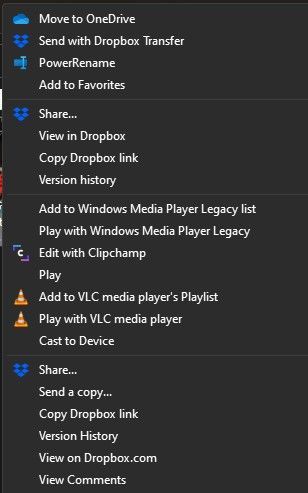
Duplicate Dropbox Options in Context (Right Click) Menu - Windows 11
Title pretty much sums it up. When I right click a file in dropbox or Winblows explorer tree, there are 2 sets of Dropbox options. With other installed apps and options I've enabled, right click menu is quite long, (full menu no shown below). How do I consolidate these 2 Dropbox option trees into 1? ThanxSolved9.8KViews8likes43Comments
Can't login using windows 10 - the "Continue" button does not work
It would be nice if there was a board for technical issues, but there's not so i had to just choose "plans and subscriptions". I can't believe that I have to waste my time with the community! How do I get in touch with technical support????? I can't login using windows 10. When I get tot he point of entering the code that was sent to my email and hit the continue button it does not work. I repeat, the continue button itself does not work (dead link). I could not even login to ask the community, I had to login using windows 7. I've made a videos of the problem, but of course, there is no way to actually reach the technical support team, this is just ridiculous. And before anyone asks, YES, I've already tried clearing my cache.9.3KViews0likes18Comments
Sync icons no longer appear in Finder after upgrading
I recently upgraded to Ventura 13.2 and updated the Dropbox App to V166.4.2920 I am using Dropbox backup. My files are still syncing, but the sync icons are no longer showing up in Finder. I have tried force quitting Finder, and I have also made sure that the Dropbox Finder extension is ticked. But the sync icons are still missing, even though sync is working. Please advise. thank you!! Device: MacBook Air (M1, 2020)Solved8.9KViews1like57Comments
How can I start the actual dropbox app in Windows 10 / not launching
I have the latest version of dropbox, and I have a dropbox folder on my Windows 10 PC. It is syncing normally. However, I want to access the actual dropbox app in order to change the sync folder location. The problem is I cannot find a way to actually launch the app. There is a dropbox icon on my taskbar, but when I click it, it simply opens my dropbox sync folder on my PC (in Windows Explorer). Same thing when I try launching dropbox from the start menu. It just opens the folder. Dropbox is syncing the files just fine, but I want to actually access the app interface not the folder in explorer. I know the general instructions say to click on the icon then click on your avatar and select preferences, but no such thing happens when I click on the icon in my taskbar (or in the start menu) - it simply opens Windows file explorer with my dropbox directory selected.Solved8.3KViews6likes19Comments
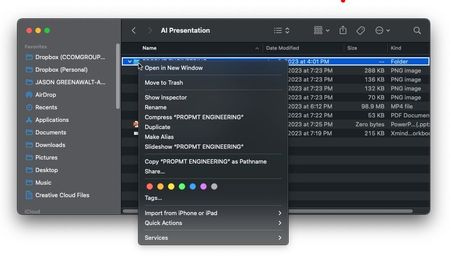
Unable to see the Finder sub-menu on mac to share a file or folder.
When I right click on the Dropbox folder in my finder (Mac) there is no submenu option to share, transfer or any other dropbox action available. Accessibility is enabled under the settings Full Folder control is enabled under the settings.Solved4.1KViews0likes10Comments
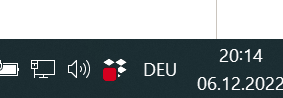
How to remove the Dropbox Icon from Menubar
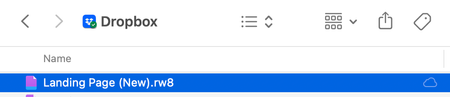
I recently installed dropbox on my macbook and there is a dropbox icon on the menu bar on top always. The only way to remove it seems to be be to completely quit the stop which will stop the app from syncing in real time. Does dropbox provide an option to hide this icon from the menu bar in someway. I personally feel its quite annoyingSolved4KViews2likes4CommentsWhat is this 'cloud only' icon?
I have a file in my Dropbox folder on my Mac that has a "cloud only" icon next to it (see screenshot). What does it mean? It's not one of the icons mentioned at https://help.dropbox.com/sync/macos-sync-icons. Right-clicking the file does not give any of the standard Dropbox-related options (Share, Send a Copy, Copy Dropbox Link, etc.). I'm running version v168.4.4802 and Ventura 13.2.1 on an M1 Air.2.8KViews0likes12Comments