We’re Still Here to Help (Even Over the Holidays!) - find out more here.
Mac
35 Topics
Unable to update the folders being backed up for External SSD backup
Device MacBook Air 15' Operating System/Browser (if using the web) macOS Tahoe 26.1 Dropbox App Version/Browser Version 238.4.6075 Question or Issue I've been backing up a 2 TB Extreme Pro External SSD that has roughly 1.2 TB of Data on it via Dropbox Backup. The data primarily consists of previous computer and other device backups. Because there is a large number of files between all the data ~2,000,000 , I've been incrementally adding folders for Dropbox to backup from the external drive so it doesn't get overwhelmed with files. I've been able to upload all but one major folder from the drive into the cloud as dropbox is stuck "updating" or "indexing" the same five files on repeat. When I try and update which folders should be updated, no change is made. Thus far, I've restarted the computer, restarted the dropbox application, logged out and logged in to the dropbox application, manually cleared the dropbox cache, and disconnected/replugged the external SSD.31Views0likes5Comments
Dropbox Finder Integration Flickering on macOS 26.2
I’m experiencing a persistent issue with Dropbox on macOS 26.2. The Dropbox folder in Finder (I'm using Dropbox on file provider) keeps flickering or refreshing every second. This constant refresh makes it very difficult to work with files. For example, when I preview a multi‑page PDF using Quick Look (pressing the space bar in Finder), the preview resets back to the first page every time the folder refreshes. As a result, I cannot scroll through or read the document properly. Additionally, the blue Dropbox icon that appears before the folder name (“Dropbox”) in Finder keeps turning on and off repeatedly, like a flickering bulb. This visual flicker happens in sync with the folder refresh and makes the issue even more disruptive. Details: Integration Affected: finder Device: MacBook Air M3 running macOS 26.2 (latest version) Dropbox: Version 238.4.6075 Issue: Dropbox folder in Finder refreshes every second, disrupting file previews and navigation Symptoms: Quick Look resets to the first page of PDFs Blue Dropbox icon before the folder name flickers on and off Steps to reproduce: Open Dropbox folder in Finder (the icon in titlebar flickers Steps to reproduce Secondary problems: Select a multi‑page PDF and press space to preview. Attempt to scroll to the second page. Finder refreshes, preview resets to page one, and the Dropbox icon flickers. This behavior is very frustrating and makes it difficult to use Dropbox with Finder, I expect it to act as a normal folder on finder!.53Views0likes3CommentsHow I made multiple Dropbox clients work side by side on macOS
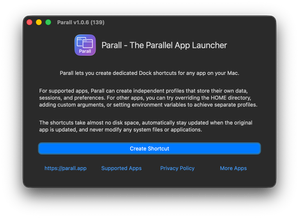
I often need to use more than one Dropbox account - one for work, one for personal projects - but the macOS app only allows one personal and one business account at a time. That's fine for some workflows, but not when you want several fully independent sync folders. I built Parall, a macOS utility that lets any app run as an independent instance with its own data and settings. Using it, I found a native way to launch multiple Dropbox clients on the same Mac - each logged into a different account and syncing separate folders. You can learn more at parall.app or find it directly on the Mac App Store. Unlike tools such as CloudMounter or other cloud-mount utilities that use Dropbox's public API (which limits speed and doesn't perform real-time syncing), Parall runs full native Dropbox clients. This means each account works at full sync speed, exactly like the official app - just multiplied. Step-by-step (macOS only) 1. Open Parall, press Browse Applications, and select Dropbox.app. 2. In the next step, customize your shortcut - give it a name (for example, "Dropbox Work") and choose a data folder (this defines where that instance will sync its files). Press the Generate Shortcut button. 3. Press Save Shortcut, export it, and activate it once. After that, you can start multiple Dropbox instances side by side. Each has its own Dock icon, its own sync folder, and stays logged into its own account. You can also set a custom icon to tell them apart easily. First-time setup note You'll need to launch each instance one by one the first time to log into each account separately. Once both are signed in, you can run them simultaneously without redoing the setup. Notes and limitations Each instance must have its own data folder. If you run both the original Dropbox app and a Parall shortcut, start the main app first. To avoid that restriction entirely, create and use two shortcuts instead - they can run in any order. Also you can add both to startup items. Parall doesn't clone or modify Dropbox, all shortcuts reference the same installation. When Dropbox updates, all shortcuts automatically use the new version. This makes managing multiple Dropbox accounts practical without needing extra macOS users or virtual machines. Full-speed sync, independent accounts, and no extra cloud APIs involved. You can learn more at parall.app or find Parall on the Mac App Store. Any feedback from Dropbox users is welcome.110Views0likes2Comments
I'm trying to restore my backup on a new device, but nothing happens.
Device Macbook Pro M2 Operating System/Browser (if using the web) macOS 26.0 Dropbox App Version (if using the app) v233.4.4938 Question or Issue I used dropbox backup to backup the Documents and Desktop folders of my Mac before it went in for repair and I now want to restore the backup to my machine (which has a totally fresh macOS install). I am able to start the restoration in the dropbox app, which creates a new backup but does not seem to actually download the backed up folders - even though I can see them in the backup file in my online account. I've tried changing the folder permissions etc but it doesn't seem to make a difference, the download doesn't happen.141Views0likes8Comments
Selecting a Paper task in sidebar doesn't take me to the actual "to do" in large docs; page reloads.
Device - Macbook pro Apple M1 Max - 32GB Operating System/Browser (if using the web) - MacOS 15.6.1 (24G90) Dropbox App Version/Browser Version - Version 139.0.7258.139 (Official Build) (arm64) Question or Issue One of the most awesome features of Dropbox Paper, besides it's elegant, minimal display options , and smooth copy-paste with Apple Mail, is the task sidebar.I have looked for a replacement as Drop[box paper has aged, and nothing comes close. Unfortunately, the sidebar has stopped working the way it was designed. When I click on a todo in the task sidebar, it always forces a reload of the page (it did not used to, if I clicked on a task that was within this document.) AND, if the document is large, it does not scroll to a todo in a large document. This renders the Task sidebar almost useless as a navigation tool. Now I have to search text to match the todo, where the Task sidebar navigation used to be seamless. Attached is a document that exhibits the "full page reload" issue. And a screen recording of a larger file, where the todo list does not scroll. PLEASE fix this! This is CRUCIAL to our workflow with our many many clients. We do NOT want to migrate off Dropbox Paper! First, the document link: link removed by moderator Next the recording, please listen to the voiceover. link removed by moderator PLEASE HELP! Dave244Views1like6Comments
Time Machine cannot back up because some Dropbox files have not finished syncing
I am running Dropbox on a MacBook Air M2 running Sequoia 15.5. When I opened up the Mac this morning, it prompted me to update the Dropbox app - which I did. I now find that Time Machine will not backup with the message Time Machine cannot back up because some Dropbox files have not finished syncing. I've tried quitting Dropbox, taking it out of the login items and restarting, but it makes no difference. Before I just delete Dropbox (I only use it for a small number of files shared with others), is there anything I can try?169Views0likes4Comments
Can I create hyperlinks in a PDF to locations on my local Dropbox folder on Mac?
Hi I am trying to make hyperlinks in a pdf which will bring me to locations on my dropbox folder. Currently I am able to get to my web folder but I have connected dropbox to my Mac and would like to go to a location in my finder. Is that possible and would it also work for other people at my company? Since the folder directory has your username included into it?168Views0likes4Comments
On Mac, cannot add 'Dropbox for Teams' as a storage account
Someone in our small org is trying to enable co-authoring from Microsoft Office desktop apps. Looks like someone was able to add 'Dropbox for Teams' as a storage account but that's not showing up for us on a Mac running Sequoia with updated Microsoft Office and Dropbox app. Is anyone able to add it in Word, Excel, or PowerPoint on their Mac? We've already enabled Dropbox as a File Provider. https://www.dropboxforum.com/discussions/101001017/we-cant-add-dropbox-for-teams-as-a-storage-account-for-office-365-on-a-mac-/813812120Views0likes1Comment
AirDrop files go to /private/tmp instead of ~/Downloads
Yesterday I downloaded and installed "Dropbox for macOS on File Provider," which appears to be v215.4.7202. It is running on a Mac mini M4 Pro with macOS Sequoia 15.2 (build 24C101). Now whenever I AirDrop a file from my iPhone 15 Pro Max running iOS 18.2.1, the file ends up in /private/tmp instead of ~/Downloads. I've read Topics in the Help Center posted during the past two years that are describing exactly this problem. Some say that it is due to configuring Dropbox to automatically backup of the Downloads folder but I do NOT have Dropbox set up to backup any folders, including Downloads. How to I get AirDrop to put files in ~/Downloads again. Thank you. - nello PS: I tried to include screenshots but they were 'not allowed'.Solved953Views1like4Comments