Our Community is in read-only mode until April 8th, learn more here. You can still search existing threads or get help via Dropbox Support, the Dropbox Help Center, or Learn.
desktop
4888 Topics
The upload speed on my macOS 26.4 desktop app is very slow.
Device Mac Mini M4 Operating System/Browser (if using the web) MacOS 26.4 Dropbox App Version (if using the app) Syncing Status Very slow! Question or Issue I am have very slow upload speeds. It is taking 50 minutes to upload a 2.2 gig file. My upload speed is 490. I thought it was my computer, so I purchased a new one. Went from M2 to M4. No change at all.62Views0likes1Comment
Latest update created several problems with cache and syncing
Device iMac 2021 Operating System/Browser (if using the web) MAC OS 15.7.4 Dropbox App Version/Browser Version APP version, cannot locate version # Question or Issue After a recent update I got error messages about the Finder and Dropbox started defaulting to saving my documents in the Dropbox cache, ".dropbox" (which I did not know existed). I then deleted the cache. This morning I was required to log in to Dropbox and go through the process of resyncing everything. And then even though I did not ask that the files be offloaded to the cloud, every one of my folders and files has the cloud icon next to it (on my desktop). I am a little anxious about what awaits me with my office iMac which is significantly older and slower.202Views0likes9CommentsCan't start the Dropbox app on my new Windows device. Nothing happens.
Application Affected Dropbox Device HP generic, new, laptop Operating System/Browser (if using the web) Windows 11 Dropbox App Version (if using the app) Can't really tell since it won't start Question or Issue Have been using Dropbox for years. Recently had to get a new laptop because of work issues. I downloaded the app from dropbox.com. It installs just fine. When I start it and press the login button, it very briefly starts a hidden terminal session. The terminal closes almost instantly without displaying its window (therefore I can't see what it tries to do) and then nothing more happens. It will not even display the login window (username/password). Tried reboots and starting the application with administrator privilegies. Doesn't work. No error messages. Works just fine on my other computers, but this is the one I travel with which is a problem. One thought is that the installer tries to access the Edge browser or its dependencies, which I don't have installed (optional in the EU). Please help!233Views0likes12CommentsMy Dropbox folder silently disappeared and I haven't accessed it recently.
I am a paid Dropbox user. I use it very often but not very folder is used all the time. Today I tried to retrieve some data from a folder I visited about a year ago. I found it disappeared. No trace, no way to find it anyway. Can't find it in deleted folder either. Does anybody has similar issue? Can I get some advice on this? Thanks.116Views0likes4Comments
How much are download and upload max file size limitations?
1) how much are download and upload max filesize limitations? (through desktop app) thank u .. i am thinking of going from free account to paid 2TB account (PLUS version) i want to upload or download if nececery a file of 300GB (encrypted). and 2) if i pay by month at first if i will be able to get money back if i dont like it.81Views0likes1Comment
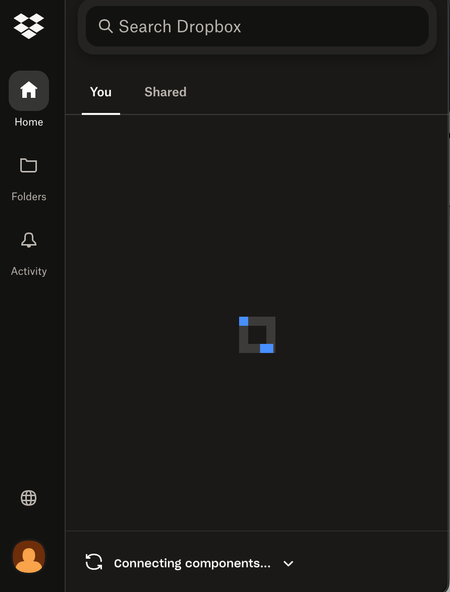
My Dropbox app on macOS is stuck on "Connecting components" even after reinstalling.
Application Affected Dropbox Device Macbook Air Operating System/Browser (if using the web) (Windows 11, macOS14.3, etc.) Dropbox App Version (if using the app) latest version (can't access app settings on current app) Question or Issue My dropbox app has been stuck on Connecting Components. I uninstalled and re-installed it twice to no avail. I even deleted the files from Library/Application support in Finder. The other weird thing is that there was no option to sign in even after the app was reinstalled. It was stuck almost immediately on Connecting Components. I would be super grateful for any help!!359Views1like17Comments
My Mac desktop app is unable to sync a file, even though I've removed the invalid character.
Operating System macOS11.7.10 Dropbox App Version (if using the app) 244.4.6580 Syncing Status 1 file is unable to sync Issue While organising and renaming files in Finder, I accidentally typed the \ character in one of the file names. I corrected it almost immediately, but not before Dropbox had registered it as a file that it couldn't upload. Now I'm getting a constant message about how "1 file is unable to sync" and telling me to remove the special character. But that file effectively doesn't exist anymore (at least not with the faulty name). I therefore can't "view" it or "fix" it. And there doesn't appear to be a way of getting Dropbox to drop the matter. How can I get Dropbox to dismiss this now non-existent issue? (The file with the corrected name is syncing just fine, I can view it on Dropbox[dot]com, etc.)64Views0likes1Comment
Dropbox silently enabled the setting to automatically upload my PC photos.
I've had the occasion to do a fresh install of dropbox on a couple of windows PCs recently, and both times I've discovered after the fact that the default windows autoplay setting was changed to enable silent uploading of files to Dropbox's photos folder. This setting had previously been set to simply open the volume in file explorer. This is appalling from a privacy standpoint. No, no pictures of my kids, or (to avert sniggers) compromising pictures of me, or my partner, or any other images I absolutely don't want online were uploaded. They certainly could have been though, if I didn't just happen to realise the setting was changed when I used a usb stick after installing dropbox. Whoever thought this default was a good idea needs to consider whether it really was worth the risk of compromising users' privacy. It should not be a default setting. It's outrageous it's a silent default setting. If it was an option stated in the dropbox install that I missed, it was nowhere near obvious enough - and still shouldn't be a default. Rant over.97Views0likes2Comments
Updater fails to update desktop app because of denied access to security folder or logs
Application Affected Dropbox Desktop Device PC Operating System/Browser (if using the web) Windows 10 Dropbox App Version (if using the app) 225.4.4896 (Desktop) Question or Issue When updating using the exe downloaded from https://www.dropbox.com/downloading (link given by desktop app) the updater gives timed out error. After checking several things, I notice the update is failing because it is trying to access the antivirus security log folder or the security log file and it gets blocked. Any help? And why is it trying to access the antivirus security log folder or the security log file? Thanks.54Views0likes1Comment