Your workflow is unique 👨💻 - tell us how you use Dropbox here.
Forum Discussion

lukevan
3 years agoExplorer | Level 4
Folder commands missing from "background" right click when I click on empty space next to folder
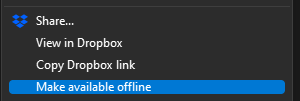
Hi there, previously, one was able to right click in empty space on a folder and have the same commands show up that show when right clicking on a folder:
These are the options that...


mgambrell
1 year agoCollaborator | Level 9
This is a duplicate of another bug, since it's being ignored by dropbox staff now.
I'll try to explain the problem again without referencing the prior issue, so that maybe I can find different words to describe it in a way that will be finally understood.
The problem is simple. On Windows 10, when right-clicking in the empty space in an explorer directory set to "Large Icons" view, no dropbox context menu appears. This is what most people would use to get the share URL for a directory they're working in. The context menu which should appear (and used to, and still does on Windows 7), is the one which is accessed by the following workaround:
1. Navigate up one directory
2. Rightclick on the entry for the directory you were just in.
To put it another way, the expected behavior is that the dropbox context menu for a directory be the same whether you right click on the directory item inside its parent directory, or in the empty space inside the directory itself
mgambrell
1 year agoCollaborator | Level 9
Cool, got attention from staff to merge it to the dead thread but not to respond to it. World class support.
- Rich1 year ago
Super User II
mgambrell wrote:
Cool, got attention from staff to merge it to the dead thread but not to respond to it. World class support.
I merged it. Not the staff.
- mgambrell1 year agoCollaborator | Level 9
A two week clock for a response started from last wednesday before I do it again.

About Create, Upload, and Share
Find help to solve issues with creating, uploading, and sharing files and folders with Dropbox.
The Dropbox Community team is active from Monday to Friday. We try to respond to you as soon as we can, usually within 2 hours.
If you need more help you can view your support options (expected response time for an email or ticket is 24 hours), or contact us on X, Facebook or Instagram.
For more info on available support options for your Dropbox plan, see this article.
If you found the answer to your question in this Community thread, please 'like' the post to say thanks and to let us know it was useful!


