Your workflow is unique 👨💻 - tell us how you use Dropbox here.
windows
210 Topics
I add content using my desktop app, but it won't upload to the other platforms.
My files are not uploading through the (most recent) of the dropbox app for windows. I am now seeing that this is signficantly behind. I only found it when I tried to access some files through dropbox on my phone and couldn't. Then I found that whole folders are not listed on dropbox.com. I have tried clearing my browser cache, made sure I started and restarted the app, plus reinstalled it - twice. I don't have a VPN. My internet connection is 300 mbps, so that's not a problem. None of these files are huge. I am using less than a third of my dropbox capacity (3TB). What can I do? Device HP Z Book 17 G4 Operating System/Browser (if using the web) Windows 10 Dropbox App Version (if using the app) 243.4.6956 Syncing Status Claims to be up to date Question or Issue: Dropbox is not uploading, though the desktop app says it is up to date61Views0likes4Comments
Feature request: support multiple .dropboxignore files in subfolders (like .gitignore)
Why this matters: current single-file approach breaks common industry project workflows with repeated folder structures. The industry solved this problem years and years ago with .gitignore, now you decide to throw that out the window for a large one at the top. As someone who works on lots of different unity projects, I use templates. When they get generated, imagine if I could throw a .dropboxignore file into this template and then never sync my library folders on any devices, never sync any temp folders, and never sync packages because they should all be handled by package revolvers. The types of people who use this type of feature are the types of people who are use to gitignores, which is why it is so monumentally baffling that you have done things this way. I seriously can not fathom for the life of me why you did it this way. Device: Custom Desktop (5070ti, 7800x3d, 32gb) OS: Windows 11 Dropbox App Version: 243.4.695613Views0likes1Comment
The Dropbox ignore feature isn't working
Operating System Windows 11 Dropbox App Version (if using the app) 244.3.6525 Issue I am a developer and created a rules.dropboxignore file configured to ignore the **/build folder. When the folder is created, it does not sync. However, sometimes when I start the Dropbox app (or VSCode, I cannot identify what triggers it), Dropbox syncs my build folder along with all project files inside it. To fix this, I have to delete the build folder and rebuild my project so it stops syncing, but the next day the build folder gets synced again. Something is intermittently causing the ignore rules to stop working for a short period of time, which is quite disruptive to my workflow.103Views0likes4Comments
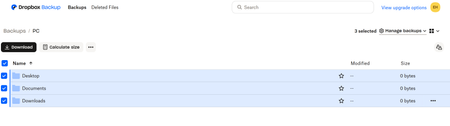
My Backup online shows as 0 bytes. What is happening?
Hi I was able to download the Dropbox App for my surface pro and setup the backup. After successfully backing up, the dropbox online says my "Desktop" "Documents" & "Downloads" backed up but there are 0 bytes in each folder. I only wanted to back up these three folders. Can someone please help me? Thank you, EmilySolved98Views0likes7Comments
I'm working with two Windows laptops and get conflicted copies. What can I do to resolve this?
Good morning, I have searched but been unsuccessful in finding help for my specific issue. Please direct me to the correct place if I have missed the relevant response. Otherwise, here is my issue. I work across two Windows 11 laptops. It is just me, no teams involved. Regardless I often get conflicted copies in Computer B when I have finished and saved my work in Computer A. Is there a way that I can resolve this? I would appreciate your specific instructions if there is a way to accomplish what I want. Thanks much. DaveSolved58Views0likes4CommentsSystem restore on Windows not working due to an error referring to a Dropbox folder
I need to restore my system due to a problem with my Windows/Fonts folder. However, whenever I try to run System Restore, after about 20 minutes Windows restarts with the following error message: https://www.dropbox.com/scl/fi/8cs9ufypm9f2ntom1jvin/temp-1.png?rlkey=ny26ffpl7ssueq13h1lh67duz&st=wzq01mjv&dl=0 (I tried posting the above url as a link but I got a message saying that the link contained invalid html! But I didn't write any html, I just used the Insert Link button. Why doesn't the Insert Link button create links that can be posted?) As the error message was referring to a Dropbox folder, and I don't need Dropbox to be restored, I need my Fonts folder to be restored, I tried uninstalling the Dropbox desktop app for Windows and running System Restore again - but I got the same error message. I then tried deleting the Dropbox folder from my hard drive, and running System Restore again - but I still got the same error message. So how can I restore my syste? I have a hunch that the problem might be somehow related to the fact that I upgraded Dropbox for Windows at the time of the last automatic restore point. But how can I get round it? It is extremely serious if the Dropbox upgrade has somehow made it impossible to run System Restore. How can I fix this? Dave776Views0likes15CommentsSyncing does not proceed on my fast W10 PC
I have DB 241.4.4853 on Win10 PC. Dropbox keeps Uploading 203,163 files and downloading 5 files, but no progress for days. I do not see any updated DB content on my laptop (my other computer, W11) Dropbox folders. I have very fast PC and light fiber connection 500 MB up and down. What may be the problem and solution? I have >700 MB on Dropbox, ca. 130 locally on my PC.94Views0likes8Comments
Can only view partial folders & files on Windows 11 & Windows 10 computers.
I am using a Dell Alienware w/Windows 11, Alienware w/Windows 10, and an Android device. A couple of weeks ago I had an issue with Outlook 365 (on my Win 11 device) and had to reinstall it a couple of times. It ended up being a corruption issue that a computer place had to fix for me. During the reinstall process I was prompted to log back into Dropbox which I did. After that point only a small portion of my Dropbox files appear in my File Explorer while all of them continue to appear on Dropbox via Web. When my Win 11 was in the shop, I used my Win 10 computer and was prompted to log back into Dropbox too and the same thing happened. I then used my Android device to access Dropbox via the app and initially all files showed up, but sure enough I was prompted to log back into Dropbox from that device and afterwards could only see a partial inventory of what's there. I just checked my Android again and right now all files are showing up via the app, but still only partial files showing in File Explorer on Win 11 & Win 10 (yes, the Web version stills shows everything and I have logged off and back on via the Web which changes nothing). I have Gigabyte access on the internet (926.27 Mbps D/L & 935.23 Mbps U/L) and both Windows computers appear to be syncing while showing different files and folders. I use Dropbox as Online-Only for my files. Does anyone have an answer and thanks in advance?Solved78Views0likes3Comments
Sync arrows showing on my files in the Dropbox folder but the app is not syncing
Hi everyone, I’m seeing the sync arrows next to some files/folders in Explorer, but nothing seems to be actively syncing. Here’s what I’ve tried so far: Resynced files Toggled files between online-only and local Rebooted my machine Paused and restarted Dropbox sync The only thing I haven’t tried yet is completely uninstalling and reinstalling Dropbox. Has anyone else run into this? Any tips or workarounds before I go the uninstall route? Thanks in advance!100Views0likes6Comments