Your workflow is unique 👨💻 - tell us how you use Dropbox here.
windows
891 Topics
Dropbox/Boxifier Integration - New Question
This is a technical question based on research I've been doing related to the recent issue with Boxifier no longer working with the latest version of Dropbox, and an inability to get a response from Boxifier support. In my research I've come across information that Dropbox has, with version 243.4.6956, moved from a proprietary sync platform to Microsoft-based API that leverages their OneDrive sync engine. So my first question is whether that is true. If it is true, my experience with OneDrive is that it is not possible to sync content from a NAS, or in my case WD MyCloudHome, using a mapped network drive. OneDrive will only sync content that is stored directly on the hard drive of the laptop itself, and does not support mapped drives (IE Z:/MyCloudHome/MyPictures). Previous to purchasing Dropbox and Boxifier, I had "tricked" OneDrive into syncing files from my drive mapped to MyCloudHome by using MKLink symbolic links to directories on the MyCloudHome. However, I discovered that after those directories grew to over about 100GB those symbolic links began to fail sporadically, so I had no idea which files were synced to OneDrive cloud, and which were not. After doing research on potential solutions I reached out to Dropbox and was told that the combination of Dropbox and Boxifier would meet my requirements. After testing and confirming that did work, I purchased Dropbox and a "lifetime" Boxifier license about 6 months ago. Unfortunately, "lifetime" appears to be about 6 months for Boxifier and I fear I may have thrown $350 out the window as it is probably not possible for Boxifier to continue to operate with Dropbox if indeed Dropbox is now running on the OneDrive sync engine. So, my questions are whether Dropbox is now on the OneDrive platform, and based on that answer what my options are to continue to sync my content from MyCloudHome to Dropbox going forward. I appreciate official Dropbox guidance on this matter, as well as any advice other users in similar situations might have. Thank you, Dave25Views0likes1Comment
Dropbox ignore rules still indexing ignored directories
Application Affected (Dropbox) Device (Macbook Pro 16 2019) Operating System/Browser (if using the web) (Windows 11) Dropbox App Version (if using the app) (246.3.3430) Question or Issue I am trying to use the new ignore rules file to ignore things like "node_modules" using rule "node_modules/". It seems to correctly ignore and not upload the node_modules directory, but it still spends a lot of time indexing them. This is not what I would expect. If it matches an ignore rule, why waste time and CPU indexing it? Thanks, D17Views0likes1CommentI add content using my desktop app, but it won't upload to the other platforms.
My files are not uploading through the (most recent) of the dropbox app for windows. I am now seeing that this is signficantly behind. I only found it when I tried to access some files through dropbox on my phone and couldn't. Then I found that whole folders are not listed on dropbox.com. I have tried clearing my browser cache, made sure I started and restarted the app, plus reinstalled it - twice. I don't have a VPN. My internet connection is 300 mbps, so that's not a problem. None of these files are huge. I am using less than a third of my dropbox capacity (3TB). What can I do? Device HP Z Book 17 G4 Operating System/Browser (if using the web) Windows 10 Dropbox App Version (if using the app) 243.4.6956 Syncing Status Claims to be up to date Question or Issue: Dropbox is not uploading, though the desktop app says it is up to date61Views0likes4CommentsWindows cannot find folders revealed by search Dropbox
Device Custom PC - 13th Gen i7, 48GB Ram Operating System/Browser (if using the web) Windows 11 Dropbox App Version/Browser Version 241.4.4795.0 Question or Issue When I search dropbox and then click on a folder, windows cannot find the folder. This is only happening with some folders, not all. This was never a problem prior to the recent update.Solved203Views0likes12Comments
'Make sure Dropbox is running on your PC, then try again' error when opening files on Windows 11
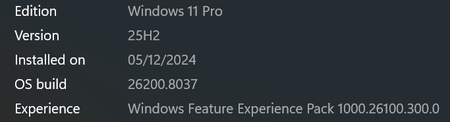
Application Affected Dropbox for PC Device Lenovo M60e Operating System/Browser (if using the web) Windows 11 Pro 25H2 with February updates Dropbox App Version (if using the app) 244.3.6471 Question or Issue When going to open a file under Dropbox in the Windows 11 explorer pane, we get a "Make sure Admin Dropbox is running on your PC, then try again". I can go to the taskbar icon and see the files, and the syncing. We can open the files via the web interface. "Admin dropbox" refers to the Dropbox account name. This was first noticed on Friday. I have not had any other users report this, but I am not sure if they use the file explorer as much as this person. I tried doing a new install over it, no change. Services seem to be running. Restarting does not work. Thanks in advance!58Views0likes7Comments
Logged out of the Dropbox app and back in and now I have a 'Dropbox (old)' and a 'Dropbox' folder
Application Affected Synching files Device PC Operating System/Browser (if using the web) Windows 11 Dropbox App Version (if using the app) Windows Desktop Question or Issue Had a funny problem with the Windows Explorer status icons not all being corrected, and saw a recommended to "simply" sign out of Dropbox and sign back in. Simple enough. Which I did. I then got a pop up asking me (telling me really) to rename my Dropbox folder. I said OK, and I now have a Dropbox and Dropbox (old) in the User directory. All of my files are in (old). None are in new. Every link on my PC to my old files is now of course broken. I paused syncing because I am worried Dropbox is going to try and create an entirely new copy of all of my files in the new Dropbox folder. Does anyone know what it going on here? And how to put things back to they way they were before? Why on earth would a logout/login totally reorganize all of my files??? I'm kind of dead in the water right now so any help would be greatly appreciated. Dropbox support seems to be non-existent.301Views0likes15Comments
My Dropbox app keeps syncing and it's slowing down my computer
Application Affected Dropbox Device Dell Precision Operating System/Browser (if using the web) Windows 11 My dropbox started syncing in the morning and 12 hours later it still does. Also the folder from my partition just became with 400gb smaller and keeps decreasing. I have the situation on a Dell running Windows11. No update has been done yestarday but the dropbox syncing is making almost imposible any work on the station and also I can't work on any files from dropbox.41Views0likes6Comments
Removing Dropbox Context Menu Entries on Windows - Persistent Fix
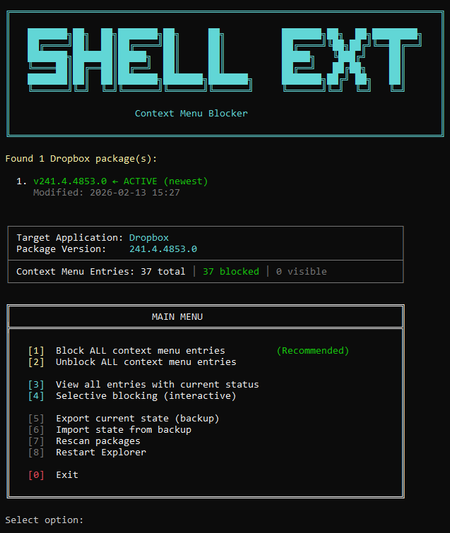
I've seen dozens of threads here from people trying to get rid of the Dropbox right-click context menu entries on Windows. There is no official toggle for this. The common advice involves manually editing registry keys, but people report those changes revert after Dropbox updates. Here is my solution: The linked script solves that differently. Instead of modifying Dropbox's own registry entries (which Dropbox overwrites on update), it uses Windows' built-in Shell Extensions Blocked mechanism — a per-user registry key (`HKCU:\...\Shell Extensions\Blocked`) that Windows itself respects. Dropbox updates don't touch this key because it's not theirs. What it does: Reads Dropbox's AppxManifest to find all context menu CLSIDs automatically Blocks them using Windows' own sanctioned blocking method Fully reversible — unblock everything with one click Interactive menu or silent command-line mode for automation Tested for 2+ months across three machines via PowerShell 7, through multiple Dropbox updates. The entries have never come back. The script is open, readable, and modifies nothing outside that single user-scoped registry key. If you want an independent safety assessment, paste it into any AI assistant and ask. Here is the script + AI safety assessment: https://grok.com/share/bGVnYWN5_e1f2cac5-5e0f-4731-bbbe-63fd72af7a7b191Views2likes5Comments
Feature request: support multiple .dropboxignore files in subfolders (like .gitignore)
Why this matters: current single-file approach breaks common industry project workflows with repeated folder structures. The industry solved this problem years and years ago with .gitignore, now you decide to throw that out the window for a large one at the top. As someone who works on lots of different unity projects, I use templates. When they get generated, imagine if I could throw a .dropboxignore file into this template and then never sync my library folders on any devices, never sync any temp folders, and never sync packages because they should all be handled by package revolvers. The types of people who use this type of feature are the types of people who are use to gitignores, which is why it is so monumentally baffling that you have done things this way. I seriously can not fathom for the life of me why you did it this way. Device: Custom Desktop (5070ti, 7800x3d, 32gb) OS: Windows 11 Dropbox App Version: 243.4.695613Views0likes1Comment