Your workflow is unique 👨💻 - tell us how you use Dropbox here.
windows
996 Topics
'Make sure Dropbox is running on your PC, then try again' error when opening files on Windows 11
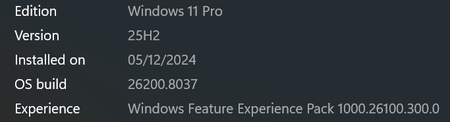
Application Affected Dropbox for PC Device Lenovo M60e Operating System/Browser (if using the web) Windows 11 Pro 25H2 with February updates Dropbox App Version (if using the app) 244.3.6471 Question or Issue When going to open a file under Dropbox in the Windows 11 explorer pane, we get a "Make sure Admin Dropbox is running on your PC, then try again". I can go to the taskbar icon and see the files, and the syncing. We can open the files via the web interface. "Admin dropbox" refers to the Dropbox account name. This was first noticed on Friday. I have not had any other users report this, but I am not sure if they use the file explorer as much as this person. I tried doing a new install over it, no change. Services seem to be running. Restarting does not work. Thanks in advance!41Views0likes7Comments
Logged out of the Dropbox app and back in and now I have a 'Dropbox (old)' and a 'Dropbox' folder
Application Affected Synching files Device PC Operating System/Browser (if using the web) Windows 11 Dropbox App Version (if using the app) Windows Desktop Question or Issue Had a funny problem with the Windows Explorer status icons not all being corrected, and saw a recommended to "simply" sign out of Dropbox and sign back in. Simple enough. Which I did. I then got a pop up asking me (telling me really) to rename my Dropbox folder. I said OK, and I now have a Dropbox and Dropbox (old) in the User directory. All of my files are in (old). None are in new. Every link on my PC to my old files is now of course broken. I paused syncing because I am worried Dropbox is going to try and create an entirely new copy of all of my files in the new Dropbox folder. Does anyone know what it going on here? And how to put things back to they way they were before? Why on earth would a logout/login totally reorganize all of my files??? I'm kind of dead in the water right now so any help would be greatly appreciated. Dropbox support seems to be non-existent.278Views0likes15Comments
My Dropbox app keeps syncing and it's slowing down my computer
Application Affected Dropbox Device Dell Precision Operating System/Browser (if using the web) Windows 11 My dropbox started syncing in the morning and 12 hours later it still does. Also the folder from my partition just became with 400gb smaller and keeps decreasing. I have the situation on a Dell running Windows11. No update has been done yestarday but the dropbox syncing is making almost imposible any work on the station and also I can't work on any files from dropbox.36Views0likes6Comments
Removing Dropbox Context Menu Entries on Windows - Persistent Fix
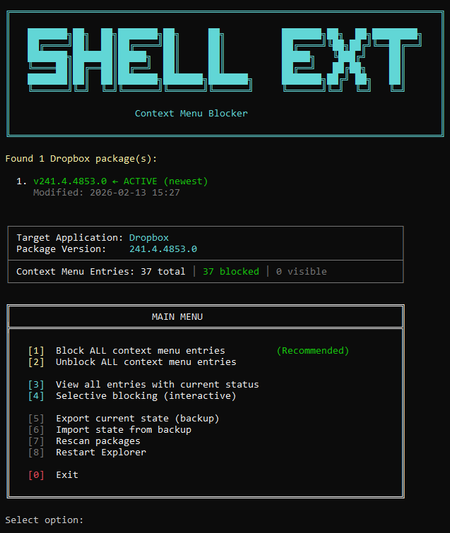
I've seen dozens of threads here from people trying to get rid of the Dropbox right-click context menu entries on Windows. There is no official toggle for this. The common advice involves manually editing registry keys, but people report those changes revert after Dropbox updates. Here is my solution: The linked script solves that differently. Instead of modifying Dropbox's own registry entries (which Dropbox overwrites on update), it uses Windows' built-in Shell Extensions Blocked mechanism — a per-user registry key (`HKCU:\...\Shell Extensions\Blocked`) that Windows itself respects. Dropbox updates don't touch this key because it's not theirs. What it does: Reads Dropbox's AppxManifest to find all context menu CLSIDs automatically Blocks them using Windows' own sanctioned blocking method Fully reversible — unblock everything with one click Interactive menu or silent command-line mode for automation Tested for 2+ months across three machines via PowerShell 7, through multiple Dropbox updates. The entries have never come back. The script is open, readable, and modifies nothing outside that single user-scoped registry key. If you want an independent safety assessment, paste it into any AI assistant and ask. Here is the script + AI safety assessment: https://grok.com/share/bGVnYWN5_e1f2cac5-5e0f-4731-bbbe-63fd72af7a7b184Views2likes5Comments
Windows cannot find folders revealed by search Dropbox
Device Custom PC - 13th Gen i7, 48GB Ram Operating System/Browser (if using the web) Windows 11 Dropbox App Version/Browser Version 241.4.4795.0 Question or Issue When I search dropbox and then click on a folder, windows cannot find the folder. This is only happening with some folders, not all. This was never a problem prior to the recent update.Solved188Views0likes11Comments
Feature request: support multiple .dropboxignore files in subfolders (like .gitignore)
Why this matters: current single-file approach breaks common industry project workflows with repeated folder structures. The industry solved this problem years and years ago with .gitignore, now you decide to throw that out the window for a large one at the top. As someone who works on lots of different unity projects, I use templates. When they get generated, imagine if I could throw a .dropboxignore file into this template and then never sync my library folders on any devices, never sync any temp folders, and never sync packages because they should all be handled by package revolvers. The types of people who use this type of feature are the types of people who are use to gitignores, which is why it is so monumentally baffling that you have done things this way. I seriously can not fathom for the life of me why you did it this way. Device: Custom Desktop (5070ti, 7800x3d, 32gb) OS: Windows 11 Dropbox App Version: 243.4.695611Views0likes1Comment
Internet goes out cold the moment Dropbox app has activity
Application Affected Dropbox App for Windows 10 / local folder Device Windows 10 DESKTOP Operating System/Browser (if using the web) Windows 10 Dropbox App Version (if using the app) 243.4.6956 Question or Issue I'm using Dropbox on a paid plan for work and managing private files on top of all things. In the last two weeks Dropbox constantly causes my internet to die; just about any activity in the Dropbox Windows app and my connection goes out cold. I'm unfortunately not exactly well-versed in network related issues or how to track/trace them, but I can replicate it every single time I open my local Dropbox folder (that's hooked to the app) - my internet is dead instantly. I'm on a 150mbps plan and my down/up speed aren't bad to a point my connection would die from a traffic spike. I tried throttling the bandwidth Dropbox gets access to but my internet goes out cold regardless. Nothing else does this, it's always the moment Dropbox receives traffic that my internet gets cut. I could have countless of background processes hog my connection and have zero issues until Dropbox is opened. I have no antivirus or anything that I know of, just the basic Windows Defender. Generally I have no internet or connectivity issues, just the moment Dropbox shows activity or I open the folder it shuts off my connection. This is very frustrating considering I'm relying on Dropbox to work at all times while also being able to stay online in Slack and so on.58Views0likes5CommentsIs there a way to remove the Dropbox options from the context menu on Windows 11?
Operating System Windows 11 Question or Issue I would like to remove the Dropbox context menu items from my right-click context menu as I do not use them and they clutter up my menu. How do I go about removing them?24Views0likes1CommentI can't log in to the desktop app on Windows 11; I see an "access is denied" error message.
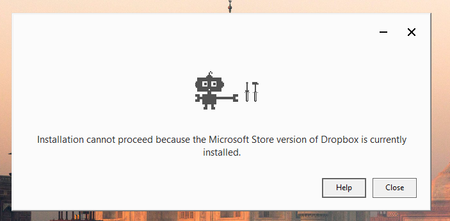
Application Affected Dropbox Device Lenovo laptop Operating System/Browser (if using the web) Windows 11 Dropbox App Version (if using the app) Dropbox 242.4.5815 Offline Installer.x64.exe Question or Issue i couldn't login into dropb and i got the follwing error: bn.BUILD_KEY: Dropbox bn.VERSION: 241.4.4853 bn.constants.WINDOWS_SHELL_EXT_VERSION: 89 bn.is_frozen: True machine_id: cdafbbac-4a5d-44c0-9bea-a72c1c8c8234 pid: 6080 cwd: 'C:\\WINDOWS\\system32' real_path='C:\\Windows\\System32' mode=0o40777 uid=0 gid=0 parent mode=0o40777 uid=0 gid=0 HOME: None appdata: 'C:\\Users\\amir.dar\\AppData\\Local\\Dropbox\\instance6' real_path='C:\\Users\\amir.dar\\AppData\\Local\\Packages\\DropboxInc.Dropbox_xbfy0k16fey96\\LocalCache\\Local\\Dropbox\\instance6' mode=0o40777 uid=0 gid=0 parent mode=0o40777 uid=0 gid=0 dropbox_path: None not found parent not found sys_executable: 'C:\\Program Files\\WindowsApps\\DropboxInc.Dropbox_241.4.4853.0_x64__xbfy0k16fey96\\Dropbox.exe' real_path='C:\\Program Files\\WindowsApps\\DropboxInc.Dropbox_241.4.4853.0_x64__xbfy0k16fey96\\Dropbox.exe' mode=0o100777 uid=0 gid=0 parent mode=0o40777 uid=0 gid=0 trace.__file__: 'C:\\Program Files\\WindowsApps\\DropboxInc.Dropbox_241.4.4853.0_x64__xbfy0k16fey96\\241.4.4853\\python-packages.zip\\dropbox\\client\\ui\\common\\boot_error.pyc' real_path='C:\\Program Files\\WindowsApps\\DropboxInc.Dropbox_241.4.4853.0_x64__xbfy0k16fey96\\241.4.4853\\python-packages.zip\\dropbox\\client\\ui\\common\\boot_error.pyc' not found parent not found TMP: C:\Users\amir.dar\AppData\Local\Temp TEMP: C:\Users\amir.dar\AppData\Local\Temp tempdir: 'C:\\Users\\amir.dar\\AppData\\Local\\Temp' real_path='C:\\Users\\amir.dar\\AppData\\Local\\Temp' mode=0o40777 uid=0 gid=0 parent mode=0o40777 uid=0 gid=0 Traceback (most recent call last): File "desktop/dropbox/client/main.py", line 6945, in _setup_root_for_account File "desktop/dropbox/sync_root/helpers.py", line 199, in create_root_for_account File "desktop/dropbox/foundation/futures/basic.py", line 1040, in result File "desktop/dropbox/sync_root/manager.py", line 382, in create_root File "desktop/dropbox/sync_root/handlers/windows/cloud_files.py", line 299, in register File "desktop/dropbox/sync_root/handlers/windows/cloud_files.py", line 601, in _register PermissionError: [WinError -2147024891] Access is denied So, i've uninstalled the app and deleted the registery key (used chatgpt for those steps) now, i can't reintall the app164Views0likes11Comments