Your workflow is unique 👨💻 - tell us how you use Dropbox here.
Forum Discussion

BiancaCondor
6 years agoNew member | Level 2
Online Only Doesnt appear as an option
Online Only Doesnt appear as an option, need to free up space on my computer so Dropbox can sync.
5 Replies
Replies have been turned off for this discussion
- Walter6 years ago
Dropbox Community Moderator
Hi BiancaCondor - welcome to the Dropbox Community!
I'm sorry to hear you're having issues with Smart Sync. I'll have to admit that your desktop app seems to be having an issue at the moment though; based on its icon within your computer's system tray that is.
Could you forward me its exact status so I can have a better look into this for you? To do this, look at the Dropbox icon in your taskbar and let me know what the exact message being displayed there reads.
In the meantime, keep in mind that the red circle with the x means that something is wrong, and Dropbox isn’t syncing this file or folder. There are a few common reasons for this:
- Invalid filenames (files can’t sync if their names have certain characters or symbols)
- Permissions errors (meaning you don’t have access to shared content, or a computer system permission)
- File changing very rapidly (meaning multiple edits in quick succession)
- Your Dropbox account is out of storage space (which means you can't upload to it)
I hope this information points you towards the right direction and I'm always a post away if you have any questions.
Thanks in advance and happy Monday Bianca!
- BiancaCondor6 years agoNew member | Level 2
can't sync as not enough disk space is the status which is why i need to turn files into online only
- Walter6 years ago
Thanks for the additional information Bianca - it's most appreciated.
You'll probably need to free up some space on the affected computer as the low disk space error you're getting is due to your computer's hard drive being out of free space. Because files stored in your Dropbox are also stored on your computer, your hard drive must have enough space to store the files that are in your Dropbox.
To check hard drive space on Windows, simply open up My Computer and the Explorer window should inform you of how much free space you have left. If it does not, right-click on your hard drive and click 'Properties'.
Additionally, we have a feature called Selective Sync (not to be confused with Smart Sync), which lets you choose which folders to sync to a particular computer — this is great for situations where you have files which you would like to keep but don't need them taking up space on your hard drive.
To learn more about Selective Sync, please read this Help Center article:
https://www.dropbox.com/help/syncing-uploads/selective-sync-overview
If you don't want to use Selective Sync at this time or just want to delete a file, please read this help center article instead: https://www.dropbox.com/help/desktop-web/delete-files
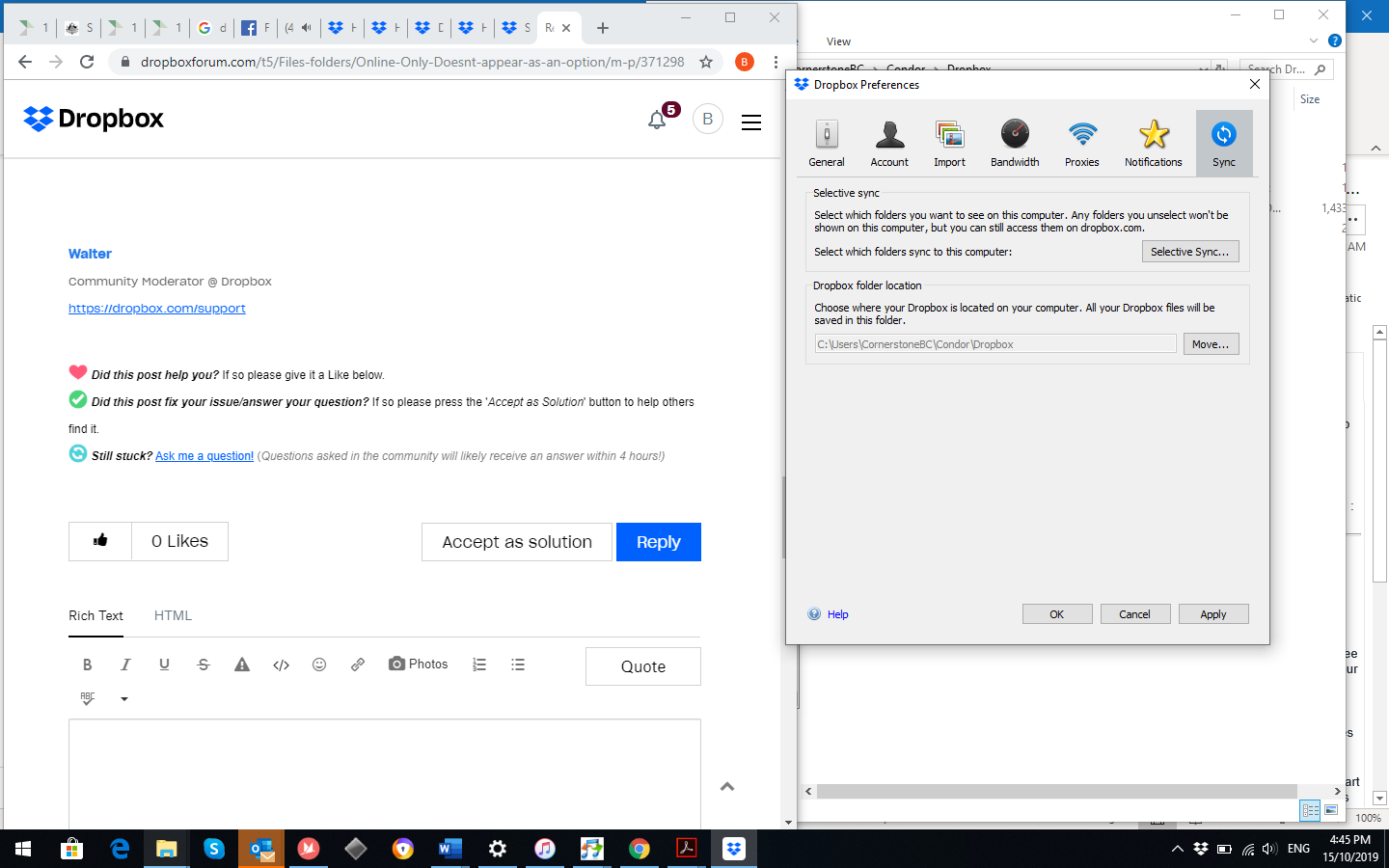
As per seeing the Smart Sync options when you right click on your Dropbox files, can you confirm you've opted in using it through your desktop app's preferences under the 'Sync' tab?
Thanks for your speedy response!
- BiancaCondor6 years agoNew member | Level 2
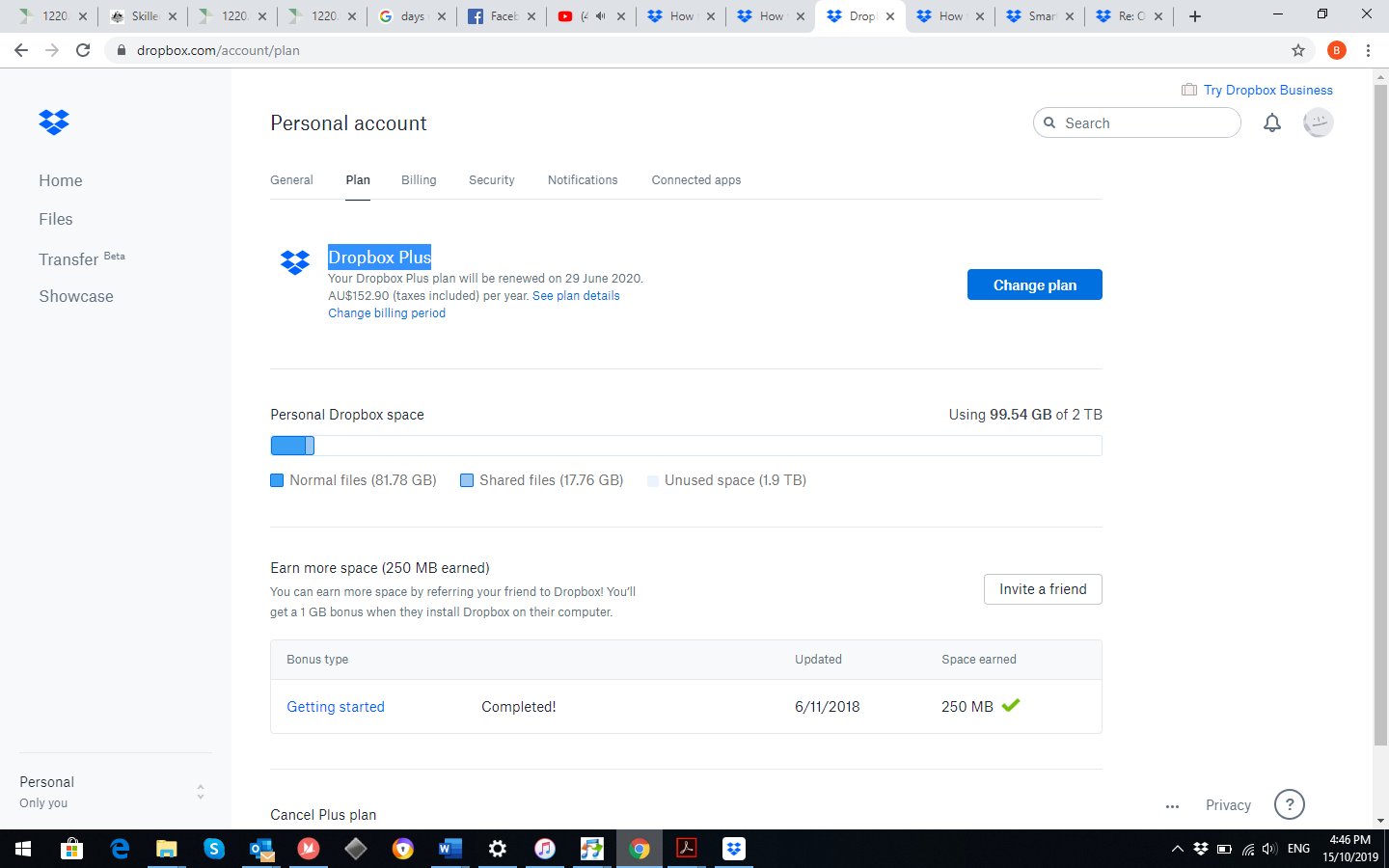
I don't see any refrenec to smart sync in my preferences folder. I have Dropbox plus.
- Walter6 years ago
Thanks for the additional information and screenshots BiancaCondor!
I'll have to admit, this seems strange; could you try re-installing our app on the affected computer using the offline installer from the page below and let me know if you're still having this issue?
https://www.dropbox.com/downloading?build=82.4.156&plat=win&type=full
If that doesn't work, please try to unlink and re-link your account following these steps (this will restore any settings which may have been changed without affecting or removing your files):
1) Right-click the Dropbox icon in the system tray by the clock.
2) Click on your profile picture or initials to the right of the search bar, and select "Preferences".
3) Select the Account tab.
4) Click the "Unlink" button in the Account tab.
5) Follow the prompt to re-enter your account information.Your account will then take a few moments to re-index your Dropbox folder and sync any pending changes before returning to normal activity.
Let me know how this goes!

About Create, Upload, and Share
Find help to solve issues with creating, uploading, and sharing files and folders with Dropbox.
The Dropbox Community team is active from Monday to Friday. We try to respond to you as soon as we can, usually within 2 hours.
If you need more help you can view your support options (expected response time for an email or ticket is 24 hours), or contact us on X, Facebook or Instagram.
For more info on available support options for your Dropbox plan, see this article.
If you found the answer to your question in this Community thread, please 'like' the post to say thanks and to let us know it was useful!


