Your workflow is unique 👨💻 - tell us how you use Dropbox here.
Forum Discussion

Isaksp00
6 years agoNew member | Level 2
Can't remove dropbox folder icon from Win File Explorer
Since Dropbox recently limited free accounts to three devices I had to delete it from my desktop PC and a laptop. The deletion from the laptop went OK. The deletion from the desktop (Windows 10) occu...
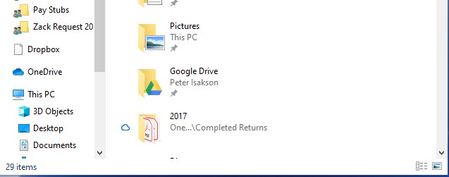
- 6 years ago
I found a fix by using regedit to search the registry for the string "c:\users\peter\dropbox". If you use this, obviously the string would be the name that is in the Properties dialog box of your ghost system folder icon. It found one entry, "under" a clsid. See screen shot below. I searched for the string that is the clsid (the thing between curly braces), and found it in several places. One of them was here: HKEY_CURRENT_USER\Software\Microsoft\Windows\CurrentVersion\Explorer\Desktop\NameSpace\{E31EA727-12ED-4702-820C-4B6445F28E1A} That contained these values:
Name Type Data
(Default) REG_SZ Dropbox
I figured from the other data similar to it in the registry that it is where file explorer finds the info it uses to display these icons over to the left. For example, the value right above that reg entry is similar and has "data" = "Onedrive", which is another icon in file explorer. I deleted the key and the ghost icon is gone. Now, since the clsid appears in other places in the registry I likely have some leftover, useless data, but I hope it is not harmful.
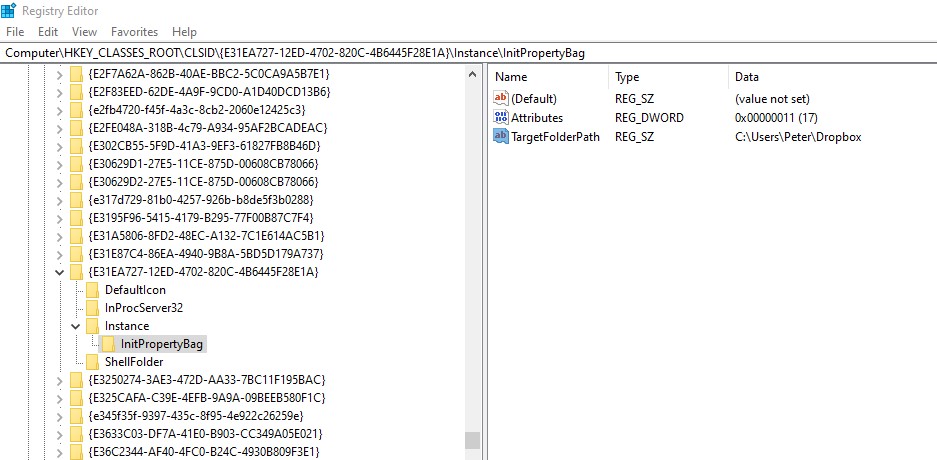
isaksp02
6 years agoHelpful | Level 6
Thanks, no I have not found a solution. I am pretty sure it is a registry issue, but I have no idea how to fix it. I suppose I could reset the Windows OS back to factory config and then let it update, but that is probably too much of a hassle when I can just leave this ghost icon there.

Walter Dropbox Community Moderator
6 years agoDropbox Community ModeratorThanks for the update isaksp02 (I guess you're the same person as Isaksp00 - right?)
May I have you follow some steps to see if they help with the matter at hand?
At this point, I'd like you to search for and delete the remaining Dropbox system folders (it's OK if you don't find a Dropbox folder in any of the following locations).
- Open a Windows File Explorer (not Internet Explorer).
- Type %LOCALAPPDATA% into the address bar and press enter.
- In the next window, delete the folder named Dropbox. A prompt to enter your computer administrator password (not your Dropbox password) may appear.
- Repeat these steps with the following folders. Deleting any of these folders will not delete the files in your Dropbox folder.
- %APPDATA%
- %PROGRAMFILES%
- %PROGRAMFILES(x86)%
Make sure to reboot your computer once you're finished please.
Let me know how it goes!
- isaksp026 years agoHelpful | Level 6
Yes, those are both my ID's - for some reason, to log in to the forum on one device, I had to create a new ID.
I tried the steps you cited. 2 of the directories did have the leftover dropbox subdir, and I deleted these and rebooted. The ghost folder is still there.
- Walter6 years ago
Thanks for following up on this isaksp02 .
If you can confirm you've already uninstalled the app and there's no trace of it on your computer (I'd also check the processes that are running as there might be some associated with Dropbox that could be interfering somehow), at this point, I'd suggest that you logged a ticket with the team so we can drill into account and device specific info so we can assist further.
If you let me know the ticket's ID here, I'll gladly locate it on our system and get on it ASAP.
- isaksp026 years agoHelpful | Level 6
I do not see any Dropbox process in Task Maager.
If I can figure outhow, I will post a ticket.
About Apps and Installations
Have a question about a Dropbox app or installation? Reach out to the Dropbox Community and get solutions, help, and advice from members.
The Dropbox Community team is active from Monday to Friday. We try to respond to you as soon as we can, usually within 2 hours.
If you need more help you can view your support options (expected response time for an email or ticket is 24 hours), or contact us on X, Facebook or Instagram.
For more info on available support options for your Dropbox plan, see this article.
If you found the answer to your question in this Community thread, please 'like' the post to say thanks and to let us know it was useful!


