Need to see if your shared folder is taking up space on your dropbox đšâđ»? Find out how to check here.
automation
26 TopicsStay organized and save time with new folder automation updates
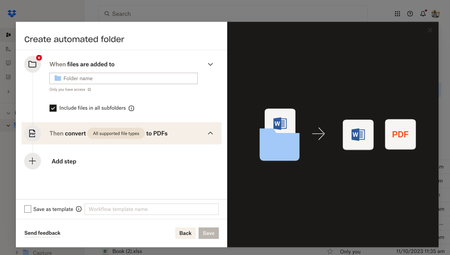
Hey Dropbox Community! We are so excited to introduce new enhancements to the folder automation features to help you stay organized. Weâre introducing multiple step automations (up to five), including within subfolders. Now, you can configure multiple automations on selected folders and subfolders to automatically convert uploaded files to PDFs, rename files, add watermarks, and more. Get started by selecting â+Createâ under the search bar, then select âFolder,â and finally select âAutomated folder.â Tell us about your experience with Dropbox's Folder Automation Features in the comments below! Or comment down below any features you'd love to see to help you stay organized. â13KViews2likes7CommentsCan't use automation to auto-add tags to files in a folder
The Dropbox tags help page indicates you can use the automation feature to auto-add tags to files in a folder. However, this option is not present in the automation task list. I tried adding it as instructed to a newly created folder, and also tried adding the automation rule to an already created folder. Neither worked. I hope this feature didn't get removed because it would be really helpful to organize all of my photos.Solved5.4KViews1like23CommentsHow can I turn off automations on a folder?
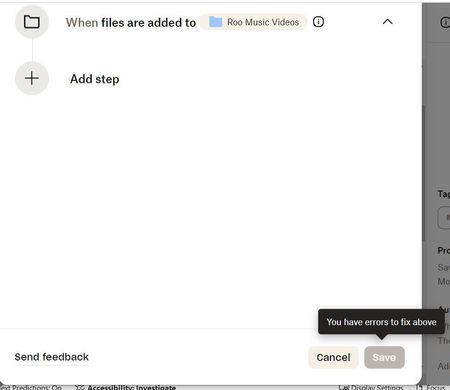
I set up my new Folder with automated conversion to MP4 because I thought I would need that format. However, I do not. I have been unable to figure out how to turn it off for that Folder. on my PC--I set it up on my iPhone originally. When I go to Settings and Automations on the right side of my PC and Delete the conversion step, I get the attached screen, which does not allow me to Save the change. So I must be doing something wrong.Solved3.1KViews0likes11CommentsNaming conventions not working on camera uploads folder.
Hello i am attempting to use multi file organize for my camera uploads folder. It is a large folder containing about 20,000 individual files. It is not synced to my local devices to save space. Or rather, on the local devices, the folder is marked offline only. I am trying a very straightforward organize request, to organize by month YYYY-MM. I have tried about a dozen times from different browsers, both desktop and mobile. I get the message âcreating foldersâ then âmoving filesâ. Then it fails with a message âwe werenât able to organize your folder. Try againâ. The folders in fact were not created. Iâm attaching a screenshot. i was able to turn on automation successfully, so new files are being sorted as they get uploaded. Therefore a folder 2023-02 was created. In addition I manually created 2021-12 and put a few files in there. But I cannot organize the vast majority that are already there. Thanks for any help.2.1KViews0likes16CommentsAutomation for renaming files doesn't work
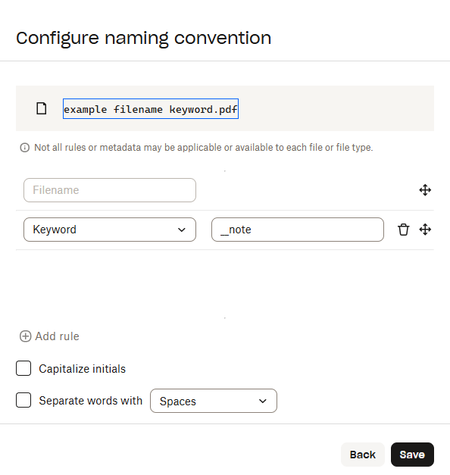
I set up Dropbox automation to "When files are added to [main folder], Then rename them to [YYYY-MM-DD - example filename.pdf]". Then, I tried dragging multiple files from my computer into the folder, using Chrome and then trying it with Edge. In both cases, the files just kept their original names. I cleared by browser cache in Chrome, and then tried it in Edge. Nothing has worked. I have seen no difference since adding automation. I un-checked the box next to "Replace with existing dates detected in filenames" because I just want it to use the date of upload.Solved1.4KViews0likes9CommentsReceiving images from others
I have a lot of content creators. I would like for them to send photos/videos to me. I understand the dropbox request. Here is my issue: When I receive an image I need to do a few things. Any automation will help. 1. The image has to abide by our content creation guidelines. This will need to be a manual review. In addition to resolution, file type.... I need to look at the picture to see if the content is correct. All pics will start their life in a common folder ** For Review ** 2. Issue 1: if the image does not meet the guidelines, I need to reject it and notify the creator. I would like to simplify this as I will be getting a lot of pictures and flipping back and forth to email does not scale. 3. Issue 2: if the image is approved, I need to easily capture this so that the creator can get credit for the image. I would also like to notify the creator that their image was accepted. 4. Issue 3: is there a way to simplify the tagging process? Each image may have several tags that will allow me to search and find the image a variety of ways. 5. Finally I need to send the image to the correct folder for safe keeping. My thoughts on folder structure is ** creator name>year>month **. Is there an automated way to do this after approval? Any help is greatly appreciated.1.3KViews0likes6CommentsProgress Bar for Automated Folder Actions
Current "Problem" When working with folder automations, I don't know how long they are going to take. When I have 3rd party automations running on my file system for my local machine in the integrated Dropbox folder, it can move files too quickly before certain automations have finished in some folders. I can slow my 3rd party automations down, but I don't know how slow I need to make them, since I can't see queued or current automation jobs (folder automations) from Dropbox in either the web or Desktop version. I am on a MacOS Apple Silicon machine, for context. Proposed "Solution" Add a progress bar that displays percentage progress and ETA for completion for automated folder operations.Solved983Views0likes1CommentIs it possible to create Automated Folder Templates?
Hey all, I use the dropbox desktop app much more than the web-based version, but have learned recently of the naming convention automation on the web-based version. Since my business deals in addresses, the naming convention I personally use it to add the address to each file that corresponds to that project. Here's how it works currently: - Template Folder with templates of all documents I use - When a new project begins, I copy the template folder and rename the parent folder as well as all of the documents in it according to this naming convention: "Filename [Address]". For example, "Waste Hauler Form [5313 Webster]". So far I can only get the automation to work by logging into the web-based dropbox, creating a new folder, adding the automation, and adding files. Updating the parent folder does not prompt a renaming of all the files located within it unless I go into the naming conventions and hit "save" again. This isn't a great workaround. Additionally, duplicating a folder does not carry the automation over to the new folder. Ideally, I can create one automated template folder to duplicate. Once duplicated, I can rename it and have all of the files within it renamed automatically. Best case is that I can do all of this from the desktop app. Anyone have any suggestions on how to achieve this?741Views0likes1Comment