Your workflow is unique 👨💻 - tell us how you use Dropbox here.
desktop
109 Topics
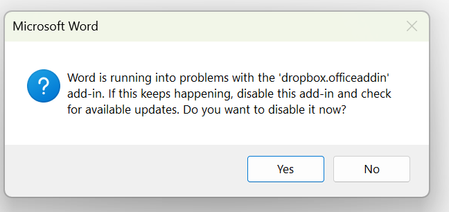
"Word is running into problems" error when trying to open Office files
Application Affected Word Excel etc Device ASUS VIVOBOOK Operating System/Browser (if using the web) Windows 11 Dropbox App Version (if using the app) No app Question or Issue When I try to open a word or excel file I get this error Word is running into problems with the 'dropbox.officeaddin' I also face issues with files not opening occasionally53Views0likes2Comments
Quick Look flickering on macOS 26.2
I have the same Quick Look symptoms as Dropbox Finder Integration Flickering on macOS 26.2, but with some stuble differences. My problem is persistent across restarts of Mac OS and the suggested fix did not work, nor are there any pending cloud syncs. Integration Affected: Quick Look Device: Mac Mini M2 Pro running macOS 26.2 (latest version). This started with Mac OS 26.0 Dropbox: Version 240.4.8493 Issue: Document displayed using QuickLook in Dropbox folders refreshes every second, disrupting file previews and navigation. If I scroll my PDF down in the quick look window, the refresh forces me back to the top of the document, if I am using QuickLook on an Excel spreadsheet, it always forces me back to the first sheet. This behaviour happens with all documents and images, not just PDF and XLSX. Symptoms: Quick Look resets to the first page/tab of all documents (PDF, Excel etc) Unlike the other poster, my green Dropbox tick icons in Finder are constant (no flicker) Steps to reproduce: Open Dropbox folder in Finder, locate a document to QuickLook (PDF, XLSX, or anything really) Steps to reproduce Secondary problems: Select a multi‑page PDF and press space to preview. Attempt to scroll to the second page. Finder refreshes, preview resets to page one, and the Dropbox icon flickers. It is impossible to productively use QuickLook on any file in Dropbox folders via Finder. Thanks in advance!169Views0likes8Comments
Excel crashes when opening a file from Dropbox but not from Desktop.
Hello. This just started occurring yesterday for one of my machines. I have files stored on Dropbox sync'd through filer explorer. When I open the file from dropbox (file explorer), excel quits responding. When I open the same file from my Desktop, Excel works as normal. Dropbox is listed as a connected service in Excel and there have been no issues before yesterday. I have updated office and performed a repair without luck. Any thoughts?1.7KViews1like17Comments
The dreaded error 'Can't save here choose another location' for MS office files.
Hello--I have a chronic problem with my file folders: frequently get 'Can't save here choose another location'. I use my employer's MS Office 365 account, and sync Dropbox to Windows Explorer, and use Explorer for my file management. The 'Can't save' message seems to appear when I am using many subfolders...if I go back one folder I can save the file. The problem is, this doesn't work with my folder organizing system. Is there a limit to how many subfoldes can be used? If so, can I release that limit? Or is the problem something else? Thanks you!5.4KViews0likes1Comment
Microsoft files on Windows 11 are prompting for a Dropbox sign up every time I try to open them.
Hello, I have the Dropbox desktop app installed and every time I open Excel or Word this Login screen appears asking to "Log in or sign up to Dropbox to link with Microsoft Office 365" Is there a way to disable this? Microsoft 365 Device PC Operating System/Browser (if using the web) Windows 11Solved5.1KViews6likes93Comments
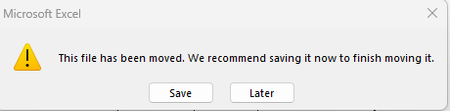
"This file has been moved" error when trying to open Excel files in the Dropbox folder
Integration Affected Microsoft 365 (specifically Excel) Operating System/Browser (if using the web) Windows 11 Question or Issue One of our users started getting errors yesterday when trying to open Excel documents that are stored within the Dropbox folder. The file opens, but brings up the following error: The file has not been moved, nobody else has this problem currently. It only happens when the file is within the dropbox folder on her computer. If we copy the file to a location outside of dropbox, it's fine. Searching the internet, it seems people who use Box (which I'm assuming is similar to Dropbox), are starting to have the same problem. It was reported in their community beginning on Nov 25, 2025 and more and more people are replying to it complaining of the same issue. A few different "fixes" were suggested by their IT which did not fix the problem and yesterday they say they have determined that it's a bug related to the latest Seamless Login release from Microsoft. Just throwing this out there in case it helps the issue to be resolved with Dropbox quicker. So far, only one of our team members is having this issue. Please help.Solved594Views1like17Comments
Unable to update the folders being backed up for External SSD backup
Device MacBook Air 15' Operating System/Browser (if using the web) macOS Tahoe 26.1 Dropbox App Version/Browser Version 238.4.6075 Question or Issue I've been backing up a 2 TB Extreme Pro External SSD that has roughly 1.2 TB of Data on it via Dropbox Backup. The data primarily consists of previous computer and other device backups. Because there is a large number of files between all the data ~2,000,000 , I've been incrementally adding folders for Dropbox to backup from the external drive so it doesn't get overwhelmed with files. I've been able to upload all but one major folder from the drive into the cloud as dropbox is stuck "updating" or "indexing" the same five files on repeat. When I try and update which folders should be updated, no change is made. Thus far, I've restarted the computer, restarted the dropbox application, logged out and logged in to the dropbox application, manually cleared the dropbox cache, and disconnected/replugged the external SSD.128Views0likes5Comments
Dropbox Finder Integration Flickering on macOS 26.2
I’m experiencing a persistent issue with Dropbox on macOS 26.2. The Dropbox folder in Finder (I'm using Dropbox on file provider) keeps flickering or refreshing every second. This constant refresh makes it very difficult to work with files. For example, when I preview a multi‑page PDF using Quick Look (pressing the space bar in Finder), the preview resets back to the first page every time the folder refreshes. As a result, I cannot scroll through or read the document properly. Additionally, the blue Dropbox icon that appears before the folder name (“Dropbox”) in Finder keeps turning on and off repeatedly, like a flickering bulb. This visual flicker happens in sync with the folder refresh and makes the issue even more disruptive. Details: Integration Affected: finder Device: MacBook Air M3 running macOS 26.2 (latest version) Dropbox: Version 238.4.6075 Issue: Dropbox folder in Finder refreshes every second, disrupting file previews and navigation Symptoms: Quick Look resets to the first page of PDFs Blue Dropbox icon before the folder name flickers on and off Steps to reproduce: Open Dropbox folder in Finder (the icon in titlebar flickers Steps to reproduce Secondary problems: Select a multi‑page PDF and press space to preview. Attempt to scroll to the second page. Finder refreshes, preview resets to page one, and the Dropbox icon flickers. This behavior is very frustrating and makes it difficult to use Dropbox with Finder, I expect it to act as a normal folder on finder!.Solved238Views1like3CommentsUsing DB to sync Password Vaults
I have a Android phone (ver. 9). I use a password vault that depends on its database file being synchronized between PC desktop and my cell phone. On a previous cell phone, this arrangement worked very well. Now with my new Pixel 7 pro phone, it is not working. I suspect it is because my cell phone version of DropBox is not syncing correctly. I would like the DB to automatically synch every time I open or close the cell phone. But I suspect it is not happening. I don't know how to determine if I am looking at the latest DB contents on my cell phone. I also do not know how to force a synch. Can anyone point me in the right direction? Thanks, Tom1.1KViews0likes3CommentsData loss: Boxcryptor classic files no longer readable
Integration Affected Boxcryptor classic 1.7.1 Device irrelevant Operating System/Browser (if using the web) Windows 11 Dropbox App Version (if using the app) 237.4.5655 Question or Issue Dropbox decided to update to windows files recently. This Update without warning did a) block my PC for at least a day b) ended up corrupting my encrypted files which I no longer can read. Please advise how to restore my files. This is likely the same issue as here, Dropbox's latest update leads to no access to Boxcryptor files. Can't copy or open them. | The Dropbox Community but the solution described there is to rely on old undynched folders which I do not have. Also, the topic is closed and does not let me continue. Text files end up with error message "cannot open .." Pdf will lead to "No file Permission ..." Excel: etc..261Views0likes10Comments