Your workflow is unique 👨💻 - tell us how you use Dropbox here.
Forum Discussion

iKit
1 year agoExplorer | Level 4
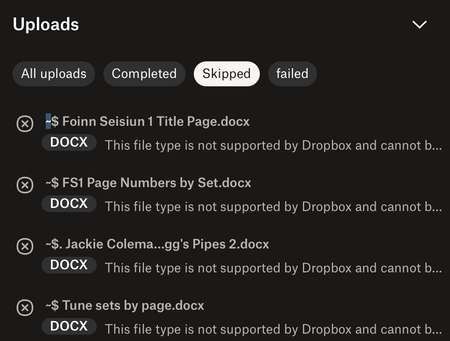
Uploads skipped because ".docx format is not supported"?
This issue – files not uploading because 'the format is not supported' – just started today. I made a new folder containing a large number of MP3 files, plus some MS Word documents that provide index...

Nancy Dropbox Community Moderator
1 year agoDropbox Community ModeratorHey iKit! Hope you’re doing great.
I see that the documents which can’t be uploaded have some symbols in front of their filename (~ $ .). Can you please try to rename couple of these files locally, while removing these symbols, and let me know if they still won’t upload?
When using a web browser, there are different parameters that may affect the functionality of a feature, so also using a different browser will help us understand if this could be a browser-related issue or if there’s something else going on here.
Let me know how this goes!

iKit
1 year agoExplorer | Level 4
Thanks again for the reply.
I've checked this morning, and the .docx files have uploaded now. The puzzling thing is that they definitely don't exist anywhere with those symbols in the filenames – I've looked in the file tree and done a search of my laptop. Weird, but never mind.
Now there's a different issue, which has reappeared after being fixed a number of years ago. A lot of my files are set to be stored on my local drive, partly because I'm part of the support team for elderly relatives who don't have home broadband and live in rural areas with unreliable or no mobile signal. I have information about their medication and treatment history on my computer, and need to be able to access it if anything happens. The available offline setting is selected:
and new files I uploaded last night are included in the list for settings in Preferences/Selective Sync:
and yet when I check them on my local drive, they need to be downloaded manually:
This has been applied since last night to ALL my files, including the important medical ones.
It caused a worrying issue last time, when a locum doctor treating my 88-year-old aunt needed to whether she was on a particular medication before he could prescribe another. My aunt couldn't remember and none of us could find out; the doctor couldn't get a signal to access the surgery records, and all the data in my Dropbox had been removed from my laptop during the previous night. In this case it wasn't an emergency situation, but you can see how difficult it could have been. I really need to be sure files aren't removed while I'm not looking.
The Dropbox support agent didn't find out what caused it last time, and I don't know why it's started again. I haven't changed any of my preferences, but a couple of days ago I noticed that two newly created documents had unexpectedly been made online-only. At that point, everything else was fine; this morning everything has been removed, and needs to be downloaded again by the laborious process of clicking the cloud symbol next to each folder. I can't do it globally, because they're already set to be available offline.
Any ideas? Macs have a setting called Optimise Storage that allows users only to keep recently created/edited files locally, and I've checked that this hasn't been applied. I can't think of anything else, though. There's substantially more free space on my hard drive than there was when I looked last week, so the files have been removed.
Thanks!
- Kitty
- Walter1 year ago
Hey iKit - sorry to jump in here, but could you clarify the location of your Dropbox folder as per the sync tab in the app's preferences?
If you find that your Dropbox folder is under ~/Library/CloudStorage it means that you're on the File Provider version of the Dropbox desktop app for Mac OS.
In that case, please note that files or folders not previously set to Make available offline may be automatically set to online-only when your hard drive is low on disk space.
This is part of the expected changes with the File Provider version of the desktop app for Mac OS.
Let us know if this helps!
- iKit1 year agoExplorer | Level 4
Yes, my Dropbox is in that location in the library. There's been no other choice since a particularly irritating Mac OS update a couple of years ago.
It seems unlikely to be a case of space shortage, though. When Dropbox decided to remove all the files, there would have been over 120GB of free space on the hard drive. The files only take up a small fraction of that.
To put it a different way, with all the files present on the Mac's hard drive, the remaining free space is about 28% of the total capacity. By removing them, there is about 32% capacity remaining.
Would that equation be enough to trigger a low capacity warning and prompt Dropbox to remove the whole lot? It seems extreme, since computers function perfectly well with the hard drive at that capacity.
If you think this is the problem, is there any way to privilege certain folders for preservation? What's worrying me is that it only deleted the documents I need permanent access to – it left 65GB of music files intact. I choose to have offline access to these because I work in spaces without internet access, but they're not actually critical to anyone's health and wellbeing.
Thank you.
- Kitty
- Megan1 year ago
Hey there, Kitty!
Based on the percentage you mentioned, it sounds highly possible that the app decided to automatically offload some items.
What you can do on your end, is probably change your music files to online-only, in order to free-up some hard drive space, and then change the status of any medical files, that you need to have available offline at all times.


About Create, Upload, and Share
Find help to solve issues with creating, uploading, and sharing files and folders with Dropbox.
The Dropbox Community team is active from Monday to Friday. We try to respond to you as soon as we can, usually within 2 hours.
If you need more help you can view your support options (expected response time for an email or ticket is 24 hours), or contact us on X, Facebook or Instagram.
For more info on available support options for your Dropbox plan, see this article.
If you found the answer to your question in this Community thread, please 'like' the post to say thanks and to let us know it was useful!


