Your workflow is unique 👨💻 - tell us how you use Dropbox here.
Forum Discussion

andrewwevers
8 days agoNew member | Level 2
Cannot sync due to permissions on macOS Sonoma
Device Mac Mini M2Operating System/Browser (if using the web) MacOS Sonoma 14.3.1 Dropbox App Version (if using the app) 242.4.5815 Syncing Status Files are unable to Sync Question or Issue F...
 15 hours ago
Hey Everyone -
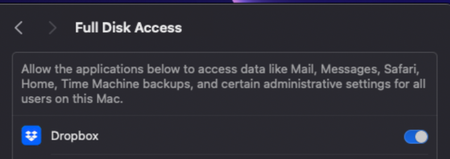
Dropbox reached out via email and this was the solution they gave me that solved my issue. Posting here for visibility as I know this is a common MacOS problem at the moment.
1) Stop the Dropbox desktop application (if needed)
- Click on the Dropbox icon.
- Choose Quit/Stop/Exit
2) Open your Terminal app (Located at /Applications/Utilities/Terminal)
3) Copy and paste the following lines into the Terminal, one at a time, and press RETURN after each one. PLEASE make sure you copy and paste these commands (don't type them by hand), as getting them wrong could cause some harm. You'll be prompted for your computer user's password (not your Dropbox password) after entering the first command. Keep in mind that the password field in the terminal will remain blank as you type your password. After you type it, just press ENTER. You'll know that these instructions complete normally once the initial line of text (called prompt) comes up again:
sudo chflags -R nouchg ~/Dropbox ~/.dropbox
sudo chown "$USER" "$HOME"
sudo chown -R "$USER" ~/Dropbox ~/.dropbox
sudo chmod -RN ~/.dropbox ~/Dropbox
chmod -R u+rw ~/Dropbox ~/.dropbox
Please note that once the prompt displays, the instruction completed the requested task, and is ready for the next command. If the command returns an error, or does not respond after an hour, you may want to try restarting your computer and try these steps again.
If you have any questions before you do this, or if you see an error after running one of these commands, please let us know!
4) Restart Dropbox from Applications

Hannah Dropbox Community Moderator
7 days agoDropbox Community ModeratorHi from me as well, andrewwevers.
Thanks for the update and the additional info.
Have you noticed that this is happening with particular types of files? Or is it happening with any file?
Also, is it happening with files you add to the Dropbox folder on this computer, or files added from other computers that are trying to sync to this one?
Lastly, what exactly is the message you see when simply hovering over the Dropbox icon in your menu bar (without clicking on it)?
andrewwevers
7 days agoNew member | Level 2
Hey Hannah ,
Happening with any files, I am specifically using JPGs. It is happening when I add to the Dropbox folder on this specific computer. This is what it looks like when I hover over the dropbox Icon in my menu bar.
- Megan7 days ago
Hi andrewwevers, no worries!
I'm just going to go ahead and reach out via email, in order for us to investigate further.
Reply back to me, and we'll take it from there! Thank you.

About Apps and Installations
Have a question about a Dropbox app or installation? Reach out to the Dropbox Community and get solutions, help, and advice from members.
The Dropbox Community team is active from Monday to Friday. We try to respond to you as soon as we can, usually within 2 hours.
If you need more help you can view your support options (expected response time for an email or ticket is 24 hours), or contact us on X, Facebook or Instagram.
For more info on available support options for your Dropbox plan, see this article.
If you found the answer to your question in this Community thread, please 'like' the post to say thanks and to let us know it was useful!


