Need to see if your shared folder is taking up space on your dropbox 👨💻? Find out how to check here.
Forum Discussion

suethomo
3 years agoExplorer | Level 3
Dropbox Backup partially backup, not updating.
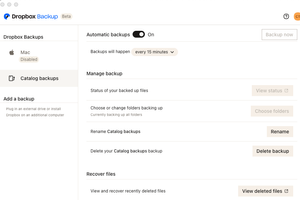
When I go to manage my backups the Mac is Disabled. I am backing up 3 folders from my computer hard drive. They are only partially backup and not updating. Screen shots to help explain.

Nancy Dropbox Community Moderator
2 years agoDropbox Community ModeratorThanks Alan! From your screenshots, I don’t see see any icon suggesting that this folder is being ignored specifically.
However, I‘d like to make sure that computer backup has been set up properly (as I can see there’s a “My files in Dropbox” shortcut, which can indicate something’s not being backed up right.
Please send me two more screenshots of what you see on your Backups tab here and online here.
Finally, did you perform any reinstalls of the Dropbox app in the meantime?

25glenmore
2 years agoExplorer | Level 4
Nancy
The Ignore Icon is on the "My Files in Dropbox" folder that dropbox placed on my desktop and moved "Server-5" Folder inside it. that seems to be the issue how do i remove the Ignore icon from the "My Files in Dropbox" folder?
See folder Top left of the screen grab below.
- Jay2 years ago
Hi 25glenmore, at this point, I'd recommend contacting the support team directly so that they can assist you with more account and device-specific information.

About Apps and Installations
Have a question about a Dropbox app or installation? Reach out to the Dropbox Community and get solutions, help, and advice from members.
The Dropbox Community team is active from Monday to Friday. We try to respond to you as soon as we can, usually within 2 hours.
If you need more help you can view your support options (expected response time for an email or ticket is 24 hours), or contact us on X, Facebook or Instagram.
For more info on available support options for your Dropbox plan, see this article.
If you found the answer to your question in this Community thread, please 'like' the post to say thanks and to let us know it was useful!


