Need to see if your shared folder is taking up space on your dropbox 👨💻? Find out how to check here.
Forum Discussion

Andreas W.12
10 years agoNew member | Level 1
Mobile: Exporting: "Save to Camera Roll"-option not available
Hi!
I use dropbox to sync up my files from my computer to my mobile devices (iphone and iPad). When I tried this morning to save my files to my phone, I discovered that the "Export"-button was missing and had been replaced by a share button (profile with a plus sign next to it). So my question is: How do I download my files (images in this case) to my camera roll on my phone?
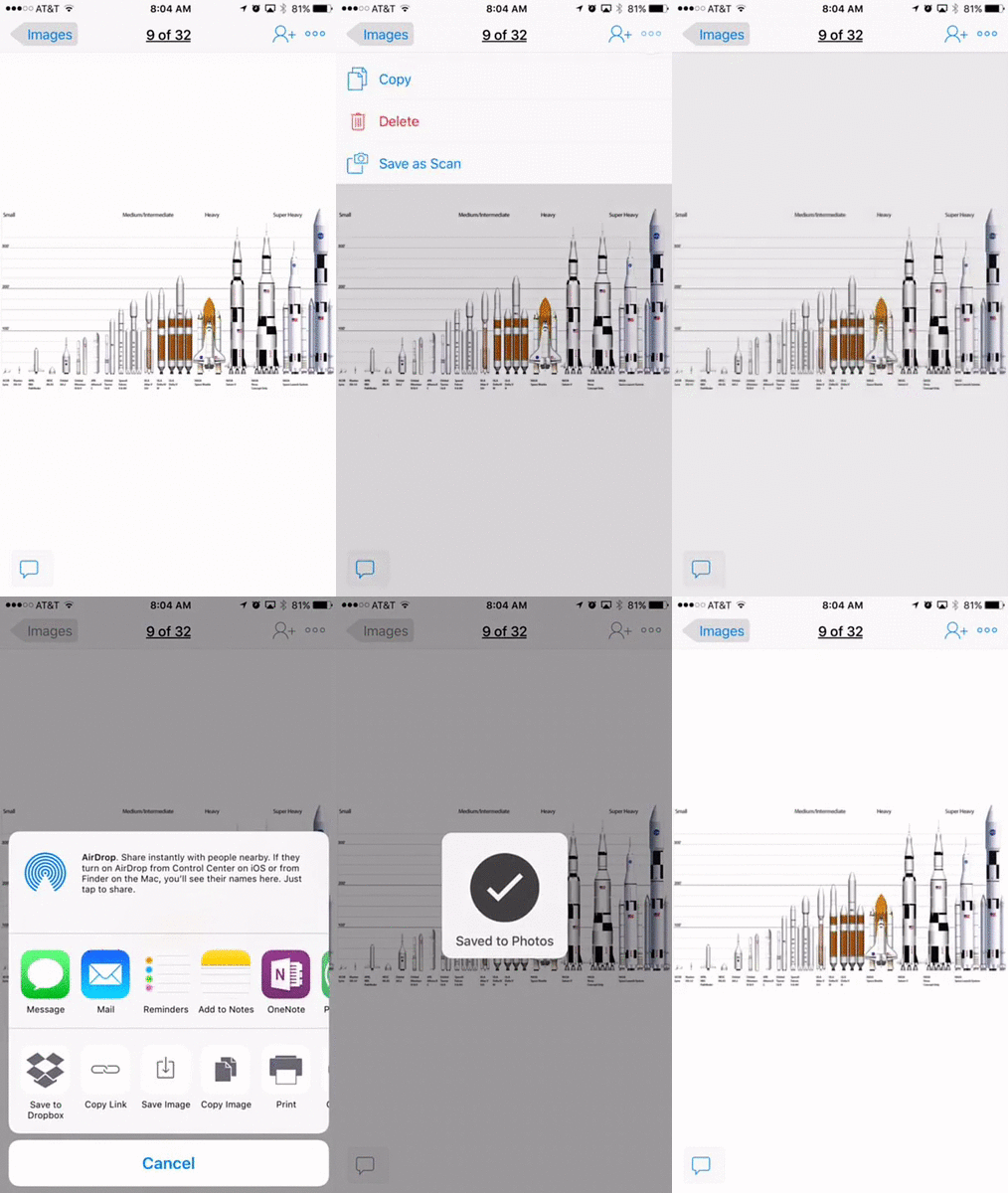
Tap the three dots in the upper right corner of the screen. Tap Share via... and then Save Image.

27 Replies
Replies have been turned off for this discussion
- themaestro0239 years agoExplorer | Level 4Sent a support ticket today, hope you got it ok
 venik2129 years agoExplorer | Level 3
I have the same issue with my Samsung Note 4 (Android 6.0.1) from T Mobile. There is no EXPORT option or SAVE TO DEVICE-- only MOVE option, which only allows moving to annothher Dropbox folder. Being unable to perform such a trivial operation is a major embarassment for Android and Dropbox. It makes Dropbox on Android almost useless for me.
 dojima9 years agoHelpful | Level 5
When I export a photo from Dropbox to my device, it's not immediately viewable in any app. It seems Dropbox doesn't automatically update the mediastore database when exporting files. Any ideas?
Thanks.
 acachia9 years agoNew member | Level 2
THANK YOU SO MUCH for mentioning the DCIM folder.
Even easier than this method to circumvent having to connect your phone:
1. Save all your photos to your computer's Dropbox folder.
2. Open Dropbox mobile app on your phone.
3. Select your photos, then "Save to Device" and navigate to your phone's DCIM folder, saving them there.
4. Now all the photos will appear naturally in Android's Gallery.
Piece of cake. This is particularly useful if you're trying to upload photos to Instagram, as now they will show up in the app.
This has saved me SO much headache in trying to upload multiple photos I've edited in Lightroom to Instagram without using third-party apps that violate their TOS.
 anonymous9 years ago
This is what work for me.
Open the Dropbox app.
Find the photo you need. Click on the arrow to the right.
Chose "Export".
Chose alternative: Upload to Photos.
Open the app Photos.
Chose: Save to the device.
Now the photo is available for all other apps on the device.
- anonymous9 years ago
I should add the there is an alternative "Save to device" at the top of "Export" menue. For some reason this alternative is grayed out for me (it is not available). But if it is active on you device, than you don't need to use "Photo" app at all.
- Jane9 years ago
Dropbox Staff
Hey all,
Seems that there are many users who would like to use this functionality more!
To export your files to your Camera roll, you could just follow these steps (just summarizing Rich's reply above):
- Open the Dropbox app and open the photo or video that you would like to export
- Tap the ellipsis (..) on the top-right and select “Export”
- Tap “Save Image” (or “Save Video”) to save this file locally to your Camera rollYou can also have a look at the Offlining feature here. :iphone:
Happy Dropboxing ahead, please let me know if you have more questions and I'd be glad to follow-up here!


About View, download, and export

Need support with viewing, downloading, and exporting files and folders from your Dropbox account? Find help from the Dropbox Community.
The Dropbox Community team is active from Monday to Friday. We try to respond to you as soon as we can, usually within 2 hours.
If you need more help you can view your support options (expected response time for an email or ticket is 24 hours), or contact us on X, Facebook or Instagram.
For more info on available support options for your Dropbox plan, see this article.
If you found the answer to your question in this Community thread, please 'like' the post to say thanks and to let us know it was useful!