Need to see if your shared folder is taking up space on your dropbox 👨💻? Find out how to check here.
Forum Discussion

Andreas W.12
10 years agoNew member | Level 1
Mobile: Exporting: "Save to Camera Roll"-option not available
Hi!
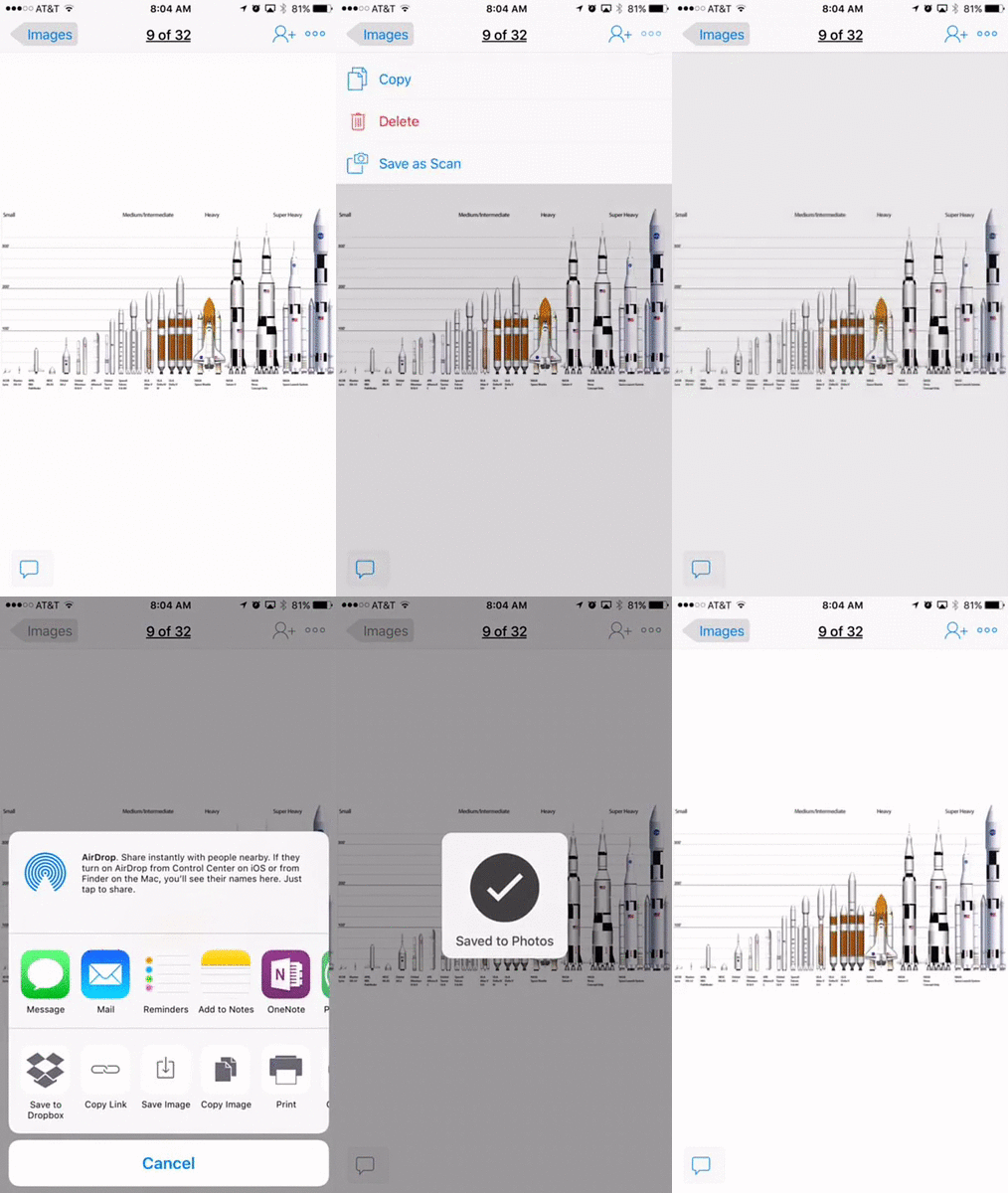
I use dropbox to sync up my files from my computer to my mobile devices (iphone and iPad). When I tried this morning to save my files to my phone, I discovered that the "Export"-button was missing and had been replaced by a share button (profile with a plus sign next to it). So my question is: How do I download my files (images in this case) to my camera roll on my phone?
Tap the three dots in the upper right corner of the screen. Tap Share via... and then Save Image.

27 Replies
Replies have been turned off for this discussion
 Athena L.10 years agoNew member | Level 2
Came here to find the answer to this. Why add an extra step and make something no longer intuitive and more complicated? For me, this is the app's primary use.
 D. Alex10 years agoNew member | Level 1
Thanks a lot, Rich....I spent some time to find the answer. And here it is. However, I suppose things could be easier. It's just too complicated for the user to 1) open the pic 2) click "Share Via" 3) Save image. Not to mention that you have to do it one pic after another....Guess lots of folks use Dropbox to sync the files(esp. photos) between laptop and photos as I do...I do believe it's very important to keep it simple for the users to export the pic from Dropbox to phones.
 Ira Z.10 years agoNew member | Level 1
I have photos in Dropbox I'd like to put in my S6 Gallery.
 rAY b.910 years agoNew member | Level 1
How do I move photo from Dropbox to my SD card with dropbox 4.4?
- Scott H.2510 years agoNew member | Level 1
My use case is wanting to send files (usually pictures but other files as well) to people in text or email. I should be able to save a file to the local device (which is a Dropbox option) and then send that file directly in a text or email, not a link, without having to save it to my camera roll.
 Marcus O.10 years agoNew member | Level 2
- In your Dropbox app, you may browse to where your photos are. For example go to your Camera Uploads folder; the default place photos go to if you use the Dropbox Photo Upload feature.
- Next, you will need to long press on a photo to select one.
- You may then tap subsequent photos, or select all using the "double ticks" icon.
- Once done, you may press 3 dots icon, and then tap "Save to Device"
- You may then choose where to store the photos, then tap "Export"
Note that it may not be possible to store directly to the SD card in the above steps, you may need to use your File Manager on your phone to move it over to your SD card.
There are of course 3rd party syncing apps that actually sync Dropbox folders and your media to your SD card.
If you do a search, you may be able to find some useful ones.
- themaestro0239 years agoExplorer | Level 4
I have finally found a solution after searching the web and coming up empty. I have the Galaxy S7 edge and needed a couple of pics in my gallery from Dropbox. It may seem a bit complicated but with a bit of practice becomes easier to do.
First open Dropbox on your pc and find the pics you want to move. Copy and paste these pics to your desktop. (Don't just move them or they'll only be on your desktop and not in Dropbox anymore.) Next, connect your phone via USB to your pc, click to allow your pc to talk to your phone, (a little pop up window on your phone). Open the files on your phone and find where your pics are stored (device or sd card) and the folder is usually called DCIM. Then select all the pics on your desktop and drag and drop them to the folder in your phone. Disconnect the USB from your pc and you're finished.
When you open the gallery app (or wherever you stored the pics) all those Dropbox pics will be there.
- Zed9 years ago
Dropbox Staff
Hi everyone themaestro023 Ira Z. Marcus O. rAY b.9,
The easiest way to export a file to your external SD card using Dropbox on your mobile device is by following these steps:
- Tap the Quick Action button to the right of the filename
- Scroll down and tap “Export”
- Tap “Save to device”
- Select your external SD card** If you do not see your external SD card listed, while you are in the “Save to” menu (after tapping “Save to device”), tap “Menu” then “Settings” and then select “Display advanced devices”. You will then see your external SD card show up as an export location.
**Make sure to have the latest version of the app installed!**
Thank you!
- themaestro0239 years agoExplorer | Level 4Thanks for that but it doesn't work for the S7 edge running Nougat. After 'Save to' there are no other menu options. I had already tried your solution but the pic went missing on my phone so I decided to do it my alternative way where I could actually choose exactly where to place the pics.
The app cannot be updated through the Dropbox app (starts an endless loop) and has to be done through Google Play. - Ed9 years ago
Hi there - would you mind opening a support ticket with us here: https://www.dropbox.com/support so I can pass it on to our specialists to look into this?
Thanks


About View, download, and export

Need support with viewing, downloading, and exporting files and folders from your Dropbox account? Find help from the Dropbox Community.
The Dropbox Community team is active from Monday to Friday. We try to respond to you as soon as we can, usually within 2 hours.
If you need more help you can view your support options (expected response time for an email or ticket is 24 hours), or contact us on X, Facebook or Instagram.
For more info on available support options for your Dropbox plan, see this article.
If you found the answer to your question in this Community thread, please 'like' the post to say thanks and to let us know it was useful!