Your workflow is unique 👨💻 - tell us how you use Dropbox here.
Forum Discussion

Cordeirovitor
5 months agoNew member | Level 2
Folders and files status icons not working as intended on Windows
Application Affected Dropbox App for Windows Device Acer Helios Neo 16 Operating System/Browser (if using the web) Windows 11 24H2 Dropbox App Version (if using the app) 233.4.4901
Question ...
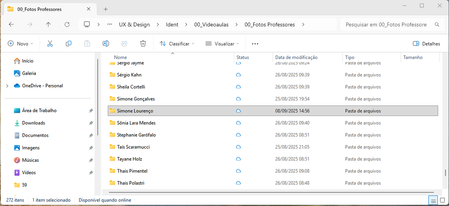
 5 months ago
I did the steps and it worked. This is what they've sent me:
- Log out of the Dropbox desktop app.
- Log back into the Dropbox desktop app.
- Click Open Dropbox.
- Make your selections on the onboarding screens.
- When the setup is finished, click Advanced settings from the final screen.
- Check the Opt out checkbox under Dropbox for Windows updates.

plutogenie
5 months agoHelpful | Level 5
Hi Hannah
I think the issue is more about behaviour that Dropbox used to have versus what it has now.
If we consider the following folders and contents as shown below:
All folders now have the Blue Cloud icon. Before the update, Dropbox would have shown a green tick with an outline for the first folder, and also the last folder. The contents of the first folder in the above example looks like:
The third folder looks like the following:
And the subfolder looks like the following:
With the Dropbox behaviour before the update, it was easy to see which folders had any offline files, by making it easy to drill-down as necessary.
But as you can see with the examples above, that is no longer the case. In the first image, there is no way of knowing which folders contain any offline files (or subfolders with offline files) because the icon is exactly the same.
I understand that, since the update, the icons above do conform to the new meaning of the icons at:
https://help.dropbox.com/sync/sync-icons-windows
But the problem is that the Windows/OneDrive meaning of the tick with a green outline (which is what Dropbox now follows) is quite different to the original meaning it had in Dropbox. I assume, unfortunately, that Dropbox no longer has any control over the icons used, or their meaning and behaviour, because this is now in the control of Microsoft, not Dropbox.
In my view, Dropbox's decision to switch to Microsoft's status icons is a step backwards. It means I might as well just use OneDrive now, and no longer use Dropbox. My switch to Dropbox was largely because its status icon approach was different to Microsoft.
What is worse, Dropbox doesn't give users the choice to keep the original status icon approach. The change just happened suddenly, with no warning, and no way to stop the update from occurring. There was no opt-out option.

Megan Dropbox Community Moderator
5 months agoDropbox Community ModeratorHey plutogenie, thanks for letting me know more about this!
Your feedback regarding our Dropbox desktop application has been very valuable and I will endeavor to make sure your voice is heard.
We listen to your needs because it allows us to fully appreciate how Dropbox fits into and influences your daily routine. I'll forward your feedback to the appropriate areas so we can continue to improve.
If you need something else, please let me know and I will be more than happy to help every step of the way.
About Apps and Installations
Have a question about a Dropbox app or installation? Reach out to the Dropbox Community and get solutions, help, and advice from members.
The Dropbox Community team is active from Monday to Friday. We try to respond to you as soon as we can, usually within 2 hours.
If you need more help you can view your support options (expected response time for an email or ticket is 24 hours), or contact us on X, Facebook or Instagram.
For more info on available support options for your Dropbox plan, see this article.
If you found the answer to your question in this Community thread, please 'like' the post to say thanks and to let us know it was useful!


