Your workflow is unique 👨💻 - tell us how you use Dropbox here.
Forum Discussion

Xavier Montaner
1 year agoHelpful | Level 5
I'm working with Adobe Lightroom Classic and Dropbox doesn't sync some .db files
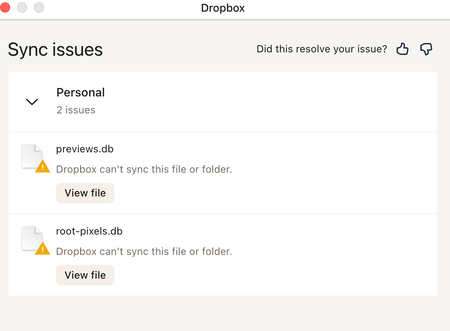
Hi everyone. Using Lightroom Classic and Dropbox. I am getting messages from Dropbox that some preview files can sync. See attached. Also when I sync again folders with my computer thumbnails are...
 1 year ago
Hi everyone!
Quick update:
The data transfer was successful. I deleted the old data, and now everything is working again with Lightroom - the error message about synchronization issues is gone.
Thank you very much for the help and have a great weekend.
Best regards,
Carina

Xavier Montaner
1 year agoHelpful | Level 5
Hi Megan, thanks for your help.
Around that time, yes... Device, Macbook Pro M1, macOS Sonoma 14.5

Megan Dropbox Community Moderator
1 year agoDropbox Community ModeratorHey Xavier Montaner, in regards to the syncing issue: would you mind clicking "View file" and let me know where you're re-directed to?
Are these 2 database files?
As for the hidden folders that you mentioned I did some digging, and this is what I could find online: "the Group Containers folder on a Mac is a directory that contains data and settings related to different applications and services. Each application or service that uses the Group Containers folder has its own subfolder within it."
If you open the 201.14GB folder, what do you see there?
- Xavier Montaner1 year agoHelpful | Level 5
Thanks Megan. Please see below...
- Megan1 year ago
Hey Xavier Montaner, it sounds like the db files are database files, right?
Keep in mind that we generally don't recommend that people sync live databases with Dropbox.
Most databases have remote access methods anyway, so you don't need to sync the live database. You can sync saved snapshots, however, with no issues.
That said, you can use Dropbox to share the data, but you need to take great care and understand how file syncing works.
Most programs create a "file lock" on any file that they are using, and this lock will prevent Dropbox from syncing the file. In some cases you must fully quit the application before Dropbox can sync the data. You must then make sure Dropbox has finished syncing before trying to access the file from any computer.
As for the folder "Group containers" it looks like you could empty it without affecting Dropbox.
- Xavier Montaner1 year agoHelpful | Level 5
Thanks. Makes sense what you say. Saying that, I have been using Dropbox and Lightroom for years without any issues until Dropbox made the upgrade. I am not an expert person when it comes to computers and software. I am also pretty sure that other users are experiencing issues using both. Considering the massive amount of users that use Adobe Lightroom, if you and Adobe could find a way to make things easier, you would get on board many more customers.
- carina831 year agoHelpful | Level 6
Hello everyone,
I’m joining this communication because I have the same problem.
Here are some details about my equipment:
iMac 27 inch 2019
macOS Sonoma 14.5
Adobe Lightroom Classic
Version 13.4 Camera Raw 16.4
Dropbox 202.4.5551
Xavier Montaner's problem describes exactly my issue.
Unfortunately, closing Lightroom doesn’t help, the synchronization problem persists.
The only way I can synchronize the files without any issues is by moving them from Dropbox to my desktop, editing them there, exiting Lightroom, and then moving them back to Dropbox. With this approach, I don’t get any error messages regarding the .db files.
Since closing Lightroom doesn’t help - are there any other options/settings?
Or is using an older version of Dropbox the only solution?
If so, which is the last version that doesn’t have a "CloudStorage" folder?
I would appreciate a quick response.
Best regards, Carina
- Jay1 year ago
Hi carina83, the only option remaining would be to sign out of the Dropbox desktop application, and then back into your account.
This would make the account revert to the old format before the CloudStorage folder, and it would resync all the files again from the site.
- carina831 year agoHelpful | Level 6
Hi Jay!
Thanks for the quick response. Unfortunately, I am not very technically skilled, so I have a few more questions:
Do I just need to log out and log back in, or do I need to uninstall the app as well? And which version should I reinstall?
What do I need to pay attention to so that I don't end up in the CloudStorage folder again?
Thanks in advance for your help!
Many greetings
Carina - Jay1 year ago
You don't need to uninstall the app, all you need to do it is sign out of the account in the desktop app, and then sign back in using the steps linked in my previous post.
This should revert the desktop app to the old Dropbox folder location.
- carina831 year agoHelpful | Level 6
Hi,
I have now logged out of my Dropbox and logged back in.
Dropbox is still located in Library - CloudStorage.What went wrong?
Additional information:
In the settings, under synchronization, the storage location of the Dropbox folder shows the info: In this version of macOS, Dropbox folders are stored in a predetermined location.
Best regards,
CarinaEdit:
I found the settings during the installation where I can choose my own storage location.
It is now back under User-my-Dropbox.There is still the Library folder on my Mac and it includes Dropbox.
When I click on it, it says: This Dropbox folder is not linked.Can this folder be deleted, or will it cause problems?
I don't want to delete all the data in Dropbox and then not be able to access it.
I hope you understand my concern. - Nancy1 year ago
Hey Carina, hope it’s alright if I jump in.
What’s the syncing status of your Dropbox app now? Is it up to date?
If you open your Dropbox folder under the new location (under “Users”), do you see all your Dropbox files along with syncing icons next to them?
I’d like to make sure everything’s syncing properly before taking any actions on the previous Dropbox folder.
- carina831 year agoHelpful | Level 6
Hi everyone!
Quick update:
The data transfer was successful. I deleted the old data, and now everything is working again with Lightroom - the error message about synchronization issues is gone.
Thank you very much for the help and have a great weekend.
Best regards,
Carina


About Integrations
Get help with third-party integrations from the Dropbox Community.
The Dropbox Community team is active from Monday to Friday. We try to respond to you as soon as we can, usually within 2 hours.
If you need more help you can view your support options (expected response time for an email or ticket is 24 hours), or contact us on X, Facebook or Instagram.
For more info on available support options for your Dropbox plan, see this article.
If you found the answer to your question in this Community thread, please 'like' the post to say thanks and to let us know it was useful!


